
It’s easy to create a new contact in ProCharted, whether it’s an organization or an individual. Here, we’ll show you how to add a new contact in a few simple steps.
Step 1: In the top left hand corner of the home page, click on the plus icon. A pop-up menu will appear. Click on “New Contact.”
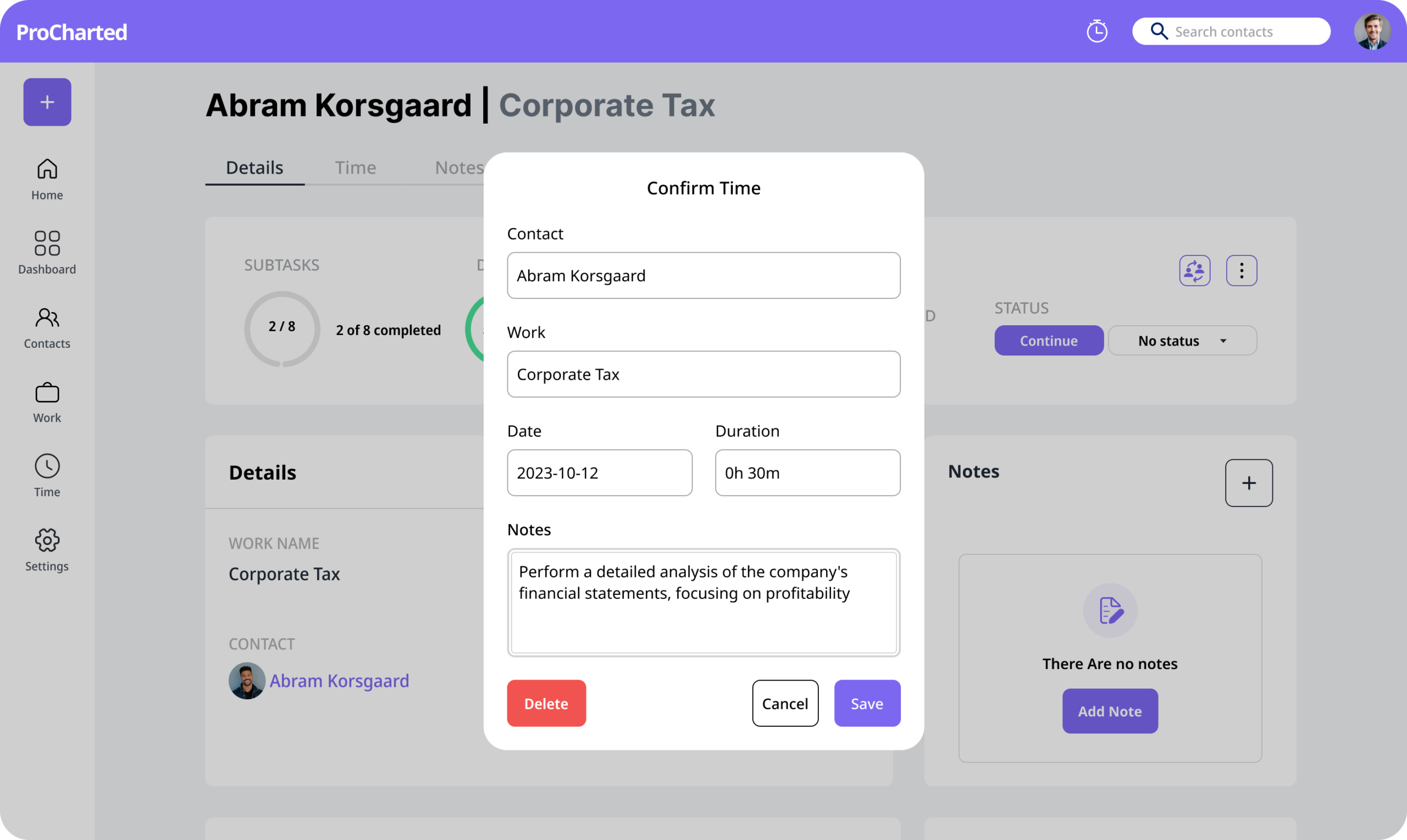
Step 2: A new pop-up menu will appear. Select “Individual” or “Organization” based on your preferences.
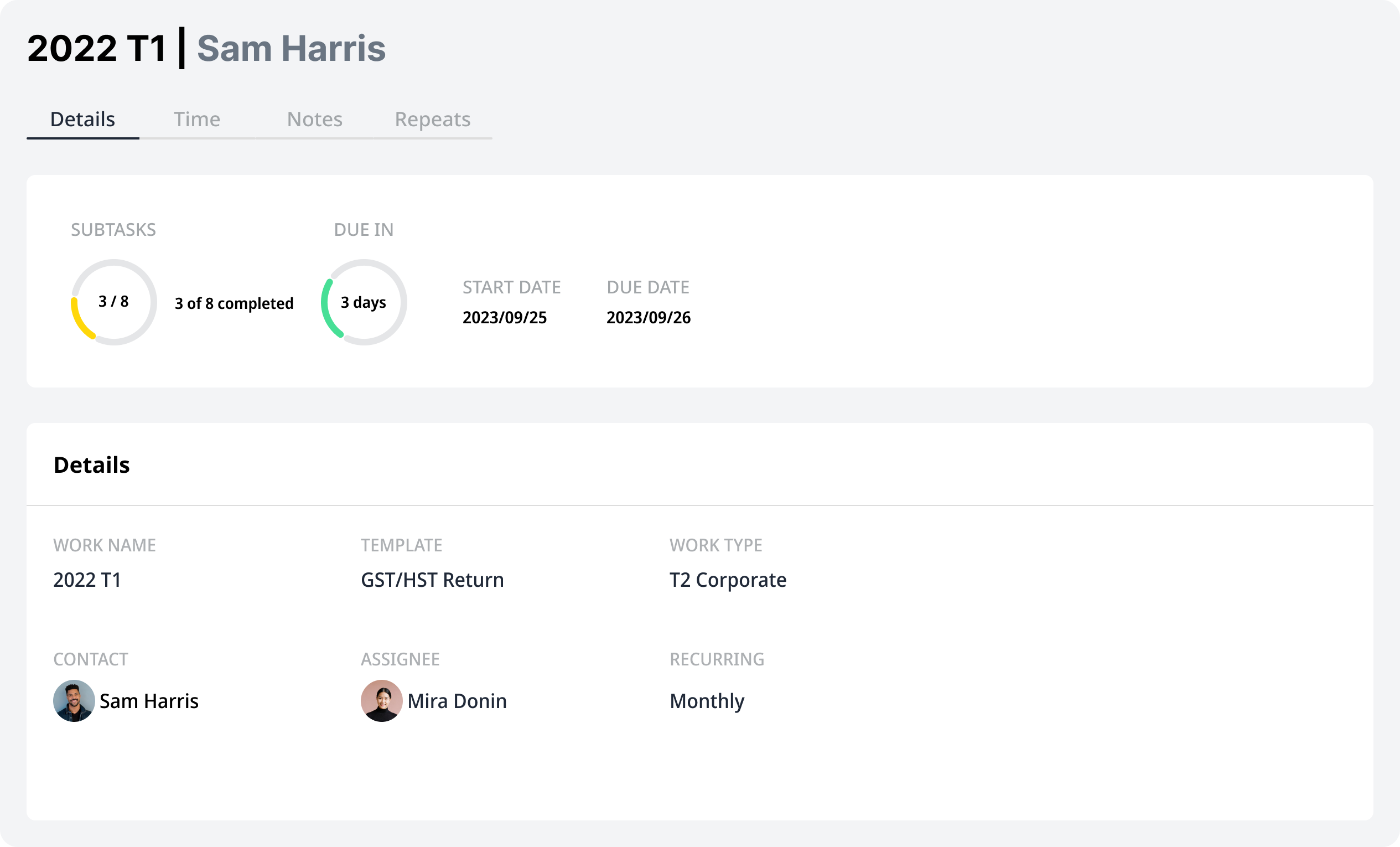
Step 3: A form with text fields will appear based on your selection. Fill out the fields with as much information as you have. Fields with an asterisk (*) are required in order to create the contact. All other fields are optional.
Step 4: Select the contact type: Client, Prospect, or Other. If you’re not sure, don’t worry – you can edit this information later if necessary.
Note: In the Organization contact type, you can connect an existing contact to the organization with the Contact Person dropdown menu. You can also create a new contact from the dropdown menu:
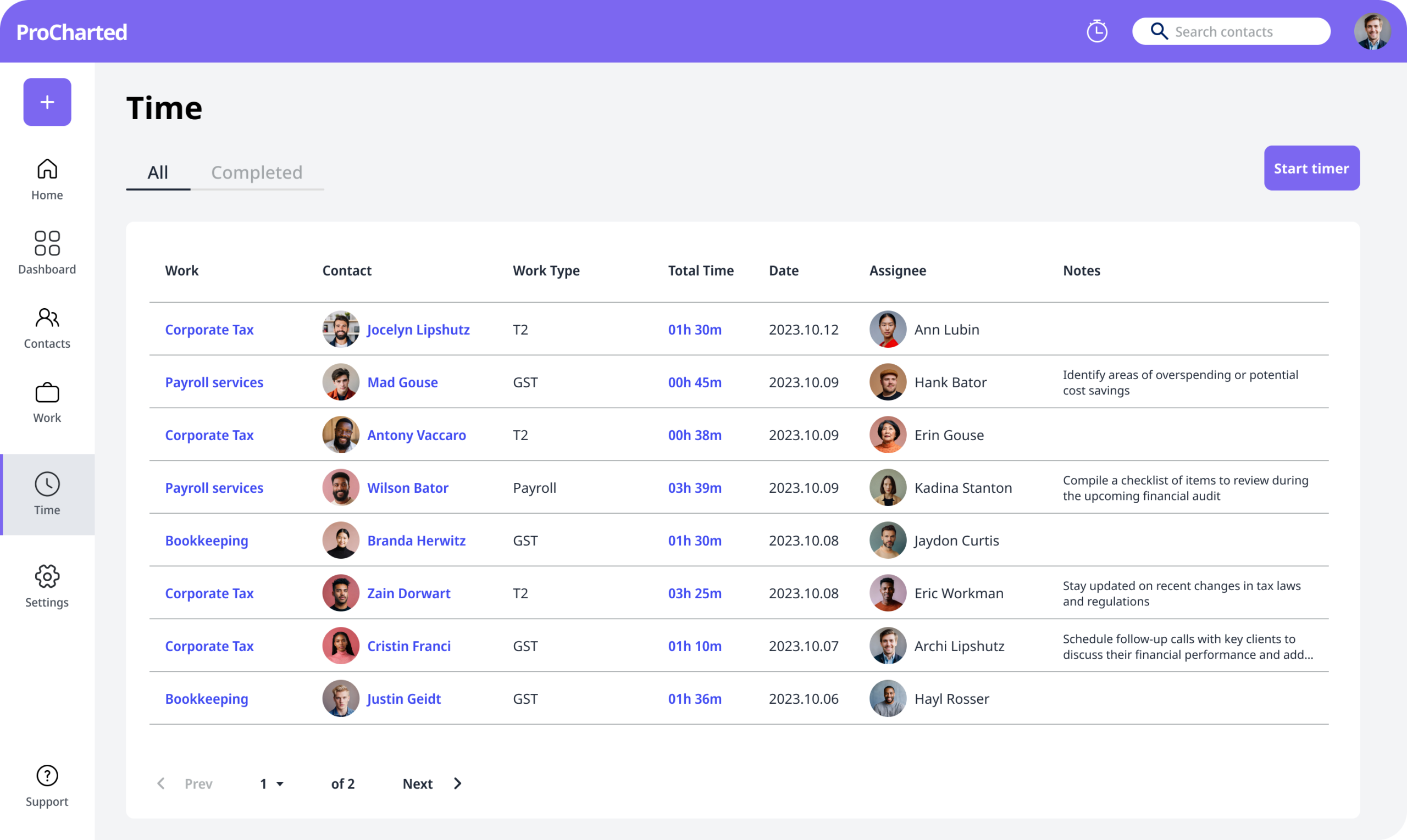
Step 5: At the bottom of the form, select “Create.” And you’re done! A new screen will pop up with the contact’s name and the basic information you entered.
Have questions? Please don’t hesitate to contact us for more support!