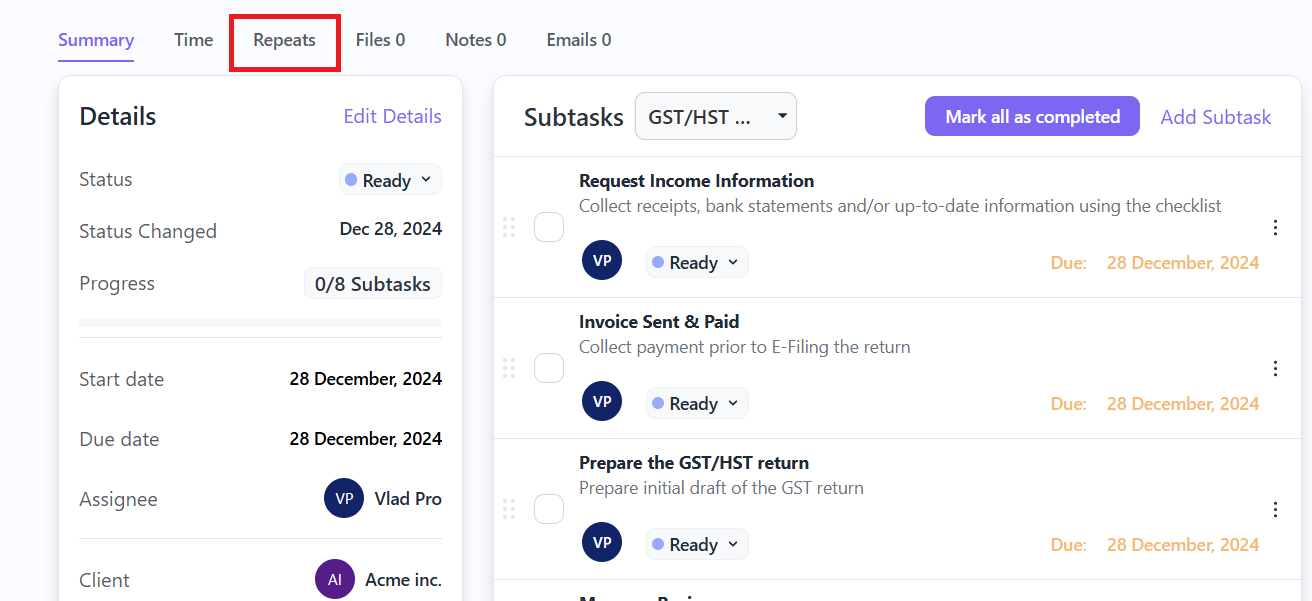
You can automatically repeat work items in PC so you don’t have to recreate them manually. This is useful when you have services that you provide on a regular basis throughout the year, like monthly bookkeeping, bi-weekly payroll etc.
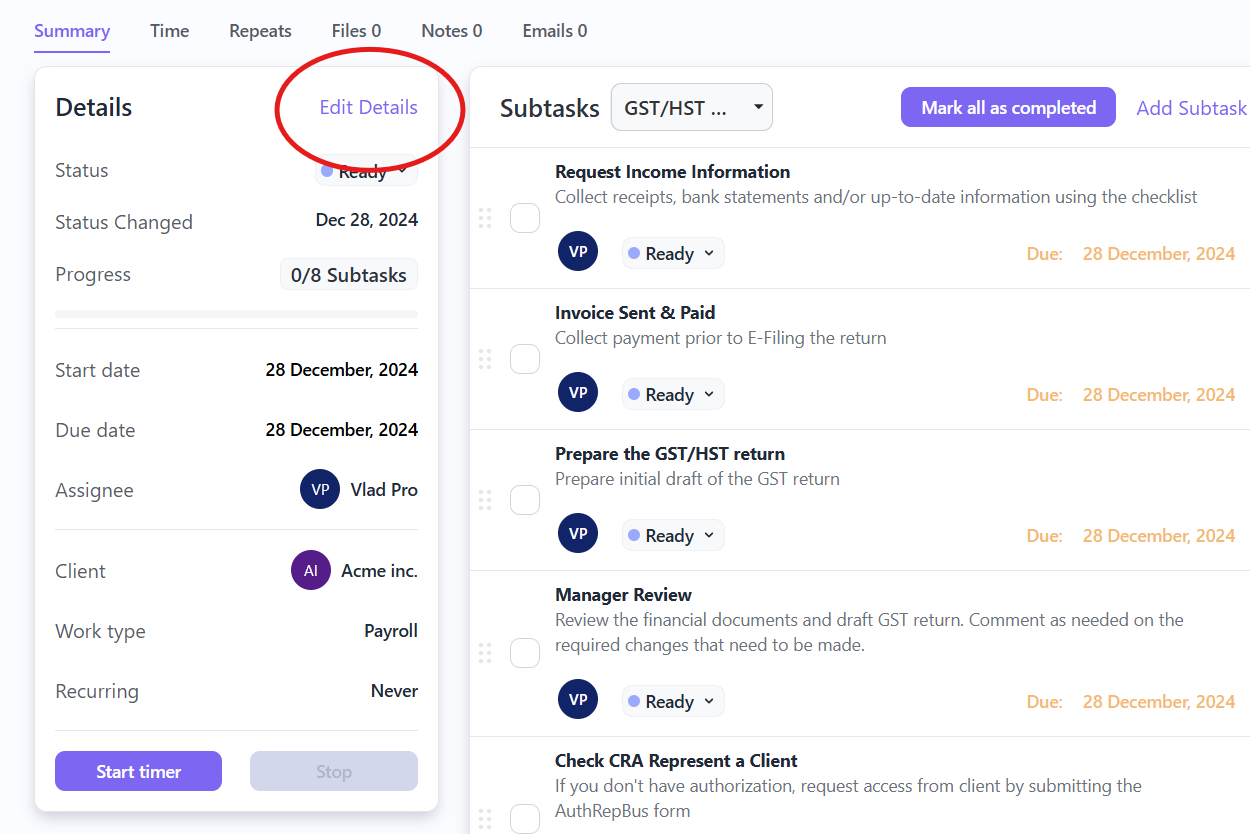
Step 1: Click “Edit Details”
After creating a work item, click on “Edit details” on the left section.
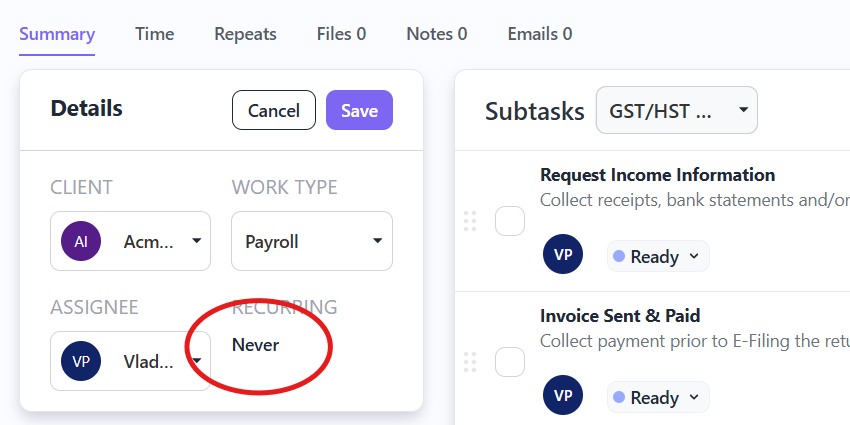
Step 2: Click on “Never”
Click on “Never” or whatever the current schedule is
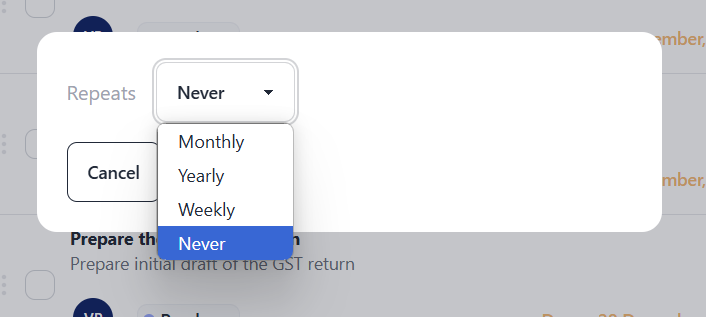
Step 3: Choose the period (Monthly, yearly or weekly)
Step 4: Setup your repeat schedule as needed.
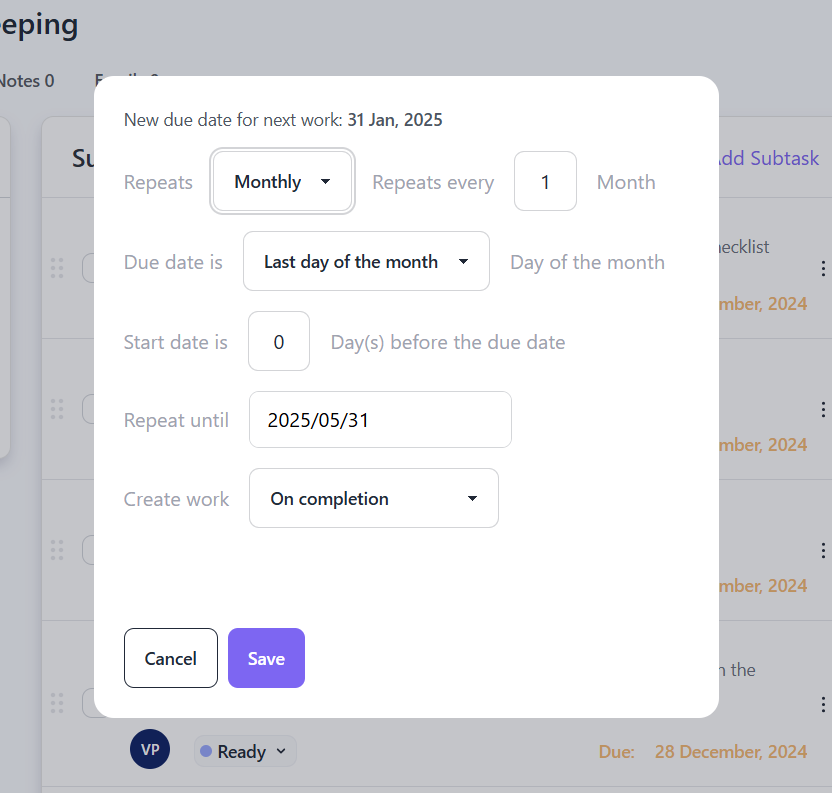
Due Date: This allows you to set up the due dates for all future work items. The option you select here will apply to all future work items.
Start Date: You can set up the start date to be “X” number of days before the due date. This does not affect when the work item is created or any other aspect of the recurring schedule.
Repeat Until: This field sets the “expiration date” for your recurring items. The date you enter will determine the last day a work item is created.
Create work on completion: The next scheduled work item will only be created when the latest work item is set to “Completed” (or any of the other green statuses).
Create Work on a Specific Date: This option creates the next work item “X” number of days before its start date (as set up in the “Start Date” field above), regardless of the work item’s status or other factors.
Create Work Immediately: This option creates all future work items immediately.
*Please note that it may take up to 5 minutes for the newly scheduled work to be created.
Custom Schedules
To create a quarterly schedule, select “Monthly,” then set it to repeat every 3 months.
Use the same logic for other custom schedules.For example, a bi-weekly recurring event can be scheduled by selecting “Weekly” and setting it to repeat every 2 weeks.
To edit an existing schedule:
Simply click on Edit Details, make the necessary changes, and click Save. The adjustments you make will apply to all future work items.
To stop a repeat schedule
If you want to stop the recurrence, change the schedule to “Never”. This will prevent the work item from being repeated again.
View list of repeated items
You can view all the repeated work items you created by clicking on the “Repeats” tab.