
Welcome to ProCharted! Here, we’ll walk you through all the basics you need to start optimizing your workflow with some of ProCharted’s key features.
Your home page: an overview
Your home page is a hub where you can navigate to work items, time tracking, contacts, billing and more in just a few clicks. When you log in, your home page is the first screen you’ll see.
At the top, you’ll see an overview of all your pending due dates, broken down by week. Click on the boxes at the top to switch between weeks for a longer-term view of what’s coming up in your pipeline.
Above those, there are some tabs that specify what work you see. The first tab, called “My week” will show you all the work items that are assigned to you. The “Firm Work” tab will show you all the work items at the firm and “Team’s Work” will show you all the pending work for your colleagues.
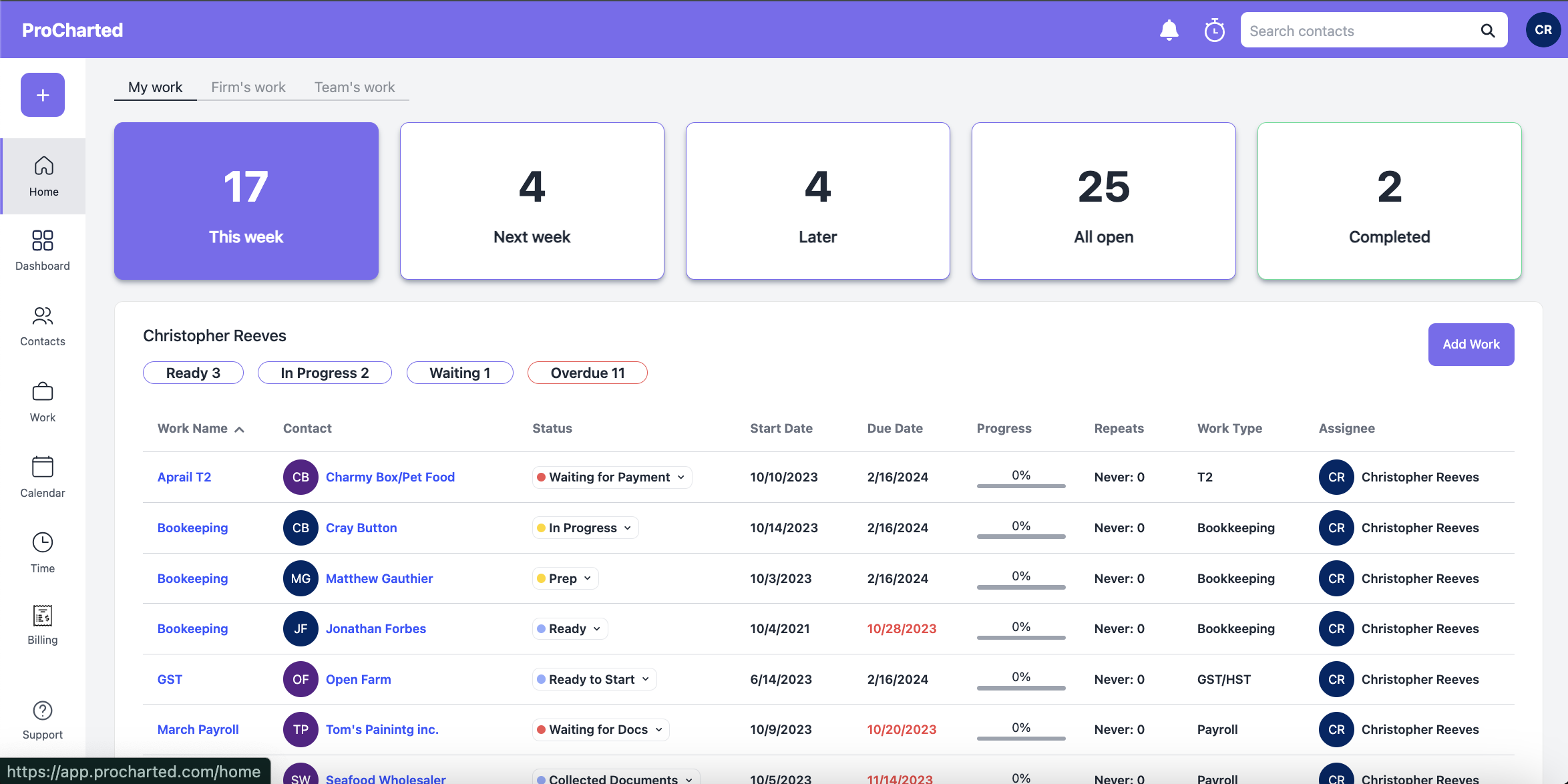
From here, you can also click on the plus sign on the top left hand corner to add a new contact, work item, invoice, payment, or record time.
Get to know the main features of Procharted:
Work
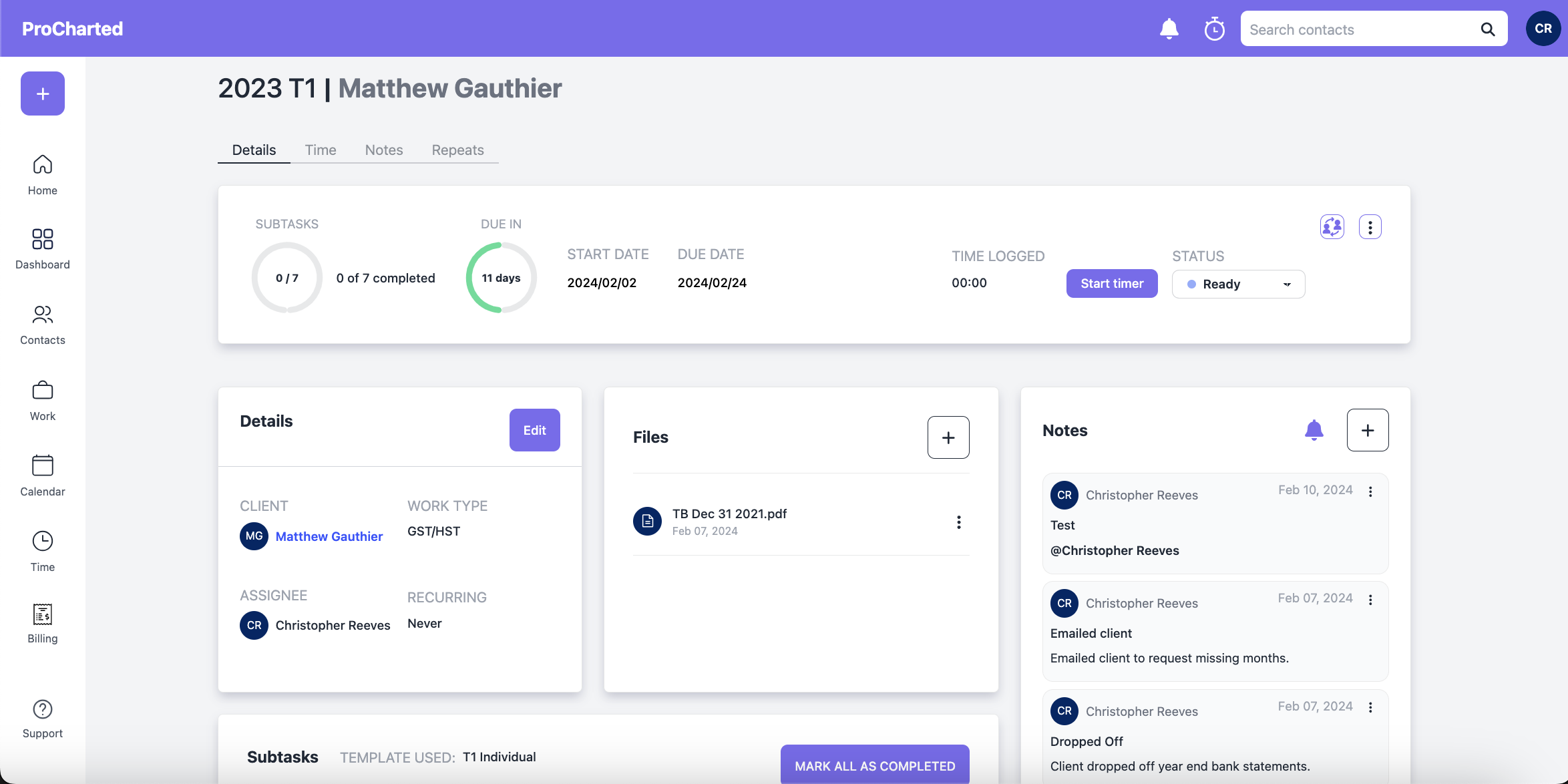
Think of work as a job or a project; for example, a corporate year end or a personal tax return. Inside a work item, you can do everything related to that particular project. From uploading documents to leaving notes and tracking time, it’s your one-stop hub of information.
A work item also includes a list of subtasks. Subtasks are like a checklist that needs to be completed before the work item is finished. Your trial comes with a set of pre-made subtasks, but you can create your own or modify the existing ones.
Click here to learn more about Work Items.
Contacts
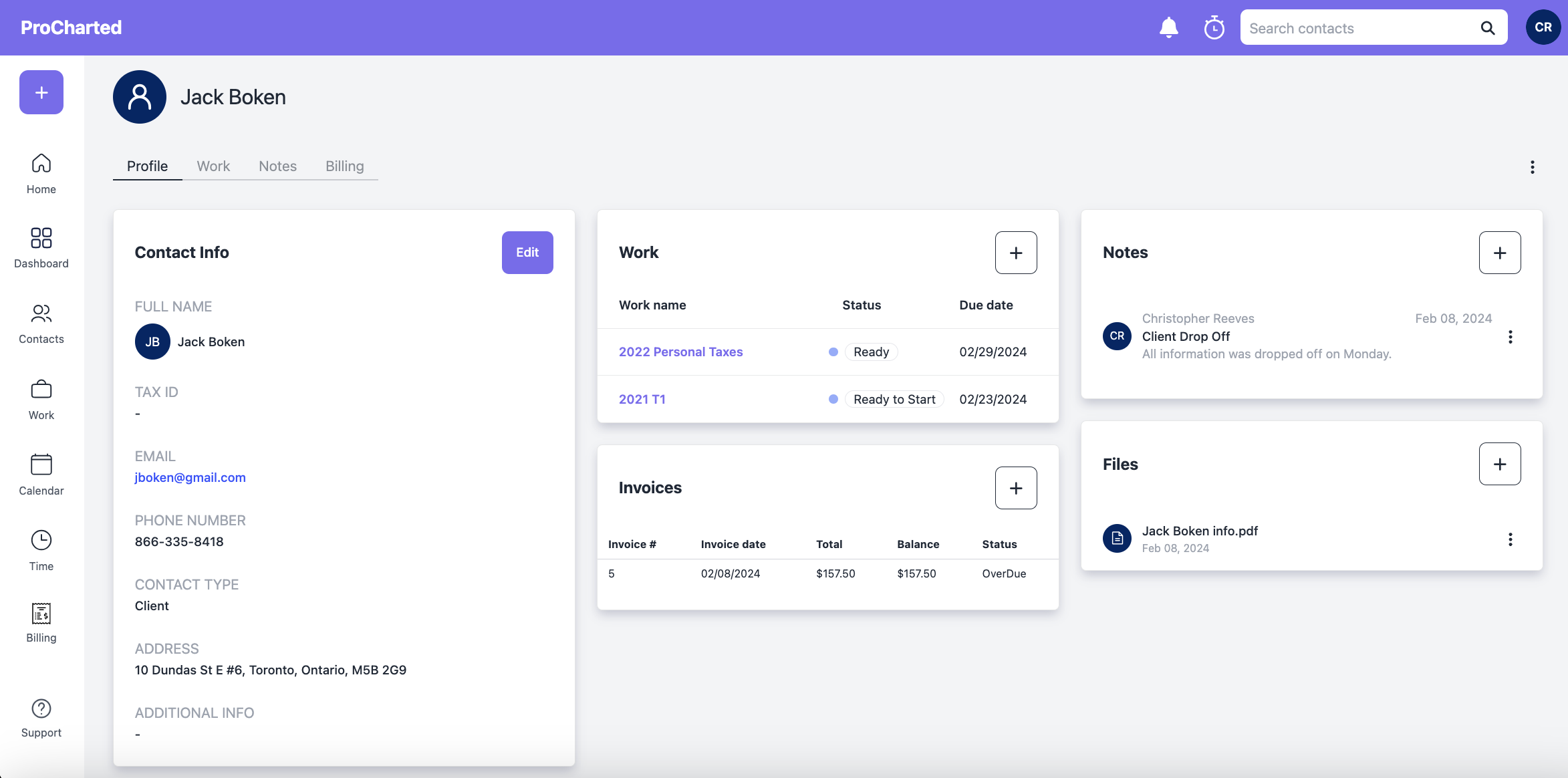
Every work item is connected to a contact. Before you can start on work items, you should have some contacts created. Once you do, you can store all your clients’ important information like address, business number, year end info, email, phone number and more. You can also upload documents, leave notes and view all pending work and invoices related to that client, all on one screen!
Time
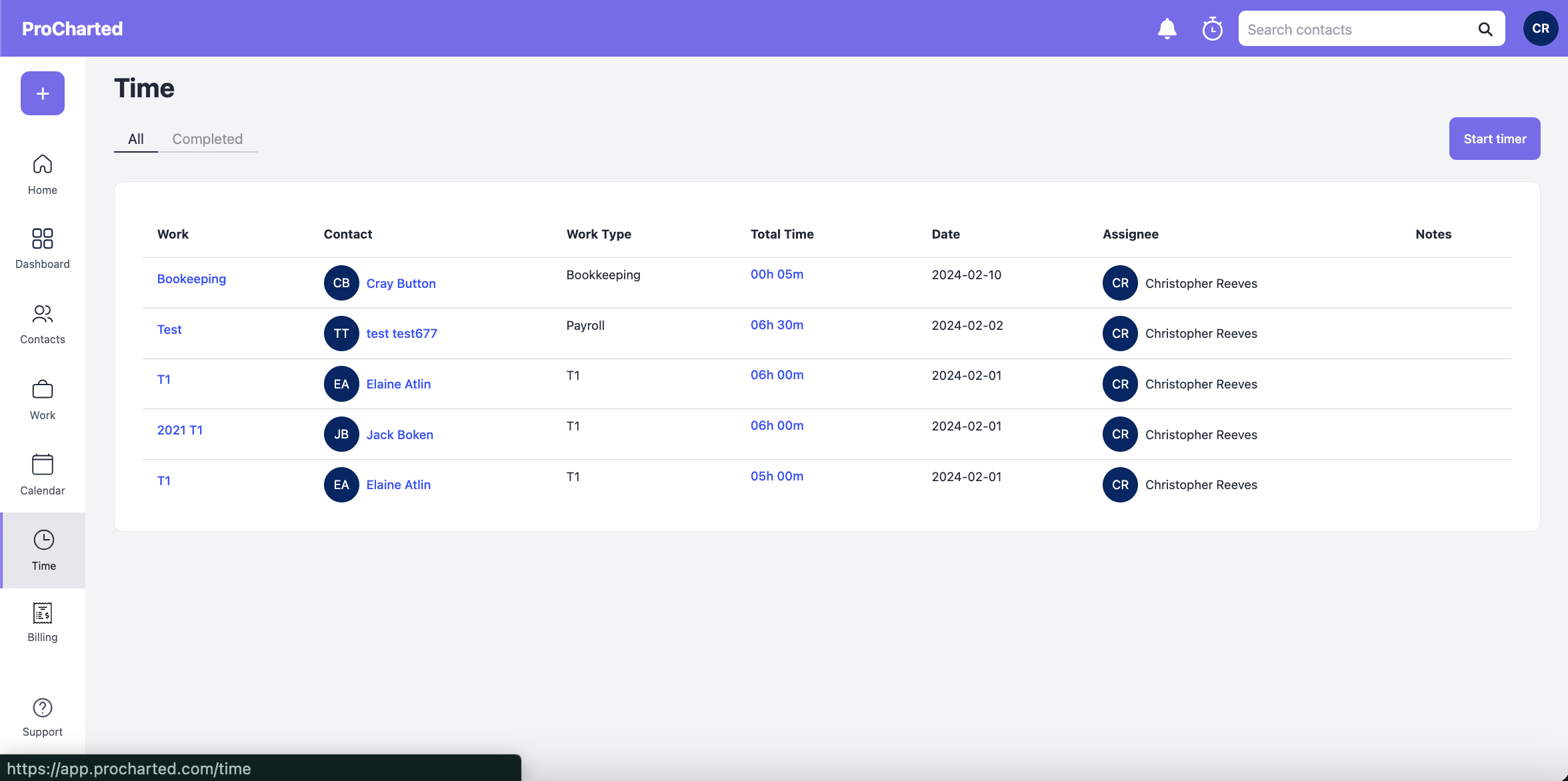
In ProCharted, you can track time on every screen. Once you start the timer, it will run in the background, even if you close the window or computer. Once you’re done, just stop the timer and the data is recorded. You can edit the time entry after it’s saved in the Time window if you want to make adjustments – this can help you bill clients accurately.
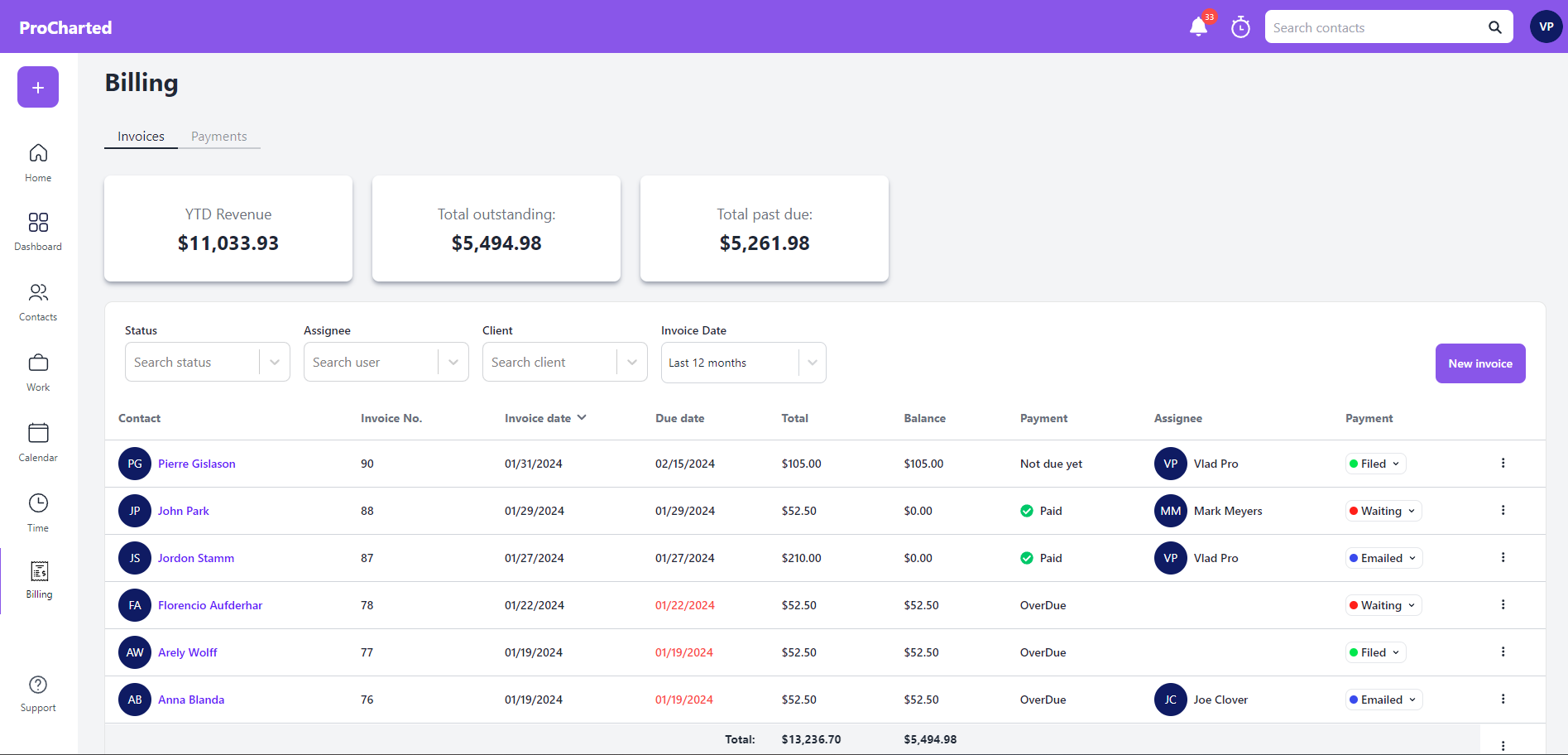
Billing
With billing, you can create branded invoices, issue them, and record client payments. ProCharted makes it easy to create an invoice for your client, send it, and track payments. You’ll be able to select payment terms, services, and other details in just a few clicks.
Once your client pays, record it using the payment feature and your pipeline will automatically be adjusted. You can also set customizable statuses so you can keep track of their progress.
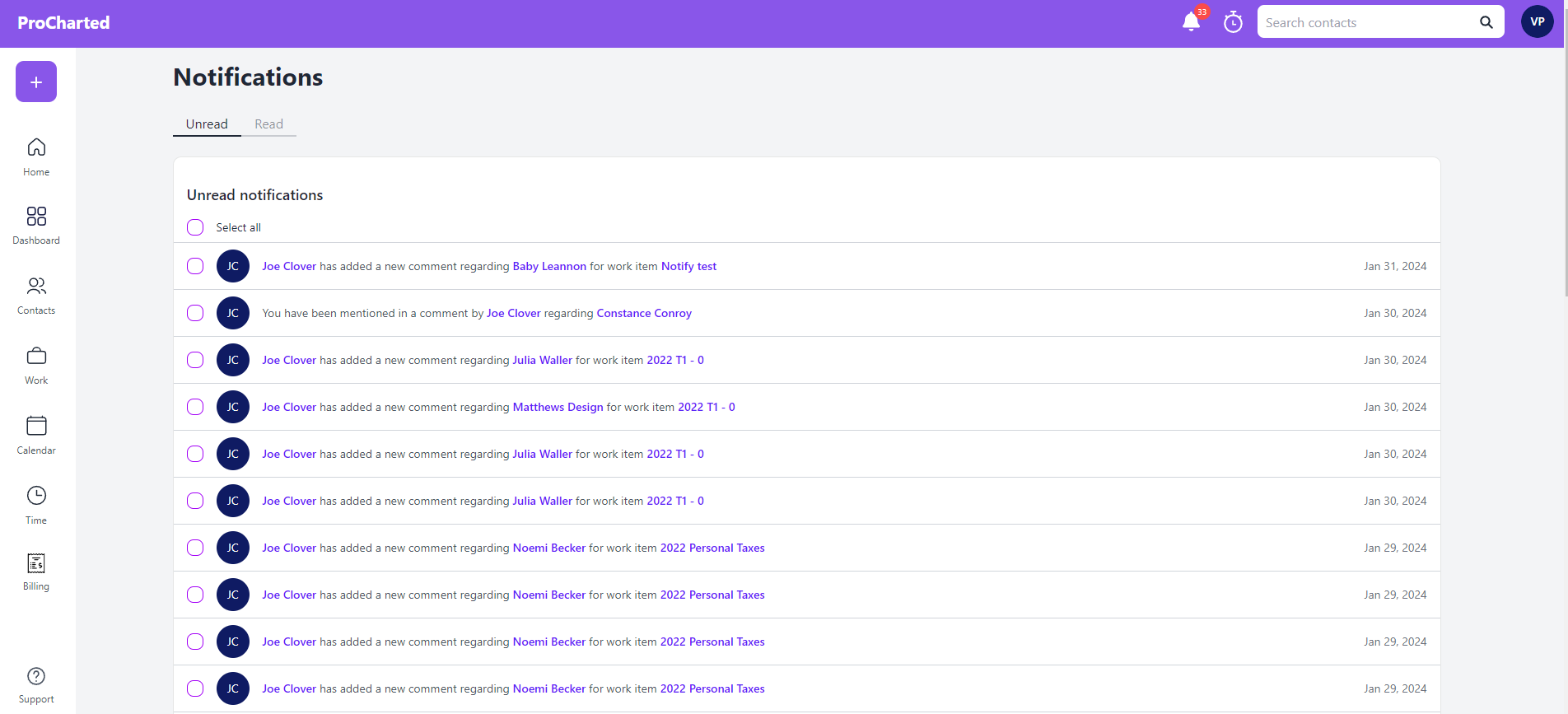
Notification Center
ProCharted’s notifications can help your team stay on top of all work items. Whenever someone mentions you in a work item or assigns something to you, you’ll get a notification. You can click on the bell icon at the top of your page to read the notifications, then click on the notification to go straight to the work item.
Click here to learn more about the Notification Center.
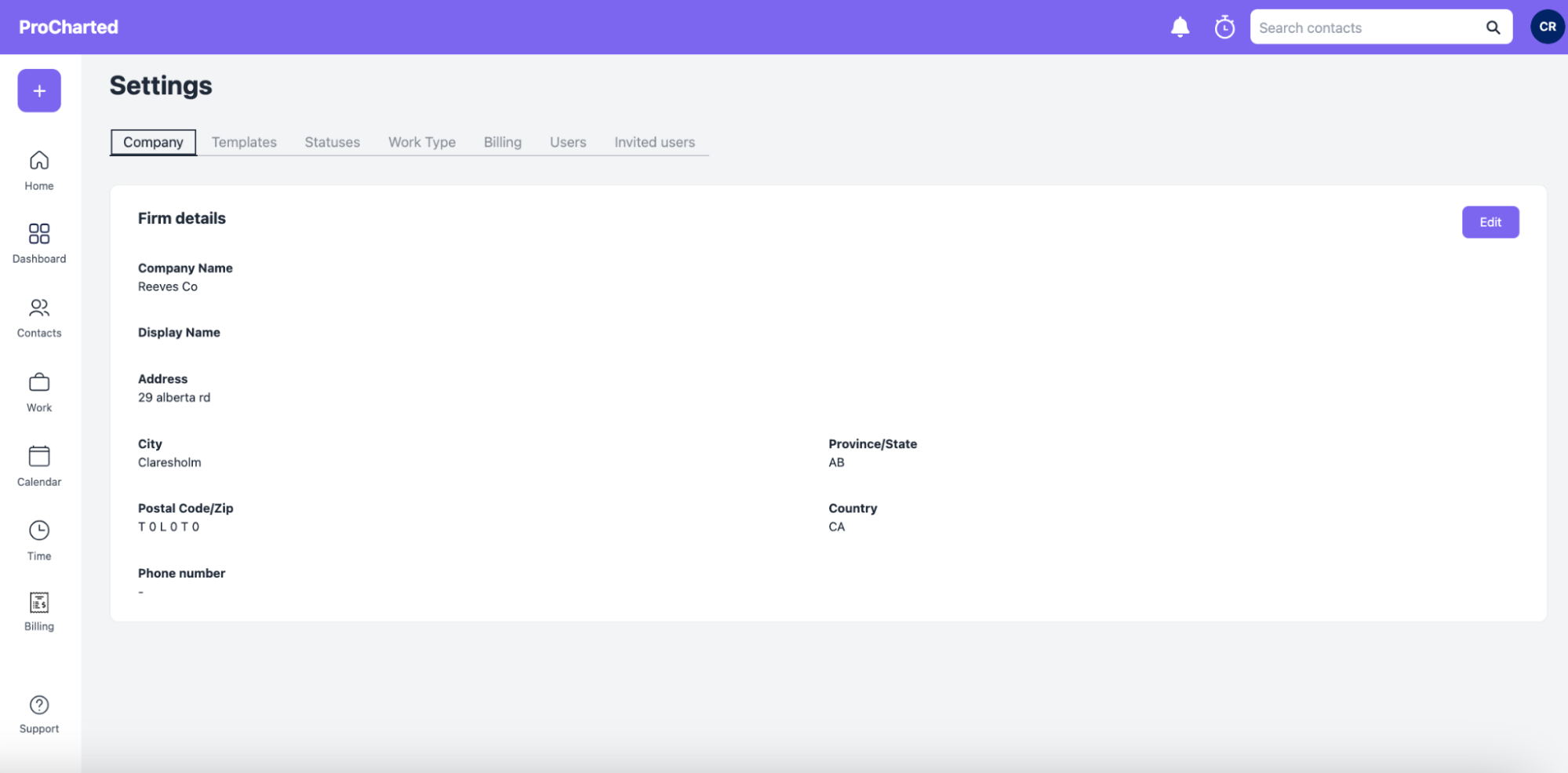
Settings
Click on your profile in the top right hand corner to access Settings. This is the hub where admin users can edit company info, billing info, subtask templates, statuses and more. You can also manage all the users with access to ProCharted from here.
Click here to learn more about Settings.
Ready to learn more? Visit our support page for detailed info on each feature in ProCharted!