
Track every hour.
Bill the right ones.
Mark each time entry as billable or non-billable. Non-billable time never ends up on an invoice, and your unbilled work in progress shows only what you can actually charge.
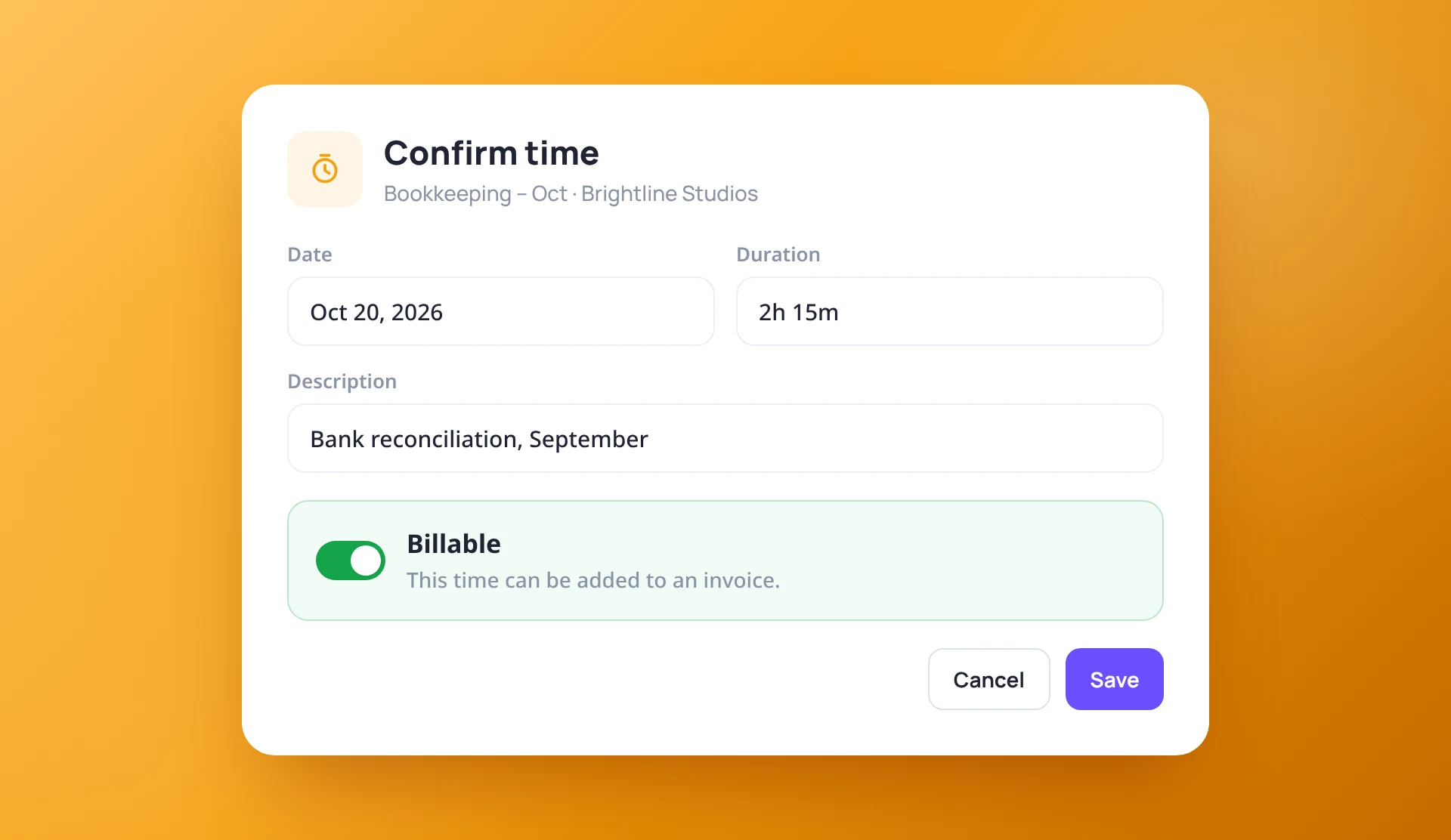
Billable or not, on every entry
When you stop the timer or edit an entry, one switch decides whether the time can go on an invoice. Once time is invoiced, the entry is locked.
- Billable switch when confirming or editing time
- Clear wording on what each option means
- Invoiced time is locked
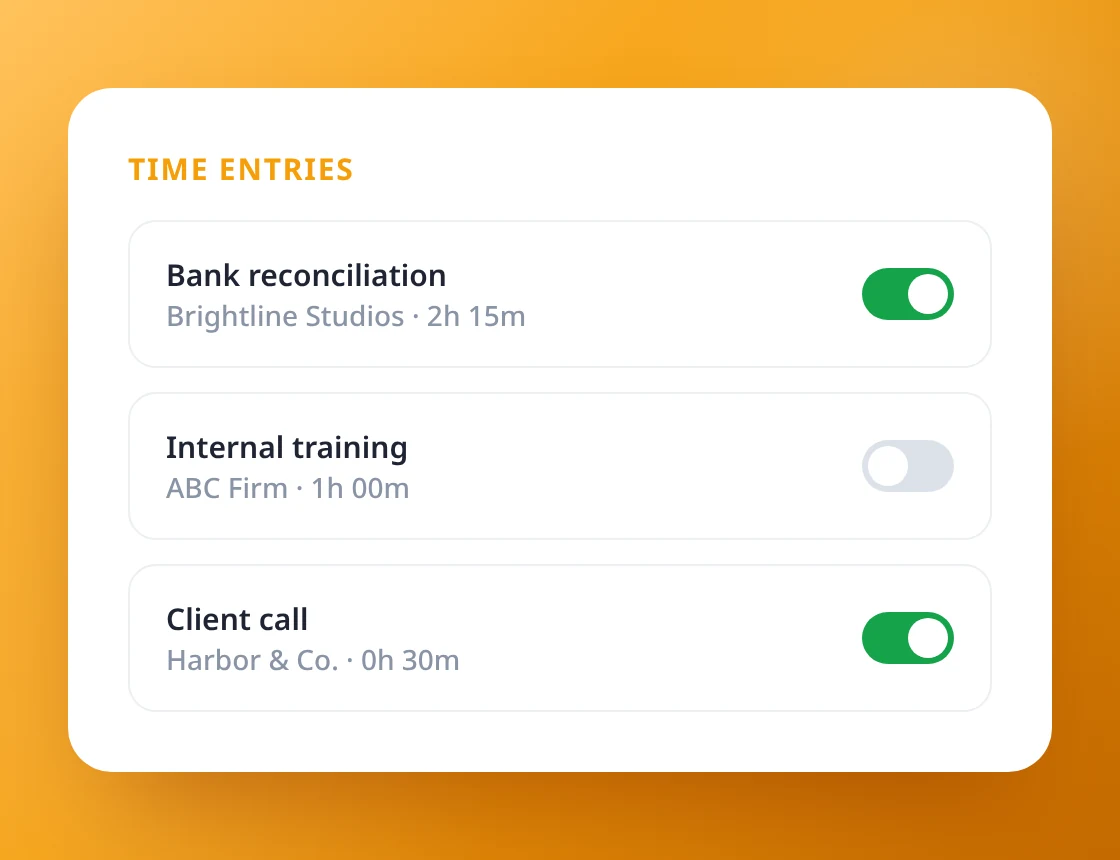
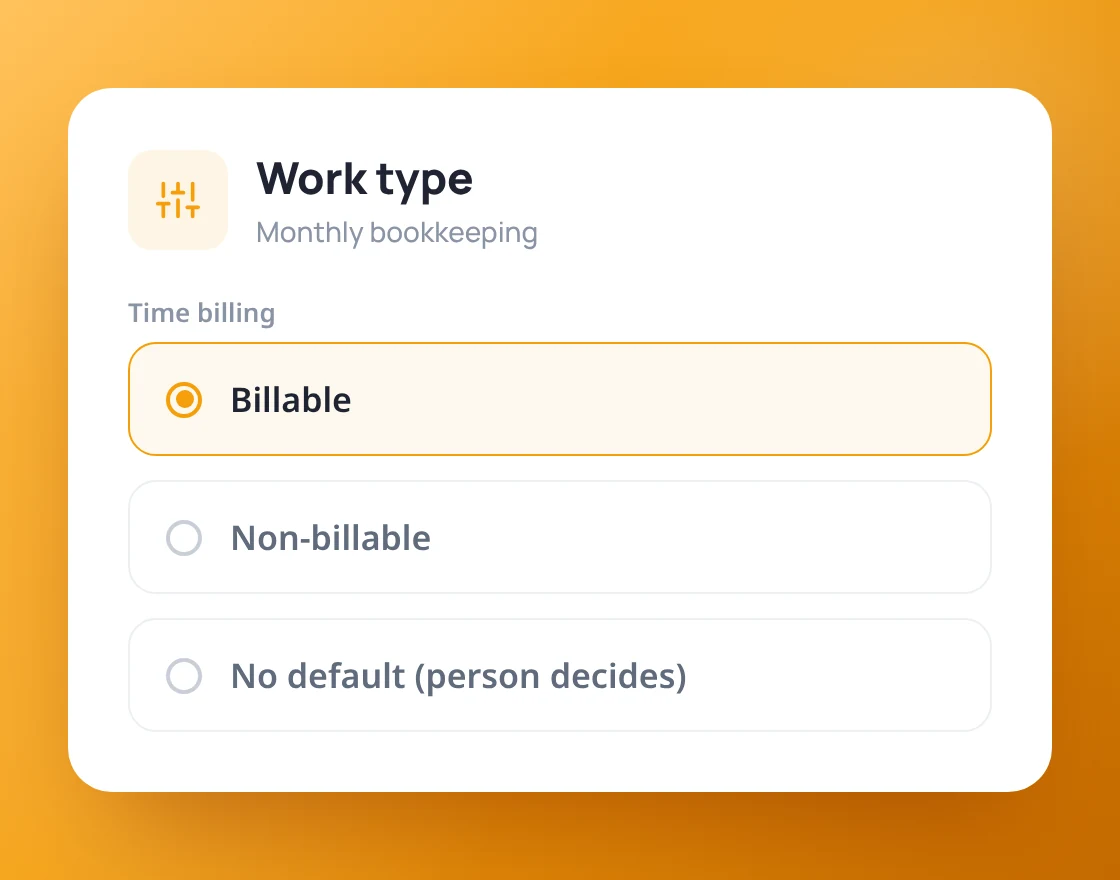
Set it by work type, change it when needed
Choose whether each work type starts as billable, non-billable, or lets the person decide. New time takes the default, and any single entry can still be switched.
- Billable, Non-billable or "person decides"
- New time follows the work type's default
- Override any single entry
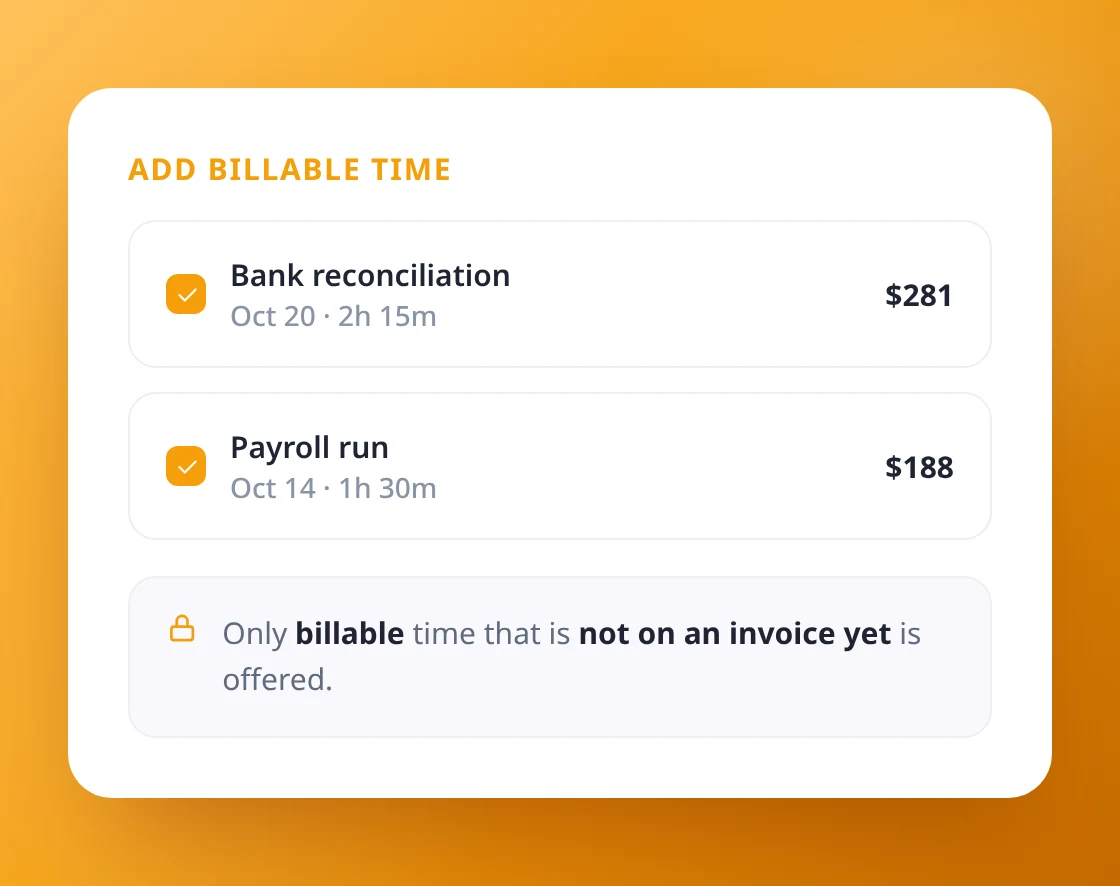
Only billable time reaches the invoice
When you add time to an invoice, only billable time that has not been invoiced yet is offered. Time lists can be filtered by billed, unbilled or non-billable.
- Invoices only offer billable, unbilled time
- Filter time by Billed, Unbilled or Non-billable
- Unbilled (WIP) counts billable time only
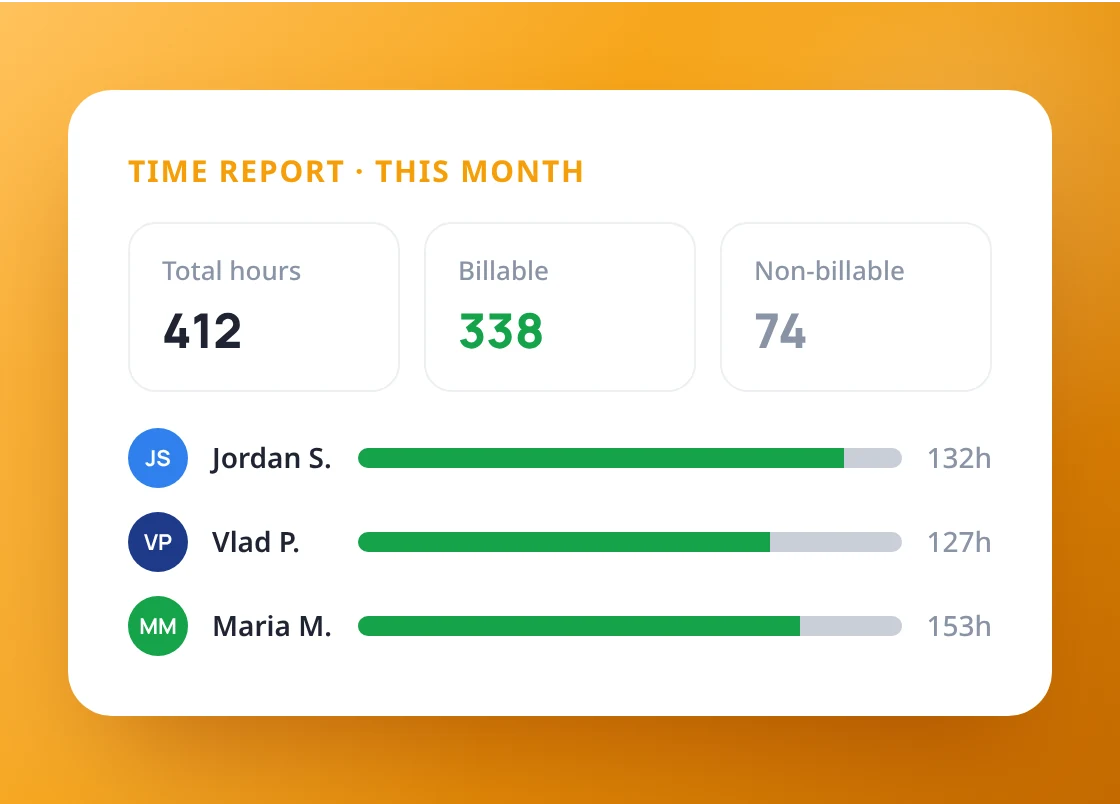
See billable and non-billable side by side
The Time report splits hours into billable and non-billable by team member, client or work type, and shows what has not been billed yet. Export it to Excel any time.
- Billable vs non-billable in the Time report
- Group by team member, client or work type
- Export to Excel
Stop leaving billable hours behind
keeps your time and invoices in step.