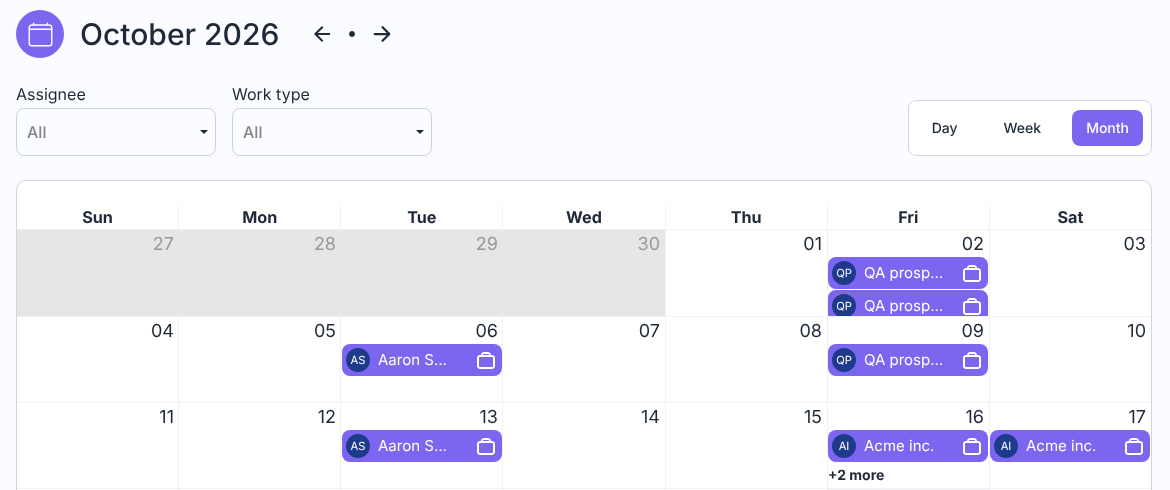
See your firm's work on its due dates by day, week or month, filter by person or work type, and open any work item from the calendar.
In short: The Calendar shows your firm’s work items on their due dates, so you can see what’s coming up by day, week or month and spot busy days before they arrive.
Open the Calendar
Click Calendar in the left menu.
Pick Day, Week or Month at the top right. Month is shown first.
Use the arrows next to the title (for example October 2026) to go back or forward.
To narrow it down, choose an Assignee or a Work type. Choose All to see everything again.
Click a work item to open it.
Calendar, Month view
What you see
Each work item appears on its due date.
In Month view you see the client’s name. In Week and Day view you see the work item’s name and the client.
When a day is full, click + N more (for example +2 more) to see the rest of that day’s work.
Tips
Use the Assignee filter to check one person’s deadlines before you give them more work.
To change a due date, open the work item and edit its Due date there.
Looking for the Dashboard? It is no longer in the left menu. For an overview of today’s work use Home; for charts and lists you can filter and export, use Reports (for example Deadlines or Team workload). Old Dashboard links now open Reports.