
Work items
Your Home page: what to work on today
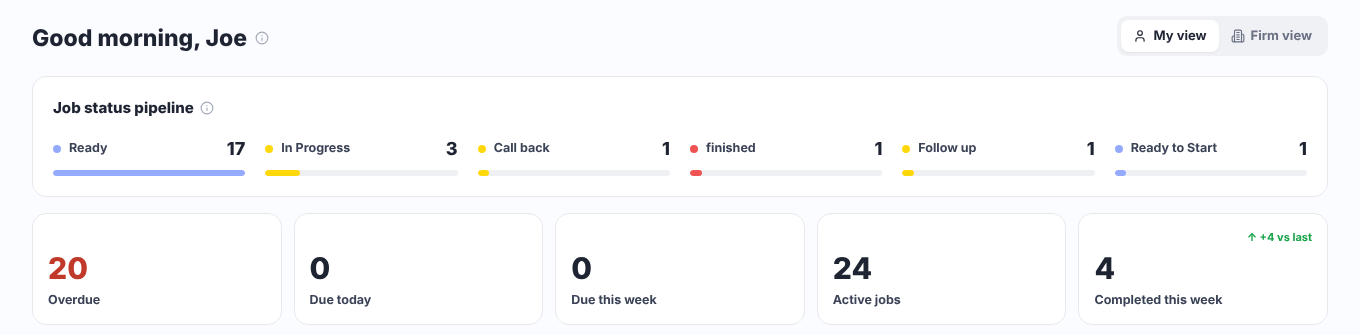
Home shows where your work stands, what is overdue or due today, what's coming up this week, and queued work you can pick up.
Hover the small ⓘ next to a heading to see what it counts.
My view and Firm view
- My view shows the work assigned to you. The title greets you by name (“Good morning, Joe”).
- Firm view shows everyone’s work in the firm. Only admins see it. Its title is your firm’s name followed by “firm overview”.
If you are an admin, switch between the two views at the top right. ProCharted remembers the view you used last.
Job status pipeline
Each bar is a status with the number of active work items in it, for example Ready 17 or
In Progress 3. It shows your busiest statuses; the rest are grouped under Other.
Click a status to open the Work page filtered to that status (in My view, your own work; in Firm view, the whole firm’s).
The five cards
| Card | What it counts |
|---|---|
| Overdue | Open work past its due date (in red). |
| Due today | Work due today. |
| Due this week | Work due this week. |
| Active jobs | All open work. |
| Completed this week | Work completed this week. |
Some cards also compare with last week, for example “+4 vs last”.
Needs attention today
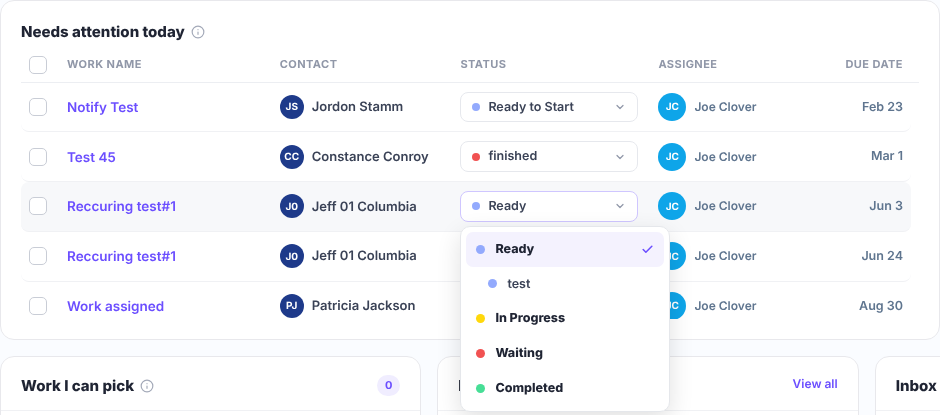
Your overdue work first, then what you have due today (in Firm view: across everyone in the firm). The columns are Work name, Contact, Status, Assignee and Due date.
- Click a row (or the work name) to open the work item.
- Click the client’s name to open the client.
- Click the status box to change the status. The list looks like the one on the Work page: the main statuses (Ready, In Progress, Waiting, Completed) in bold, with your own statuses listed under them. The current status has a ✓.
Change several at once
- Tick the boxes in front of the rows (the box in the header ticks them all).
- The card shows N selected with Change status and Archive.
- Pick the new status, or click Archive.
The list shows 4 rows; scroll inside the card for more. If nothing is overdue or due today, it says “Nothing needs attention”.
Upcoming deadlines
Work due from tomorrow through the next 7 days. Each item shows its work type in colour, the client, the work name and when it’s due (for example “in 3 days”). Click an item to open it, or the client’s name to open the client. If nothing is due, you see “Nothing coming up”.
Work I can pick
Queued work in roles you belong to: work assigned to one of your roles that nobody has taken yet. Each row shows the work name, client, role and due date.
- Find the work you want to take.
- Click Pick up.
- A message confirms “
is now yours” . The work moves to your My Work list and leaves the queue.
If you see “Nothing to pick up”, there is no queued work in your roles right now (or you are not in any role yet).
Notifications and Inbox
- Notifications lists your most recent notifications. Click one to open it, or click View all for the full Notifications page.
- Inbox shows incoming emails from your clients once your mailbox is connected (see Connect your email).
The bottom row (Work I can pick, Notifications, Inbox) is always about you, even in Firm view.
Tips
- In Upcoming deadlines, the coloured label is the work type, so you can spot payroll, returns or bookkeeping at a glance.
- Want the full list with filters? Use the Work page instead.
- Looking for the old Dashboard? It has been replaced by Home and Reports.
Related articles
- The Work page: find and manage your firm’s work
- Inside a work item
- Roles and the Queued list: share work with a team
- Connect your email and see client emails
- See due dates on the Calendar
- Reports