
Roles & queue
Roles and the Queued list: share work with a team
Create roles (e.g. Bookkeeper, Reviewer), assign work to a role instead of a person, and pick up queued work from the Work page or Home.
My Work and leaves the queue.
Before you start
- Creating, editing and deleting roles is done in Settings, so you need Settings access (Admin or the View Settings permission).
Create a role
- Click your avatar (top right) > Settings > Roles.
- Click + Create Role.
- Type the Role name (e.g. Bookkeeper, Tax preparer, Reviewer).
- Under Members, tick the team members who belong to this role. Use the search box to find someone, Select all to tick everyone, or Remove all to start over.
- Click Create role.
You can also create a role while creating work: in New work, open the Role list and pick Create role (the first option). The new role is selected straight away.
To change a role later, use Edit in the role’s row menu and click Save. To remove a role, use Delete and confirm.
Assign work to a role
- When you create work (Work > Create Work), go to the Assignment box.
- Pick a Role. You can also add Assignee(s), but you need at least a role or one assignee.
- Click Create.
You can also set or change the role later on the work item’s Summary page, in the Role line of the details card.
Tip: give a work type a Default Role (Settings > Work Types). New work of that type then gets the role automatically.
Find and pick up queued work
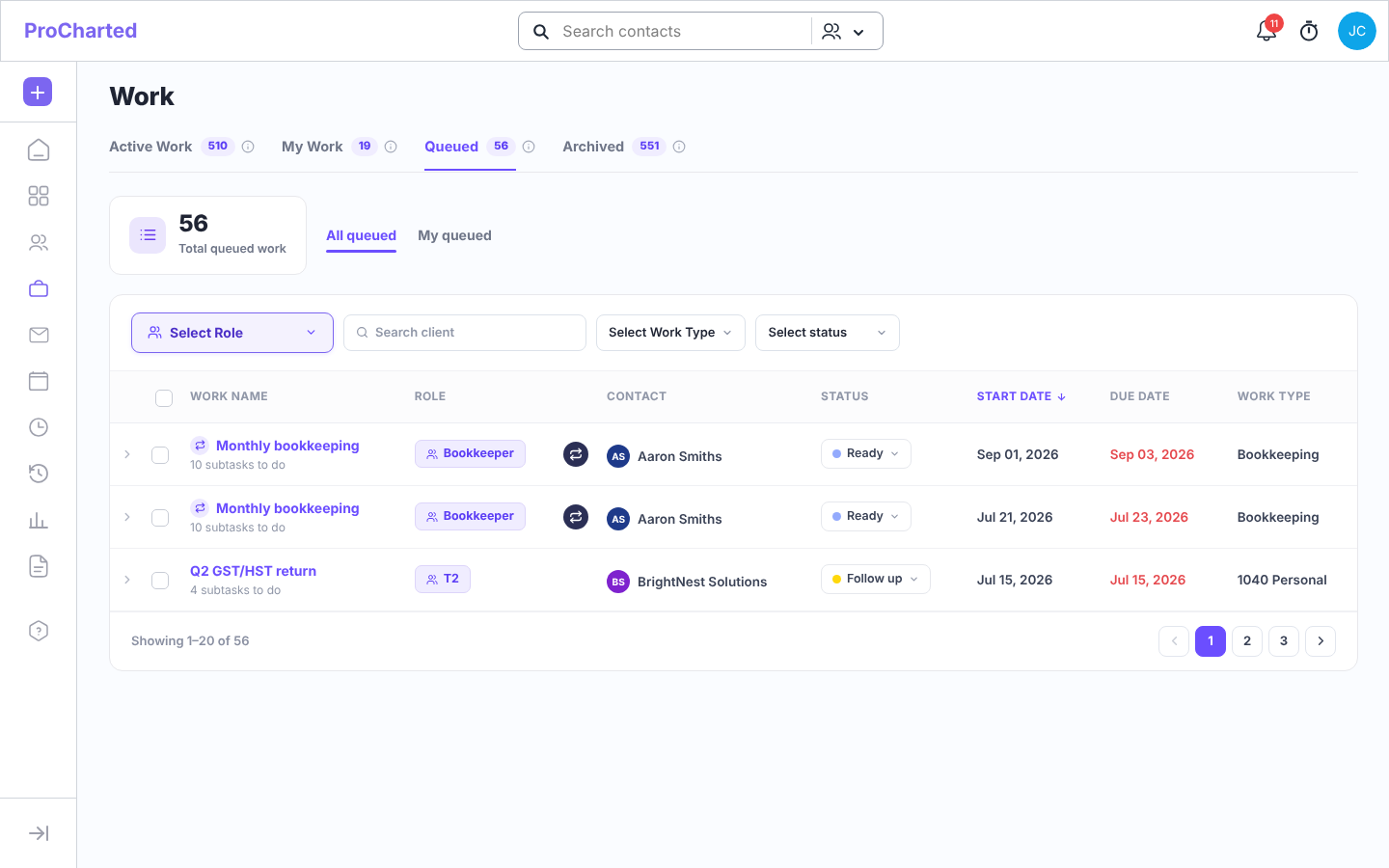
- Go to Work > Queued.
- Choose All queued (everything waiting in the firm) or My queued (only work for roles you belong to).
- Narrow the list with Select Role (tick one or more roles), Search client, Select Work Type and Select status. The Role column shows which role each item is waiting for.
- Open the work item and, in the Role line, click the person button (“Assign this role to me”). It turns into a green check.
The work now appears in your My Work tab and is no longer queued. If you’re not a member of that role, the button says “You are not a member of this role” instead. Changed your mind? Click the green check again (“Unassign user from this role”) and the work goes back to the queue.
Pick up work from Home
The Home page has a Work I can pick card: “Queued work in roles you belong to.” Each row shows the work, client, role and due date.
- Click Pick up on the row.
- A message confirms “
is now yours” . The work moves to your My Work.
If the card says “Nothing to pick up”, there is no queued work in your roles right now.
See your own roles
Click your avatar > Profile. The My roles section lists every role you belong to. If it says “You’re not in any roles yet”, ask an admin to add you in Settings > Roles.
Tips
- Queued means “nobody in the role has taken it yet” – the work can still have an assignee.
- If The queue is empty shows, no work is currently waiting to be picked up.
- Create role in the New work Role list needs Settings access. Without it you’ll see “You don’t have access” – ask an admin to create the role.
Related articles
- Your Home page: what to work on today
- The Work page: find and manage your firm’s work
- Create new work
- Team members, access levels and permissions
- Your profile and notifications