
Email templates
Save emails you send often, with placeholders for the client's name, and reuse them when composing, in automations and in email sequences.
{{firstName}} fill in each client’s details. You use templates when you write an email from a work item, in automations that email the client, and in email sequences.Where to find templates
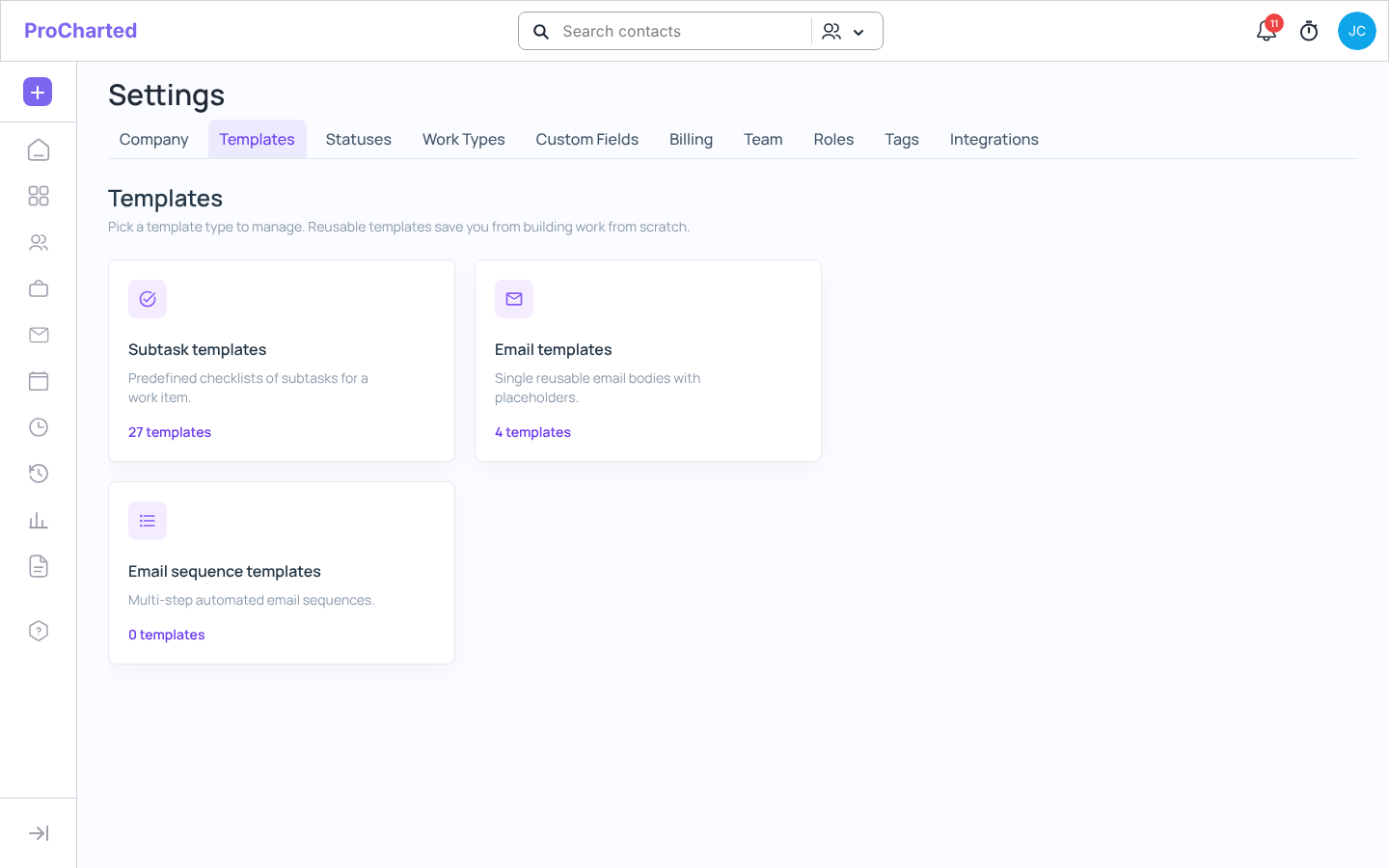
Click your avatar (top right) > Settings > Templates. The page has three cards:
- Subtask templates – “Predefined checklists of subtasks for a work item.”
- Email templates – “Single reusable email bodies with placeholders.”
- Email sequence templates – “Multi-step automated email sequences.”
Each card shows how many templates you have. Click a card to open its list.
Create an email template
- On the Templates page, click Email templates.
- Click + New Template.
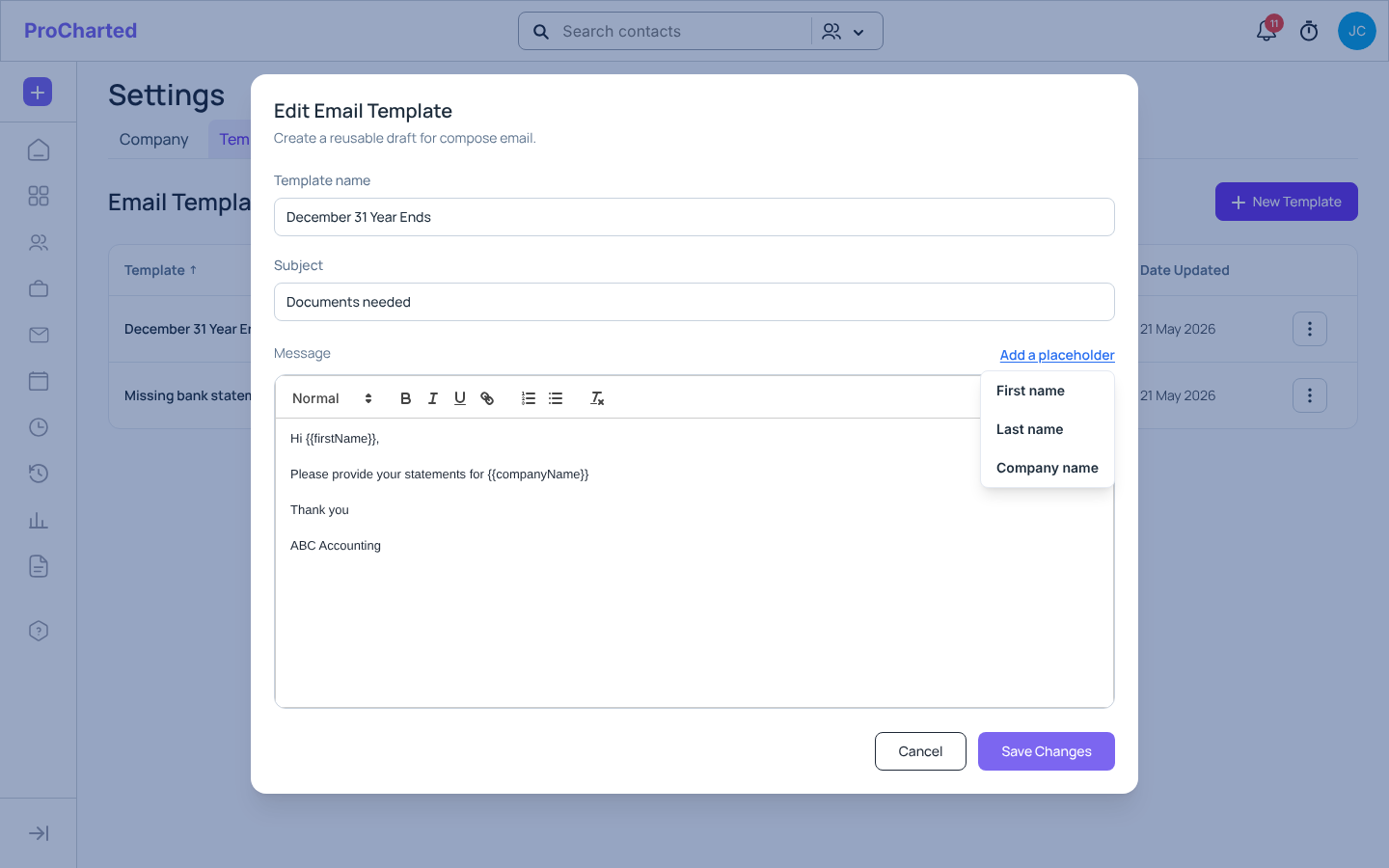
- Fill in the New Email Template window:
- Template name – a name for your team, e.g. Quarterly bookkeeping. Clients don’t see it.
- Subject – the email’s subject line, e.g. Documents needed.
- Message – the email itself. Use the toolbar for bold, italics, links and lists.
- To insert the client’s details, click where they should go, then click Add a placeholder and choose First name, Last name or Company name.
- Click Create Template.
Placeholders
| You choose | It appears as | When the email is sent |
|---|---|---|
| First name | {{firstName}} |
The client’s first name |
| Last name | {{lastName}} |
The client’s last name |
| Company name | {{companyName}} |
The organization’s name |
For an organization, first and last name come from its contact person.
Example message: Hi {{firstName}}, please provide your statements for {{companyName}}.
Edit, deactivate or delete a template
On the Email Templates list, open the template’s ⋮ menu:
- Edit – change it in the Edit Email Template window, then click Save Changes.
- Deactivate – hide it from use without deleting it.
- Delete – remove it for good.
The list shows each template’s Subject, the start of its Message, its Status and when it was last updated.
Use a template
- When writing an email: on a work item, open the Emails tab > Compose email. In the New message window, pick the template under Template (“Select template”). The subject and message fill in, and you can still change them before you click Send.
- In an automation: choose the action Send a Client Email and pick the template. The email goes out to the client when the automation’s condition is met. See Automations.
- In an email sequence: every email in a sequence uses a template. You can change the subject or message for one sequence with the pencil button, without changing the template itself.
Email sequence templates
An email sequence template saves a whole series: a first email and follow-ups, each with its template and timing. Go to Templates > Email sequence templates > + New template, give it a Template Name, set up the emails and click Save template. It then appears under
Start from a template when you start a sequence. See
Email sequences.
Tips
- Create your email templates before you build sequences or automations that use them.
- Sending email needs a connected Microsoft mailbox. See Connect your email.
Related articles
- Email sequences: automatic reminder emails to clients
- Connect your email and see client emails
- Automations: let ProCharted do the routine steps
- Subtasks and subtask templates