Custom fields – add your own information to clients
Create your own fields (text, number or dropdown) for organizations and individuals, and fill them in on each client.
In short: Custom fields let your firm keep extra information on each client – for example a “Filing period” dropdown (Annual / Quarterly / Monthly). Organizations and individuals have separate lists of fields, because they usually need different information.
Before you start
Creating, reordering and deleting fields is done in Settings, so you need Settings access (Admin, or the View Settings permission). Without it you’ll see “You don’t have access”.
Anyone who can edit a client can fill in the values.
Create a custom field
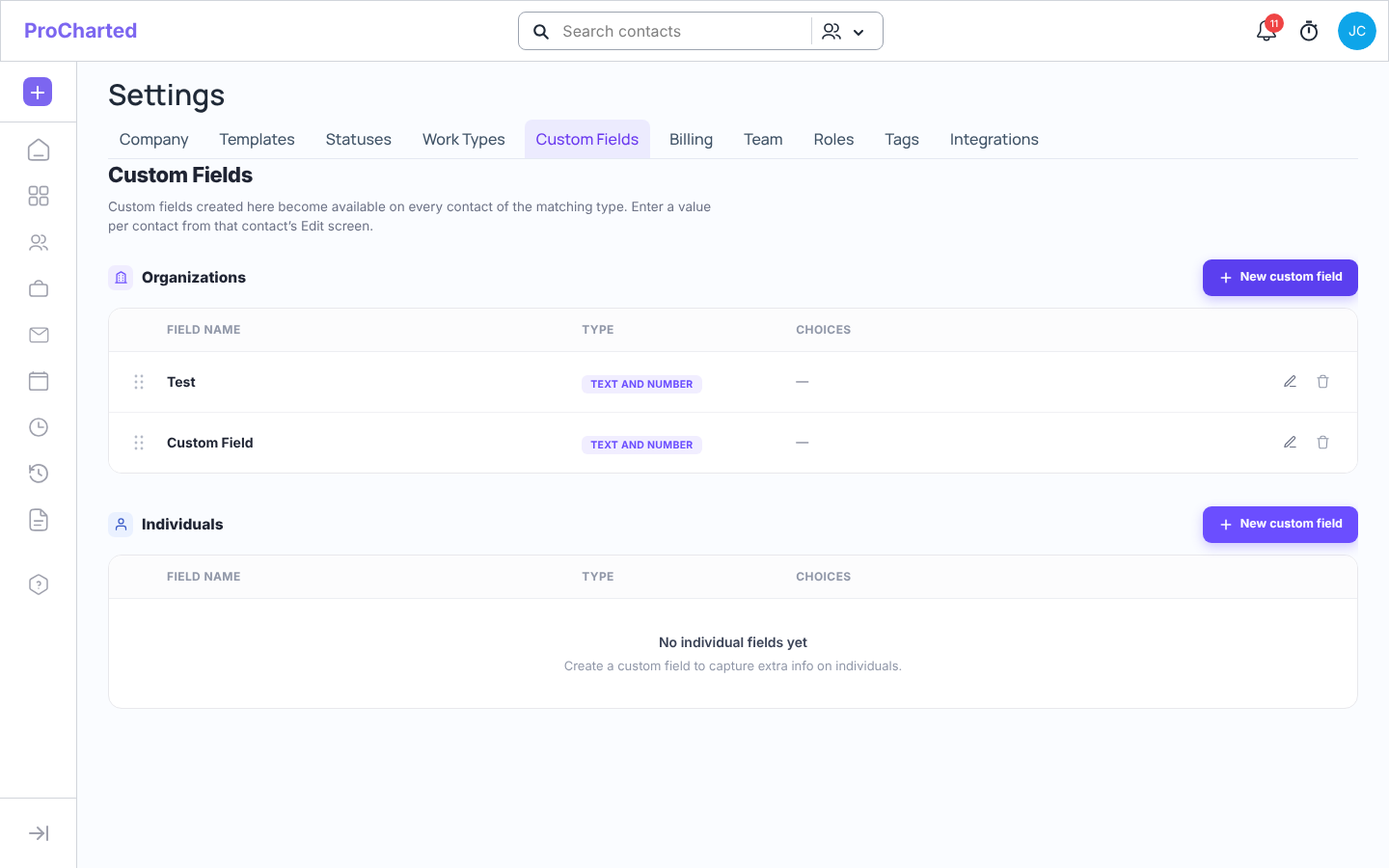
Click your avatar (top right) > Settings, then the Custom Fields tab.
In the Organizations or Individuals section, click + New custom field.
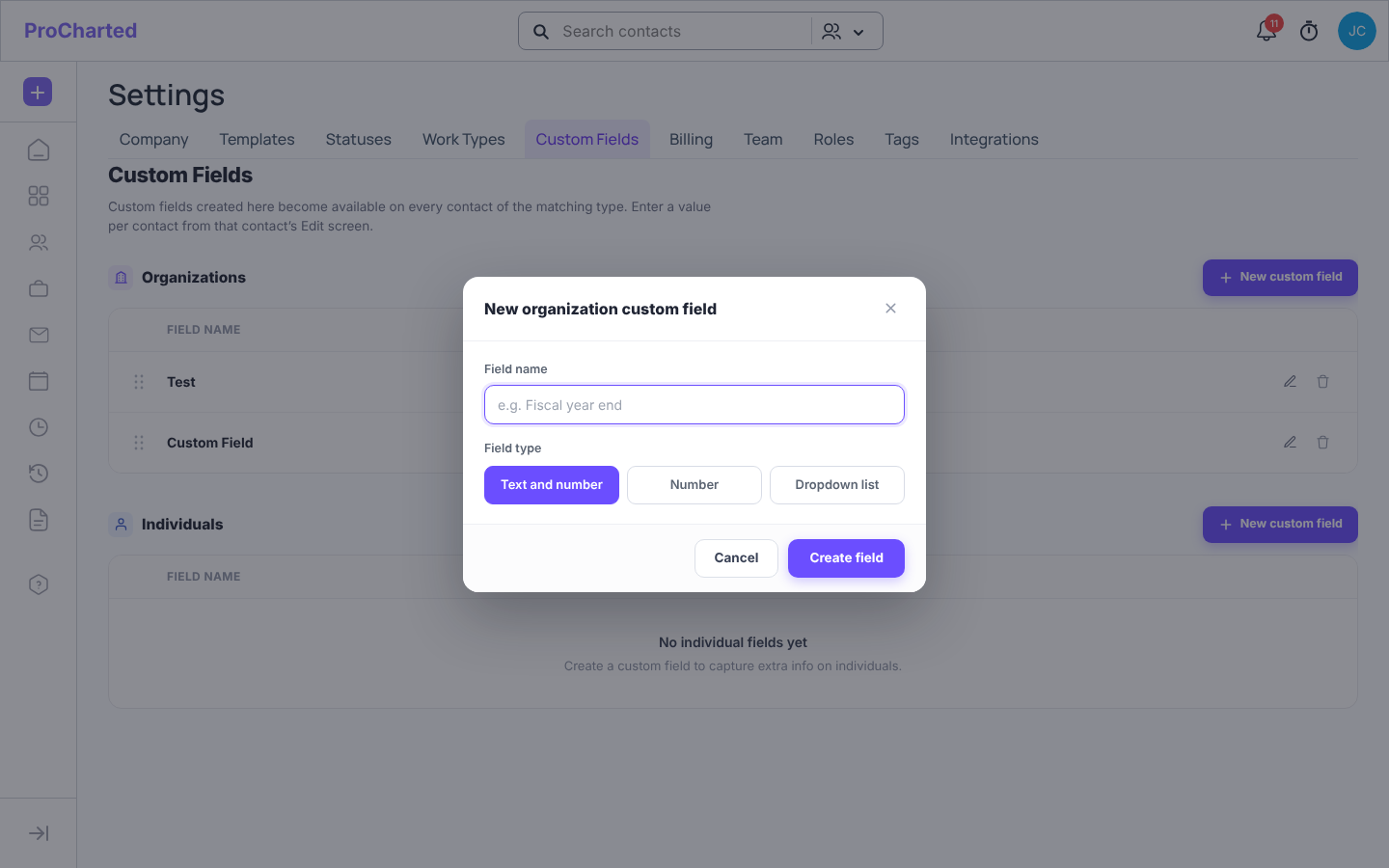
Type the Field name.
Choose the Field type:
Text and number – free text.
Number – numbers only.
Dropdown list – type the choices people can pick from (e.g. Annual, Quarterly, Monthly).
Click Create field.
New custom field window
To change a field, click the pencil icon on its row and click Save changes. To change the order the fields appear in, drag the rows up or down by the handle on the left. The trash icon deletes the field (after you confirm).
Custom Fields in Settings
Fill in custom fields for a client
Open the client (Contacts in the left menu, then click the client).
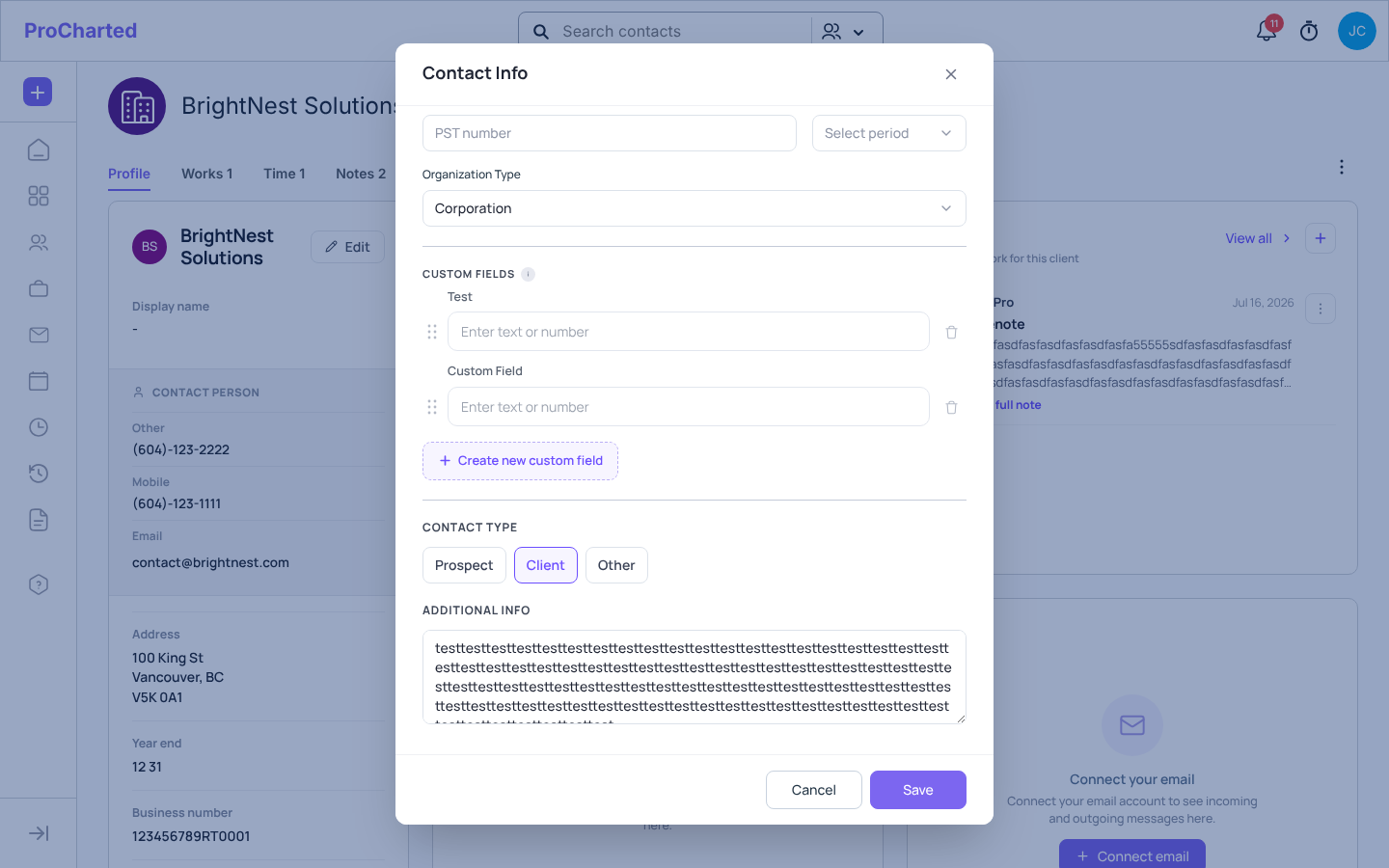
Click Edit.
Scroll to the CUSTOM FIELDS section (just before CONTACT TYPE).
Fill in the values and click Save.
Fields that have a value appear on the client’s profile card, just before Contact type. Empty fields are hidden on the profile.
Custom Fields section in the client's Edit window
Tips
In the client’s Edit window, Create new custom field takes you to Settings > Custom Fields. If you don’t have Settings access, you’ll get the “You don’t have access” message – ask a firm admin to create the field.
To clear a value for one client, empty the box (or pick Select in a dropdown) and click Save.
Careful: if you have Settings access, the Edit window also shows a trash icon (Delete field) next to each field. That deletes the field itself – it disappears for every client of that type, after you confirm “Delete this field?”. It does not just clear this client’s value.
People with Settings access can also drag fields to reorder them directly in the Edit window.
Custom fields are for clients only (organizations and individuals), not for work items.
When someone saves new values, the change is recorded in the Activity Log.