
Activity Log
The Activity Log – see who changed what
Use the firm-wide Activity Log and each work item's Log tab to see who did what and when, and control who can see the firm-wide log.
Before you start
- The firm-wide Activity Log is only visible to Admins and to team members with the View Activity Log permission. Everyone in the firm can see a work item’s Log tab.
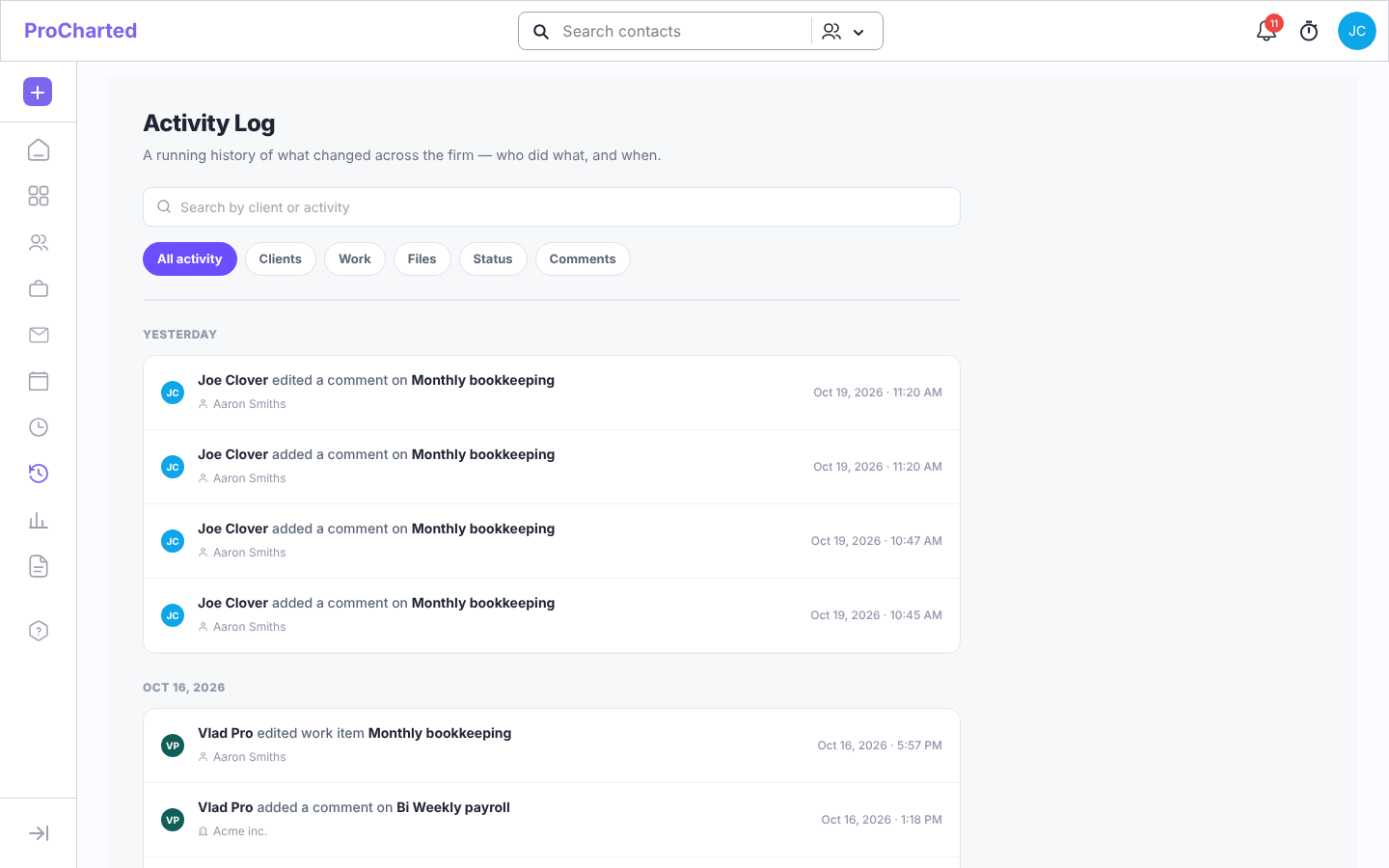
Open the firm-wide Activity Log
- Click Activity Log in the left menu (clock icon with an arrow, just above Reports).
- Activities are grouped by day: Today, Yesterday, then earlier dates.
- To narrow the list:
- type in Search by client or activity, or
- click a filter chip: All activity, Clients, Work, Files, Status or Comments.
- If there is more history, click Show older activity at the bottom to load it.
Each entry says who did what (for example “… added a comment on …”), with the client underneath. Changes ProCharted made by itself (for example a status changed by an automation, or Scheduled → Ready around the start date) show as ProCharted (automatic).
What is recorded: work items created, edited, archived or deleted (including recurring copies), status changes, files uploaded or deleted, comments (notes), and clients created, edited or archived.
Click a client or work item name in an entry to open it.
See the history of one work item
- Open the work item.
- Click the Log tab. If nothing has happened yet, it says “No activity recorded for this work item yet.”
Give someone access to the Activity Log (admins)
- Click your avatar > Settings > Team.
- Open the user’s menu and click Edit.
- Turn on View Activity Log and click Update.
If someone without this permission tries to open it, they see: “You don’t have permission to view the firm’s Activity Log. Ask an admin to turn on “View Activity Log” for you.”
Tips
- The Activity Log started recording in mid-October 2026; older changes aren’t in it.
- If the same thing is saved several times within a couple of minutes, it shows as one entry.
- Entries keep the names they had, so they still make sense after a work item or client is deleted.
- The Activity Log menu item is hidden for people who don’t have access – that’s expected.
- “No activity matches your filters.” means the search or chip is hiding everything; click All activity and clear the search.