
Work items
Notes on work items and clients
Write notes on a work item like a chat, reply to a note, mention teammates with @, attach files, and find notes on the Notes tabs.
Write a note on a work item
- Open the work item (for example from the Work page).
- On the Summary page, find the Notes panel on the right. Notes are grouped by date, with the newest at the bottom.
- Click in the box “Write a note… (@ to mention)” at the bottom and type your note.
- Press Enter to send. Press Shift+Enter for a new line instead.
Next to the box:
- the paperclip attaches a file to your note. The file is also saved to the work item’s Files tab;
- the microphone lets you dictate instead of typing;
- the sparkle (Write with AI) helps you write or polish the note (see AI features).
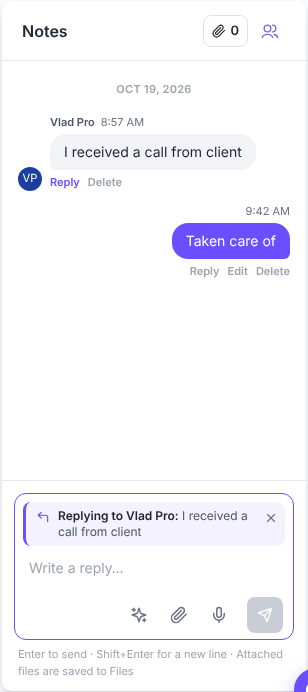
Under each note you’ll find Reply. Under your own notes you’ll also find Edit and
Delete.
Reply to a note
- Under the note you want to answer, click Reply.
- “Replying to
: …” appears above the message box. To cancel, click ×. - Type your answer in “Write a reply…” and press Enter.
Mention a teammate
- In the note box, type @ followed by the first letters of the person’s name.
- Pick the person from the list.
- Send the note. The person gets a notification (bell icon, top right) and becomes a participant of the conversation.
Mentioning yourself does not send you a notification.
Participants and files
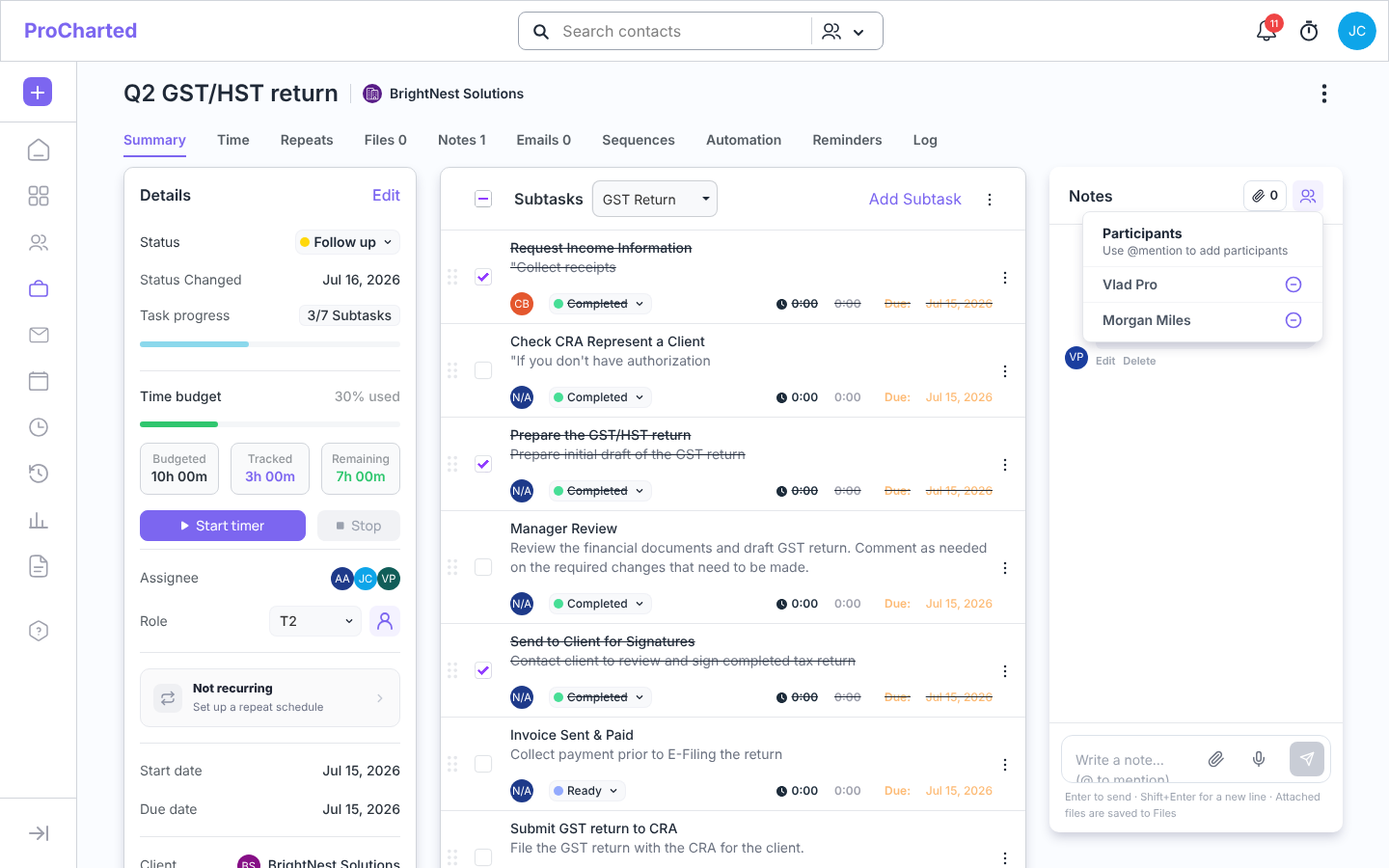
Two buttons sit at the top of the Notes panel:
- Participants (people icon) – who is in this conversation. Use the − button to remove someone; they stop getting notifications for it until they are @mentioned again.
- Files (paperclip with a number) – the files on this work item. Click + Upload to add one or View all to open the Files tab.
The Notes tab (work item and client)
The Notes tab lists every note as a card with the author, date, title and text.
- Open the work item (or the client) and click the Notes tab. The number on the tab is how many notes there are.
- Use Search notes to find a note by its words.
- Click Add note. In the Add note window, type a Title and the note, then click Add (Cancel closes it without saving). On a work item you can @mention a teammate here too.
- Use a card’s ⋮ menu to Edit, Pin (keep it at the top) or Delete it. Edit opens the same window, called Update note.
- Click a note’s text (or Read full note on long notes) to open it in a bigger window with the title, the full text, the author and the date. Click Edit there to change it, or the x (or anywhere outside the window) to close it.
On a client’s Notes tab you see the client’s own notes and the notes written on that client’s work items. Notes from a work item show the work item’s name; click it to open that work item.
On the client’s Profile tab, the Notes card (“Across all work for this client”) shows the latest notes. Click one to read it in the bigger window, click + to add one, or click
View all to open the Notes tab.
Tips
- If nobody has written anything yet, the panel says “No notes yet”.
- Only the person who wrote a note can edit it. Admins can delete anyone’s notes; everyone else can delete their own.
- New notes are recorded in the work item’s Log tab and in the Activity Log.
Related articles
- Inside a work item
- The client profile page
- Your profile and notifications
- The Activity Log – see who changed what