
AI features
AI features: Ask ProCharted, Write with AI, Catch me up and the help chat
Ask questions about your firm's data, create work or clients by typing a sentence, draft notes and emails, sort your inbox, catch up on a work item and get help.
Before you start
- AI must be switched on for your firm. An admin does this in Settings > Company, in the AI features card (switch On / Off). Only admins and people with the View Settings permission can change this setting.
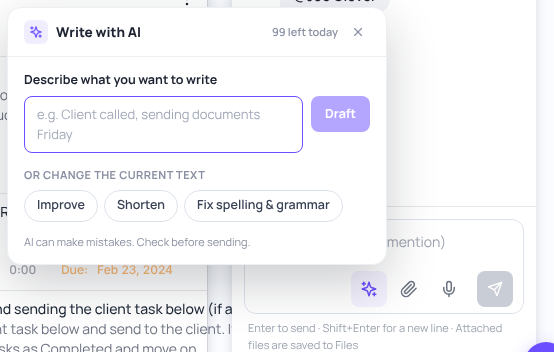
- Each person can use AI a limited number of times per day. The AI features card shows Used today, and Write with AI shows how many uses are left today (for example “95 left today”).
Ask ProCharted a question
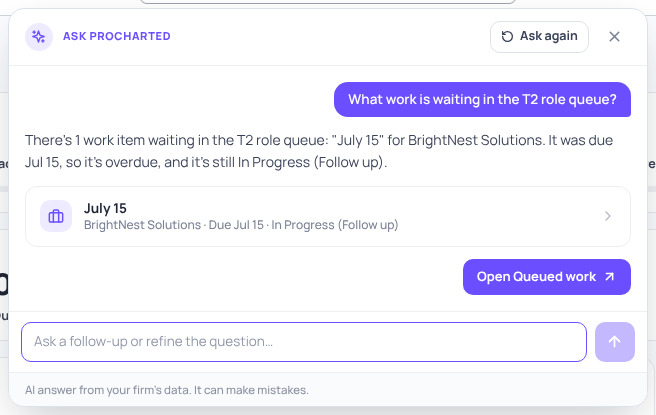
- Click the search box at the top of the page (Search or ask a question…).
- Type a question in plain words, for example How many active jobs do we have? or What work is waiting in the Bookkeeping role queue?
- Click the Ask ProCharted row at the top of the list (or press Enter).
- The answer opens in a panel under the search box. Click a result (a work item, client, invoice or person) to open it. Some answers also have a button that opens the matching page, for example Open Work page.
- To refine the answer, type in Ask a follow-up or refine the question… at the bottom of the panel and press Enter. ProCharted remembers the earlier questions while the panel is open. You can also click the microphone next to that box and say your follow-up. Click Ask again to repeat your last question.
- Close the panel with the X. Closing it ends the conversation.
Stop a question
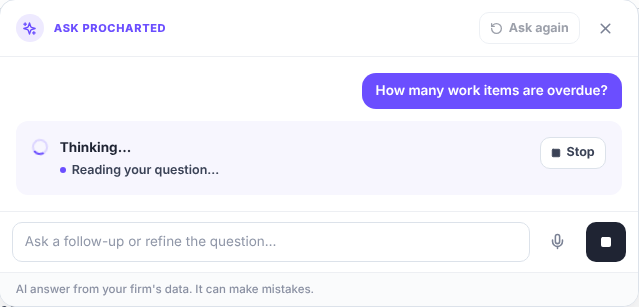
An answer can take a few seconds. While ProCharted shows Thinking…, you can click
Stop (or the dark square next to the follow-up box) if you asked the wrong thing. Then type a new question. Typing a new question and pressing Enter while it is still thinking also stops the old one. A stopped question still counts as one of your AI uses for the day.
Charts in answers
Questions about numbers, for example hours per person this month, can come back with a chart. Switch to the Table view to see the numbers, or download them as an Excel file.
To build a report you can keep and open again, use Create a report with AI on the Reports page. See Run a report and export it to Excel.
The search box still finds clients and work items as before: type a name and pick it from the list. In browsers that support it, the microphone in the search box lets you speak your question instead of typing it.
What Ask ProCharted can see
Ask ProCharted only uses what you are allowed to see in ProCharted:
- The whole firm’s work and time – only for Admins or people with the View FirmsWork permission. Everyone else gets answers about their own work and time.
- Money (invoices, payments, amounts) – only for Admins or people with the View Billings permission.
Permissions are set in Settings > Team. See
Team members, access levels and permissions.
Create work or a client by typing a sentence
You can also ask ProCharted to prepare something new for you.
- In the top search box, type what you want, for example Create a personal tax return for Jane Cooper due April 30, assign to Hazel or Add a new organization called Maple Dental.
- Press Enter or click the Ask ProCharted row.
- If something is missing or unclear, it asks you one question. Answer it in the follow-up box.
- A Ready to create card shows what will be created, with any warnings – for example a due date in the past, or a client that may already exist. It says Nothing has been created yet.
- Click Review & create. The normal New work (or New organization / New individual) window opens with everything filled in.
- Check it, change anything you like, and click Create in that window.
For new work you can also ask, in the same sentence, for a repeat schedule, an
automation and an email sequence – for example …repeat every year when completed, send the Document request email when it reaches Waiting, and start the Year-end documents sequence. The card then shows Repeats, Automation and Email sequence lines, and the New work window opens with those cards filled in (Will start when this work is created). You can remove or change any of them there.
- Repeat: weekly, bi-weekly, monthly, quarterly or yearly – when the work is completed, on a set day, or immediately (immediately needs a “repeat until” date). If you don’t say which, ProCharted asks.
- Automation: uses the work type’s own statuses, your team and your active email templates.
- Email sequence: a sequence template, or email templates with “days after” each, sent from your own connected mailbox to the client’s primary email. If you haven’t connected your mailbox yet, ProCharted says Connect your mailbox first (on the Email page) and can still prepare the work without the sequence. The card warns Clicking Create will start emailing the client.
Nothing is created until you click Create yourself. A client’s address isn’t in the new client windows, so add it afterwards with Edit.
More things Ask ProCharted can prepare
The same way, you can ask ProCharted to prepare:
- an email sequence or a repeat schedule on an existing work item,
- a new invoice for a client,
- a payment,
- a time entry, or a timer on a work item.
Each time, a Ready to create card shows what it prepared, and the app’s normal window opens filled in. Nothing is saved or started until you click Save or Start in that window.
Write with AI
Look for the sparkle button (Write with AI):
- in the message box of a work item’s Notes chat (on the Summary tab), and
- in the email template window (Settings > Templates > Email templates).
The Email page also has a Write with AI button at the top, for writing emails.
- Click the sparkle. The Write with AI window opens.
- Either:
- type what you want under Describe what you want to write (for example Client called, sending documents Friday) and click Draft, or
- if you’ve already written something, pick one of the options under Or change the current text: Improve, Shorten or Fix spelling & grammar. For emails you also get Make friendlier and More formal.
- Read the Suggestion. For an email draft, ProCharted also suggests a subject.
- Click Use this to put it in your text, Try again for another version, or Discard.
- Check the text, then send or save it as usual.
AI on the Email page
Once your mailbox is connected, the Email page in the left menu uses AI to help you get through your inbox.
- Inbox sorting – each email in the list gets a small tag: Needs reply, Review, Documents, Payment or FYI, so you can see at a glance what needs you.
- AI summary – when you open an email, a card at the top sums it up in a few lines, lists the key points, and shows Suggested next steps with a button for each, such as Reply or Create work.
- Quick replies – short ready-made answers under the email that you can start your reply from, or click Draft reply for a first version written by AI. Nothing is sent until you check it and click Send.
- Attachments – each attachment gets a short label (for example Receipts · 2025). Click Save to client files to save it to one of the client’s folders.
Sorting a batch of new emails and reading an email each count as one AI use; on the same computer, an email that was already summed up isn’t read again. The AI summary says “AI can make mistakes. Check before acting.” – open the email itself before you rely on it. See Connect your email and see client emails.
Catch me up on a work item
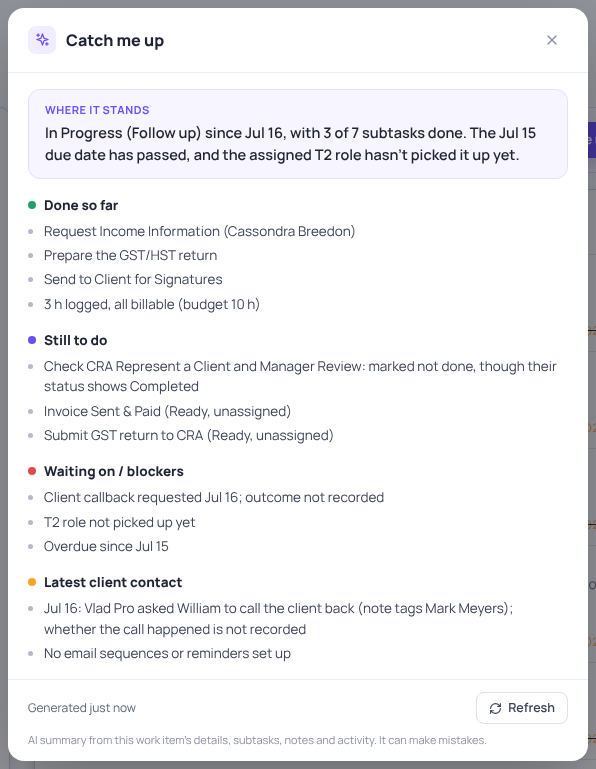
Back from holiday, or picking up someone else’s work? Open the work item. At the top of the
Summary tab you’ll see “New here or back after a while?”.
- Click Catch me up.
- After a few seconds you get a short summary: Where it stands, then sections such as Done so far, Still to do, Waiting on / blockers and Latest client contact.
- The bottom shows when it was made (for example “Generated just now”). Click Refresh for an up-to-date summary.
The summary is made from the work item’s details, subtasks, notes and activity.
Get help with the ? button
- Click the round ? button at the bottom right of any page. ProCharted help opens.
- Click one of the suggested questions, such as How do I add a client?, or type your own in Ask a question….
- To tell the ProCharted team about something that isn’t working, click Report a problem. Fill in What happened? (and, if you like, What did you expect?), then click Send. Your browser and app version are attached automatically to help find the problem.
- Close the help panel with the X at the top right or the purple X button.
Good to know
- AI can make mistakes. Every AI panel says so: check names, dates and amounts before you rely on an answer or send a text.
- AI never sends anything for you. Emails and notes only go out when someone clicks Send.
- Your firm’s data is not used to train AI.
- If you’ve used up today’s AI uses, try again the next day.
Related articles
- Inside a work item
- Email templates
- Your Home page: what to work on today
- Connect your email and see client emails