Email sequences: automatic reminder emails to clients
Send a client a series of emails (for example a document request and follow-up reminders) that stops by itself when the client replies.
In short: An email sequence sends your client a first email and then follow-ups after the number of days you choose – for example “Please send your documents”, then a reminder 5 days later, then another 8 days later. As soon as the client replies, the sequence stops by itself.
Before you start
Your own email must be connected to ProCharted – sequences are always sent from your own connected Microsoft mailbox. To connect it, click Email in the left menu (see Connect your email).
Each email in a sequence uses one of your firm’s email templates (Settings > Templates > Email templates). Create the templates you need first – see Email templates.
A sequence can have up to 10 emails.
Start a sequence on a work item
Open the work item and click the Sequences tab.
Click + New Sequence.
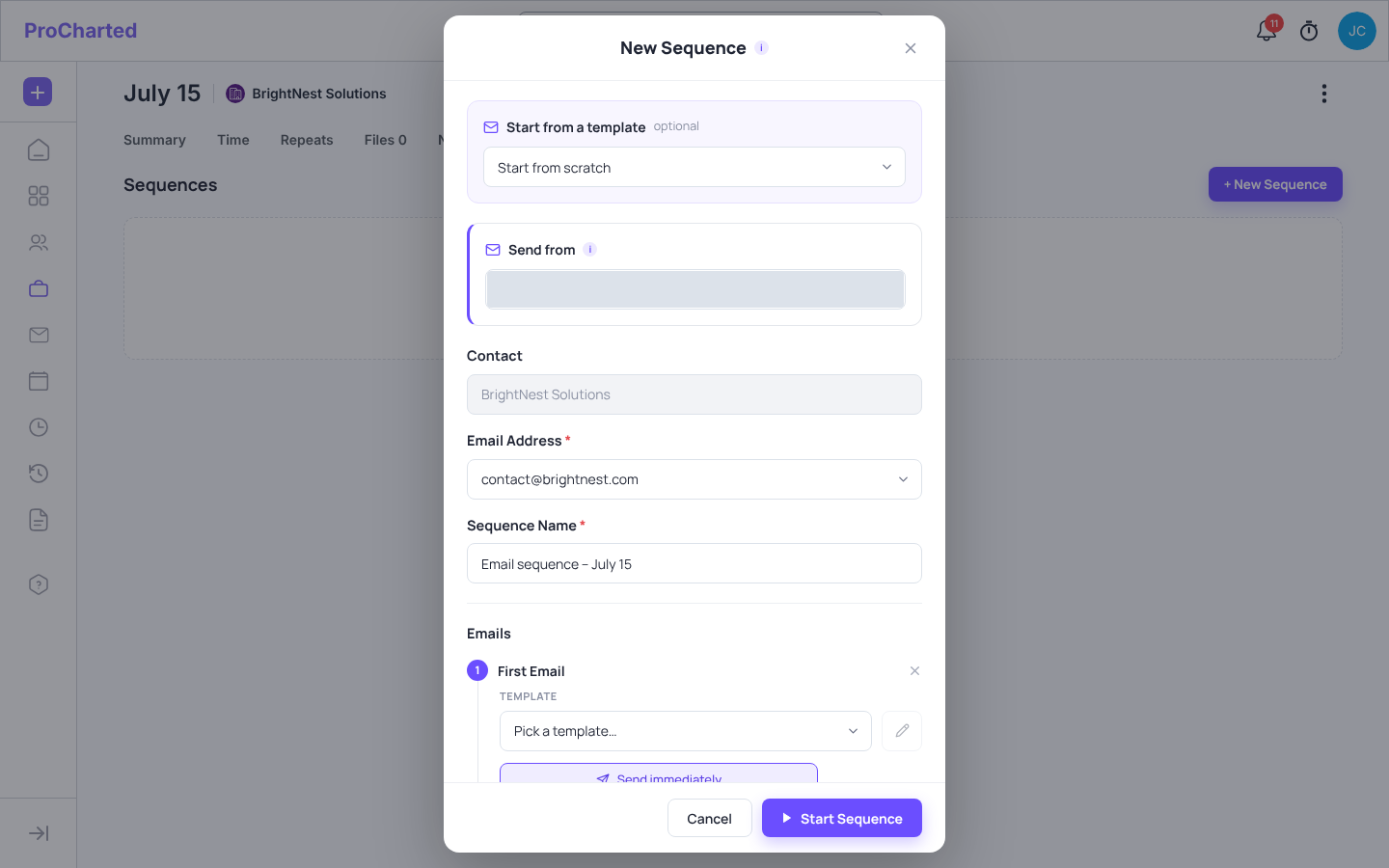
Optional: under Start from a template, pick a saved sequence template – or Start from scratch.
Check the Sequence Name (it’s filled in for you, e.g. Email sequence – July 15). It becomes the title of the sequence card.
Send from – your own connected mailbox. (If you haven’t connected one, you’ll see “Connect your mailbox first (Email page).”)
Email Address – choose which of the client’s email addresses to send to (the client’s primary email is offered first), or + Add new email….
Under Emails, set up the First Email:
pick a Template; click the pencil to change the subject or message for this sequence only;
choose when it’s sent: Send immediately or Schedule (pick a date). For organizations with a year end you can also send it Before year end (not available for individuals).
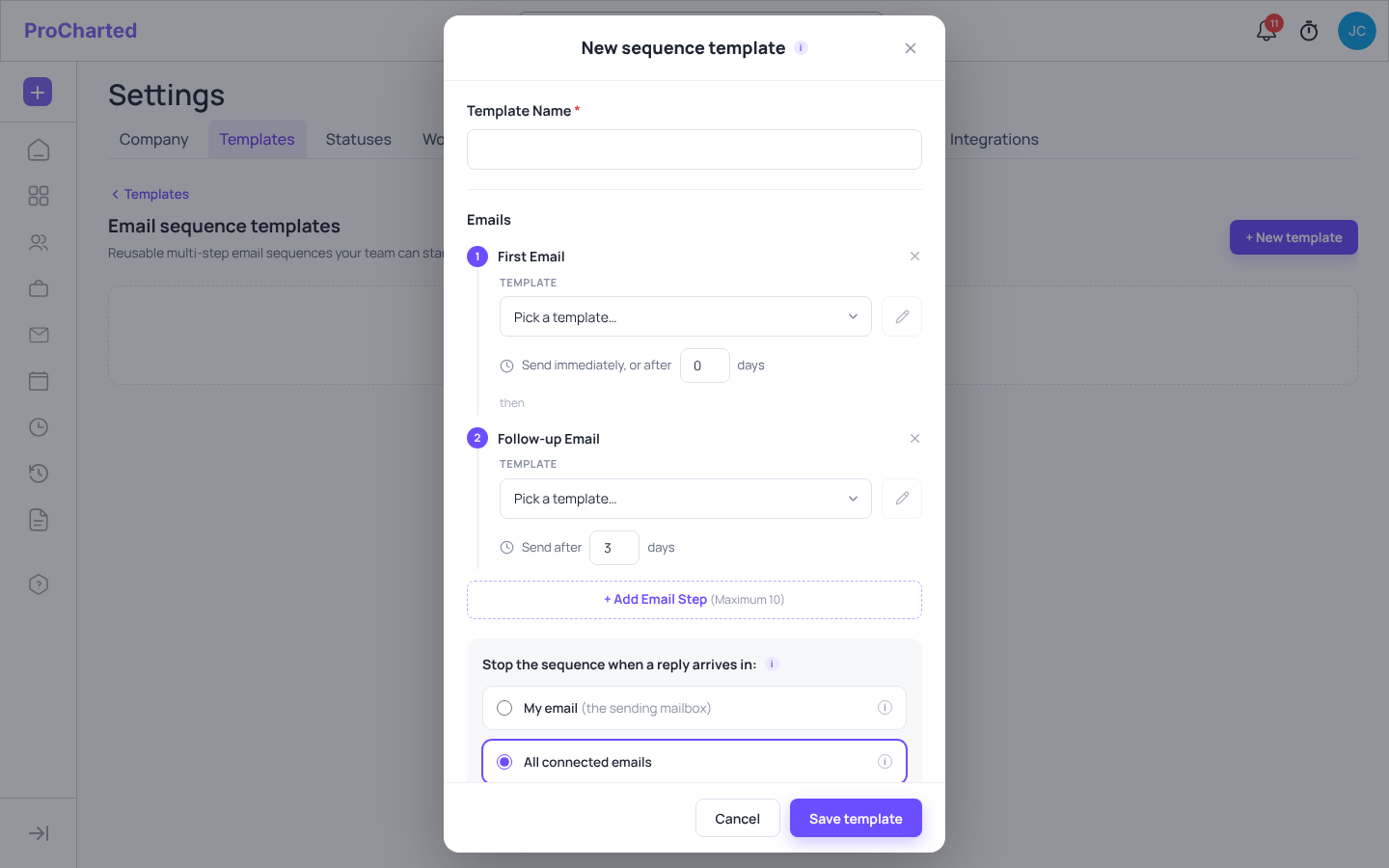
Set up each Follow-up Email: pick a template and Send after N days. Click + Add Email Step to add another follow-up (maximum 10 emails).
Stop the sequence when a reply arrives in: choose My email or All connected emails (any of the firm’s connected mailboxes).
When the client replies, choose what should happen:
Change the status to a status of this work type (or Don’t change the status), and/or
Notify yourself or a teammate (or No one).
Click Start Sequence, check the summary and click Continue.
New Sequence window
Follow a sequence
The Sequences tab shows a card for each sequence with a summary of the emails and one dot per email – dots fill in as emails are sent. The status shows:
Active – still running.
Replied – the client replied, so the sequence stopped.
Stopped – someone stopped it.
Completed – all emails were sent.
To stop a sequence yourself, click Stop on its card and confirm with Stop Sequence. The remaining emails won’t be sent. This can’t be undone, but you can start a new sequence anytime.
Add a sequence while creating new work
In the New work window, pick the contact(s) first.
Click Add an email sequence and fill in the same form as above.
Click Create. The sequence starts when the work is created.
If you picked several contacts, each contact gets its own work item and its own sequence, sent to that contact’s primary email.
Click + New template, type the Template Name and set up the emails and the reply rule. (Templates only hold the emails and timing – the start date and what happens when the client replies are chosen when you start the sequence.)
Click Save template.
It now appears under Start from a template when you create a sequence.
New sequence template window
Tips and common mistakes
“Connect your mailbox first (Email page).”: connect your email first from Email in the left menu (not from Settings > Integrations, which is for QuickBooks Online).
Sequences that the AI prepares for you (if your firm uses AI) are also sent from your own mailbox. Nothing starts until you click Create in the window it opens.
The Waiting on client report shows which waiting work has a sequence running and how far along it is.
“The first email can’t be scheduled in the past.” – pick today or a later date.
“The last email could not be sent…” on a card: check that the sending mailbox is still connected. ProCharted retries automatically.
Scheduled and follow-up emails go out in the morning (9:00 AM in your time zone).