
The Email page: read, write and file emails
Read your mailbox inside ProCharted, see which emails are from clients, write emails with templates and checks, and save attachments to a client.
Before you start
Connect your Microsoft mailbox (Outlook / Microsoft 365) first. See
Connect your email and see client emails.
Find your way around
- Click Email in the left menu.
- On the left are your folders: Inbox, Starred, Sent, Drafts, Spam, Archive, Deleted, and More folders for the folders you created yourself.
- Above the list, type in Search inbox, or pick All, Unread or Clients. Clients shows only emails with your clients.
- Emails with a client show a small chip with the client’s name.
- Click an email to read it.
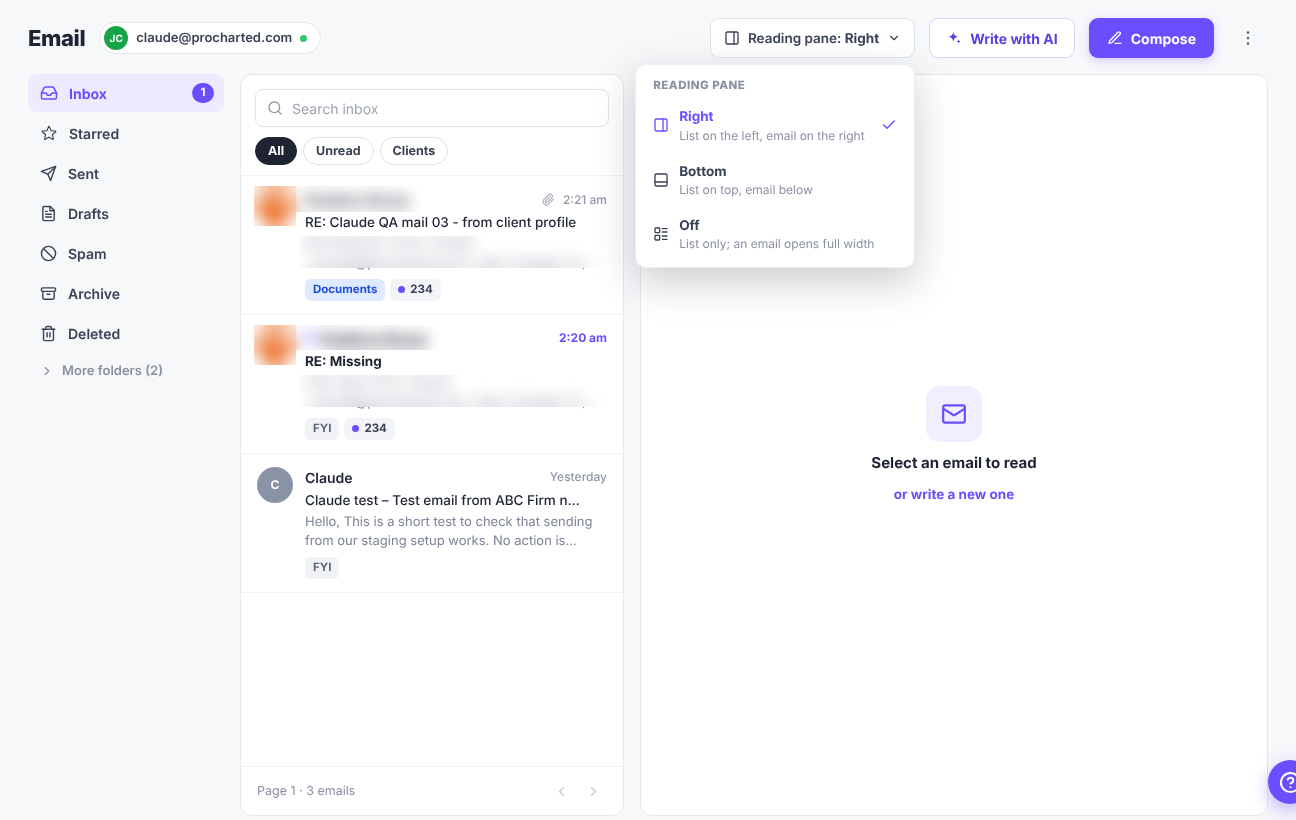
Choose where emails open (Reading pane)
Click Reading pane at the top of the page and choose:
- Right – list on the left, email on the right.
- Bottom – list on top, email below.
- Off – list only; an email opens full width. Use Back to (the folder’s name) to return to the list.
ProCharted remembers your choice on this computer and browser, also after you sign out.
Work with an open email
- Reply, Reply all and Forward are at the top of the email. Star, Print and Delete are there too.
- Linked to shows the client the email belongs to and any work item it’s linked to. Use Add to work to link it to one of the client’s work items, Create work to start a new work item from it, or Unlink work.
- Each attachment has Save to client files, so you can file it on the client’s profile in one click.
If your firm has AI features turned on, emails can also show a short tag (for example
Documents or FYI), an AI summary and Quick replies. Always check what the AI suggests before you use it.
Write a new email
- Click Compose at the top of the Email page. The New email window opens. (The same window opens when you write, reply or forward anywhere in ProCharted, for example from a client’s Email tab.)
- From shows your connected mailbox.
- To – type a client’s name to search for them, or type a full address and press Enter. Each recipient becomes a chip; click its x to remove it. Cc / Bcc adds more rows.
- Type the Subject.
- Write the Message. Templates fills in one of your saved email templates. Improve offers Polish writing, Fix spelling & grammar, Make it shorter, Make it more formal and Make it friendlier once you’ve written something.
- Attach adds files.
- Click Send.
AI assistant (top right of the window, if your firm uses AI) opens a panel where you can describe the email and choose a Tone (Professional, Friendly, Concise). The AI only writes drafts: nothing is sent until you press Send.
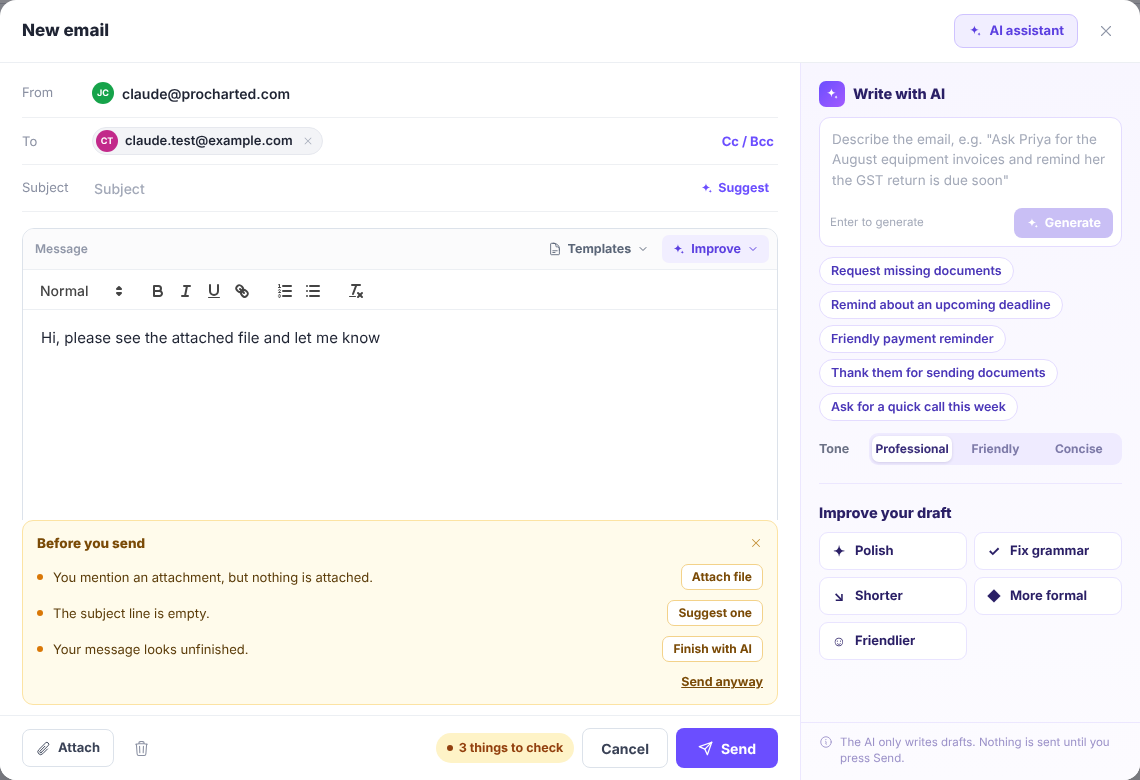
Before you send
Click Check next to Send to look over your email first. ProCharted points out common slips, for example:
- “You mention an attachment, but nothing is attached.” – with an Attach file button.
- “The subject line is empty.”
- “Your message looks unfinished.”
Fix them, or click Send anyway.
Tips
- ⋮ at the top right of the Email page has Sync emails with clients/works and Disconnect my email.
- Emails you send from ProCharted go out from your own mailbox, so they’re also in Outlook’s Sent folder.
Related articles
- Connect your email and see client emails
- Email templates
- Email sequences: automatic reminder emails to clients
- The client profile page