
Recurring work
Recurring work: make work repeat automatically
Set a work item to repeat weekly, monthly, quarterly or yearly, choose when each new item is created and when it's due, and edit or stop the schedule.
Start a recurring schedule
- Open the work item you want to repeat.
- Click the Repeats tab, then + Start recurring schedule. (On the Summary page, the Not recurring – Set up a repeat schedule card takes you there too. You can also add a schedule while creating the work: New work > Add a repeat schedule.)
- In the Recurring work window, choose how often it Repeats: Weekly, Bi-weekly, Monthly, Quarterly or Annually. For monthly work, use Every to repeat less often (every 1, 2, 3 or 6 months).
- For quarterly and yearly work, set when your client’s Fiscal year begins.
- Choose Create work – when each new work item is made. This is also its start date:
- Immediately – every work item up to the Repeat until date is created right away. The window shows how many, for example “Saving creates 8 work items at once.” (at most 60 at once).
- On specific day – each one is created on a set day (e.g. the 1st of the month, or a weekday for weekly work).
- On completion – the next one is created when the current one is set to a completed (green) status, such as Completed. It starts that day.
- Choose when each item is Due – for example the 15th of the same month or of the following month, or the Last day. With On completion, the due boxes are greyed out: the item is due in the following week/month/quarter/year (bi-weekly: 2 weeks later).
- Set Repeat until – the last date the schedule should run to.
- Click Save. A “Recurring schedule started” message confirms it (when you edit a schedule: “Recurring schedule updated”). There’s no extra window to confirm.
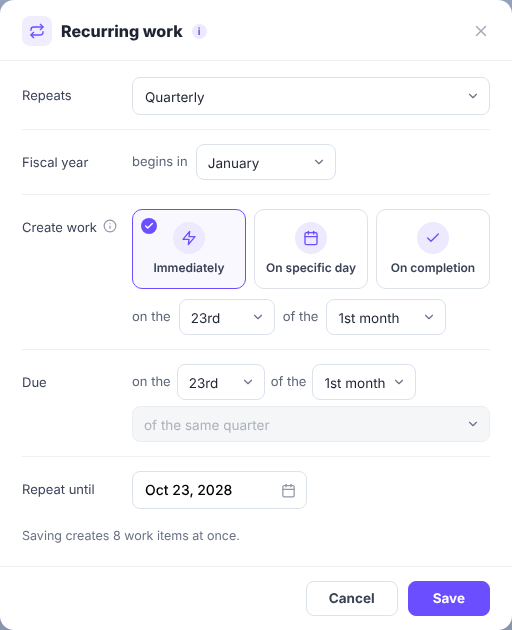
New work items can take up to 5 minutes to appear. You’ll find them all in the Repeats tab.
Examples
Weekly – on a specific day. Created on Monday, due Friday of the same week. Work A: starts Mon Apr 20, due Fri Apr 24 → Work B is created and starts Mon Apr 27, due Fri May 1.
Weekly – on completion. Due day Friday of the following week (set automatically). Work A is completed on Thu Apr 16 → Work B starts Apr 16 and is due Fri Apr 24.
Bi-weekly – on completion. Due 2 weeks later (set automatically). Work A is due Fri May 1 and completed Thu Apr 30 → Work B starts Apr 30 and is due Fri May 15.
Monthly – on a specific day. “Start date is on the 5th”, due the 29th of the same month. Work A: May 5 → May 29. Work B: June 5 → June 29.
Monthly – on completion. Due the 15th of the following month (set automatically). Work A is completed Sept 14 → Work B starts Sept 14 and is due Oct 15.
Quarterly. Quarterly work needs the Fiscal year start month so ProCharted knows the quarters. Fiscal year begins in January → quarters are Jan–Mar, Apr–Jun, Jul–Sep, Oct–Dec. Fiscal year begins in August → Aug–Oct, Nov–Jan, and so on. – On a specific day: created on the 5th of the 1st month of the next quarter, due the 20th of the 3rd month. Work A: Jan 20 → Mar 20. Work B: Apr 5 → Jun 20. Work C: Jul 5 → Sep 20. – On completion: due the 20th of the 3rd month of the following quarter. Work A is completed Mar 15 → Work B starts Mar 15 and is due Jun 20. If Work B is only completed on Aug 10, Work C starts Aug 10 and is due Dec 20.
Annually. – On a specific day: created September 1, due December 25. Work A (created Apr 24, 2026) is due Dec 25, 2026; Work B: Sep 1, 2027 → Dec 25, 2027; Work C: Sep 1, 2028 → Dec 25, 2028. – On completion: due December 25 of the following year. Work A is completed Nov 4, 2026 → Work B starts Nov 4, 2026 and is due Dec 25, 2027.
Immediately works exactly like On a specific day, except every work item up to Repeat until is created right away.
Never – the work doesn’t repeat.
See a recurring schedule
- The work item’s title shows a Recurring pill next to the client’s name.
- On the Summary page, the details card shows the cadence, for example Recurring · Quarterly, and the next occurrence (or All occurrences created). Click it to open the Repeats tab.
- On the Work page, recurring work has a recurring icon next to its name.
- The Repeats tab shows a banner (“Recurring schedule active”) with the schedule and a list of every work item it created. The one you’re looking at is tagged Current.
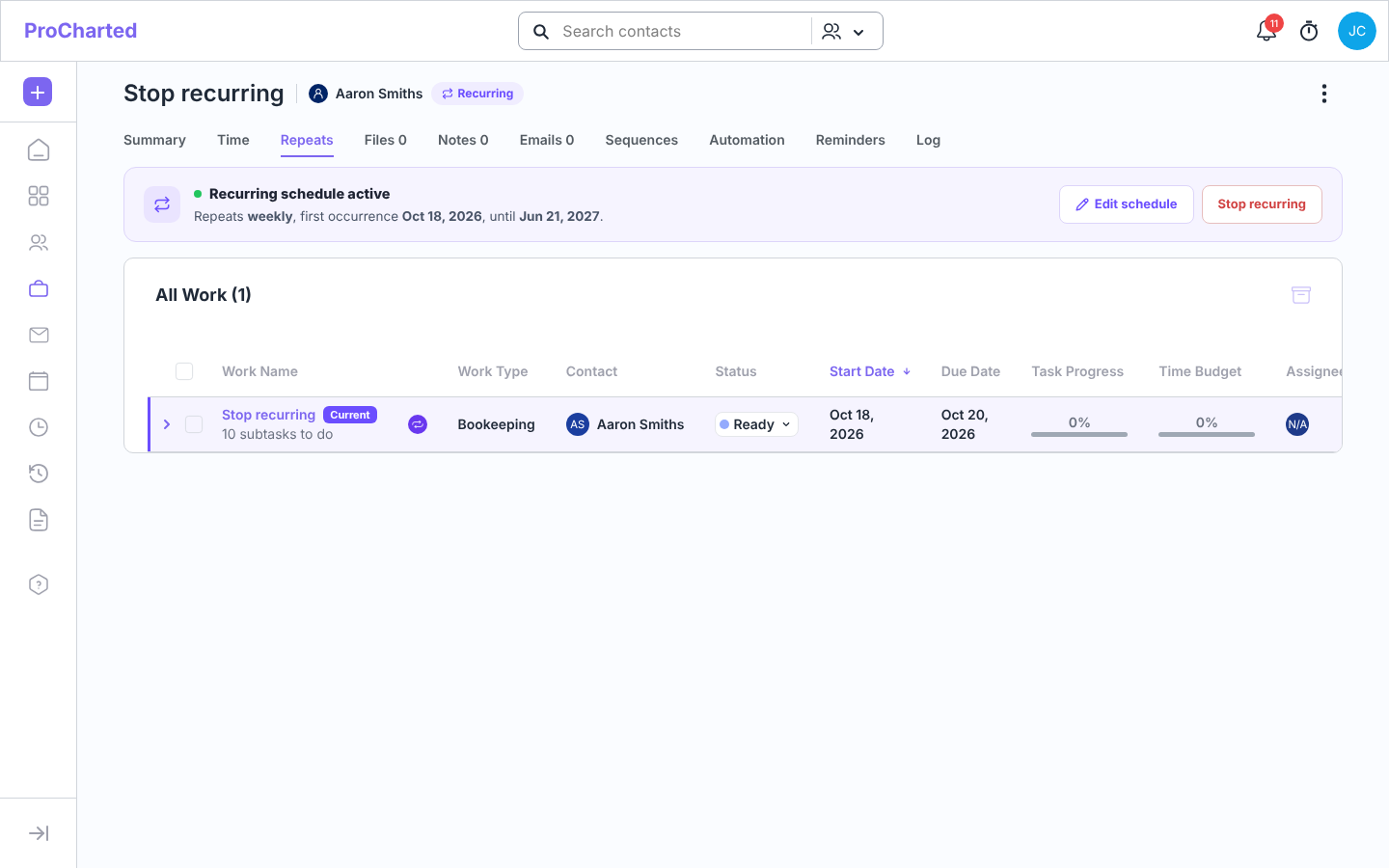
Automations repeat too
If the work item has automations (on the work item or on its subtasks), each new work item in the series gets them too. They start fresh (Not run yet), and date rules such as 5 days before the due date count from the new item’s own dates. If you add an automation in the
New work window together with a repeat schedule, the card says it will be copied to each repeat.
Change a schedule
- Open any work item of the series and go to the Repeats tab.
- Click Edit schedule, make your changes and click Save.
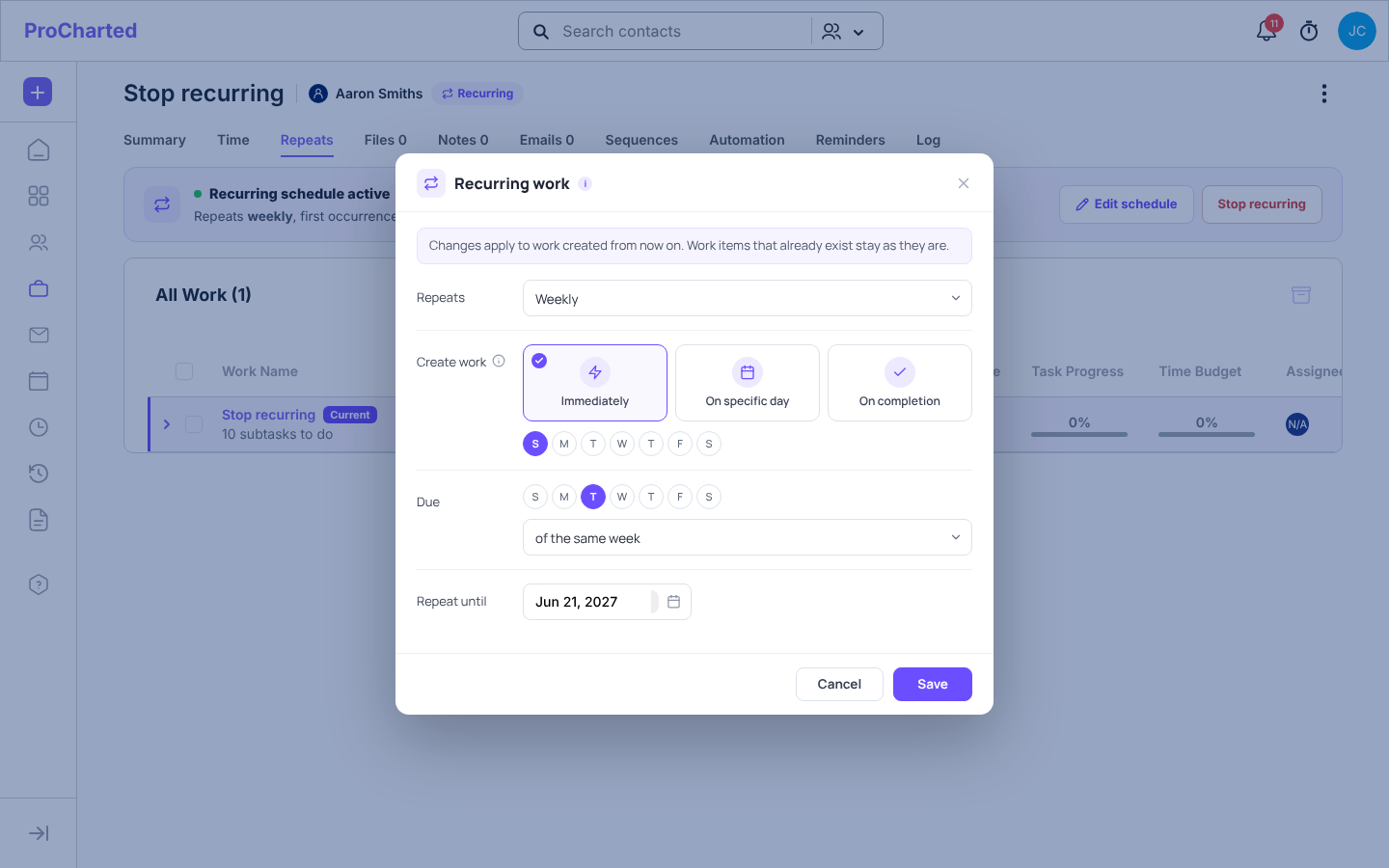
Changes only apply to work created from now on – work items that already exist stay as they are.
Stop a schedule
- In the Repeats tab, click Stop recurring.
- Confirm with Continue.
No new work items will be created. The ones already created stay in the list.
Tips and common mistakes
- “Invalid Due Date” when saving: the due date would be before the start date. For example, created on September 1 but due January 30 of the same year. You probably meant of the following year – change it and save again.
- Repeat until must be on or after the first due date.
- With On completion, nothing new is created until the current item gets a completed (green) status, and the next one can take a few minutes to appear.
- Immediately creates all occurrences at once, so they’ll all show on the Work page with future start dates (and the status Scheduled until their start date).
Related articles
- Create new work
- Inside a work item
- The Work page: find and manage your firm’s work
- Automations: let ProCharted do the routine steps