
Reports
Run a report and export it to Excel
Ready-made reports on work, time and billing, plus reports you create with AI. Filter, ask about and save any report, and export it to Excel.
Time and Billing. Every report can be filtered and exported to Excel, so you can see how your firm’s work, time and billing are going without building anything yourself.
Before you start
- Reports is for Admins and people with the View Reports permission (an admin turns it on or off in Settings > Team > Edit user). Without it, Reports isn’t in the left menu, and the page says “Reports are only for Admins and people with the View Reports permission. Ask a firm admin to turn it on for you in Settings > Team.”
- Inside Reports, Admins and team members with the View FirmsWork permission see the whole firm. Everyone else sees only their own work and time. The Reports page then says “You see your own work and time.”
- The Billing reports need billing access (Admin or the View Billings permission). Without it, their cards show Needs billing access. The money amounts in the Time report are also only shown with billing access.
The reports
Work – “Who is doing what, and what needs attention”
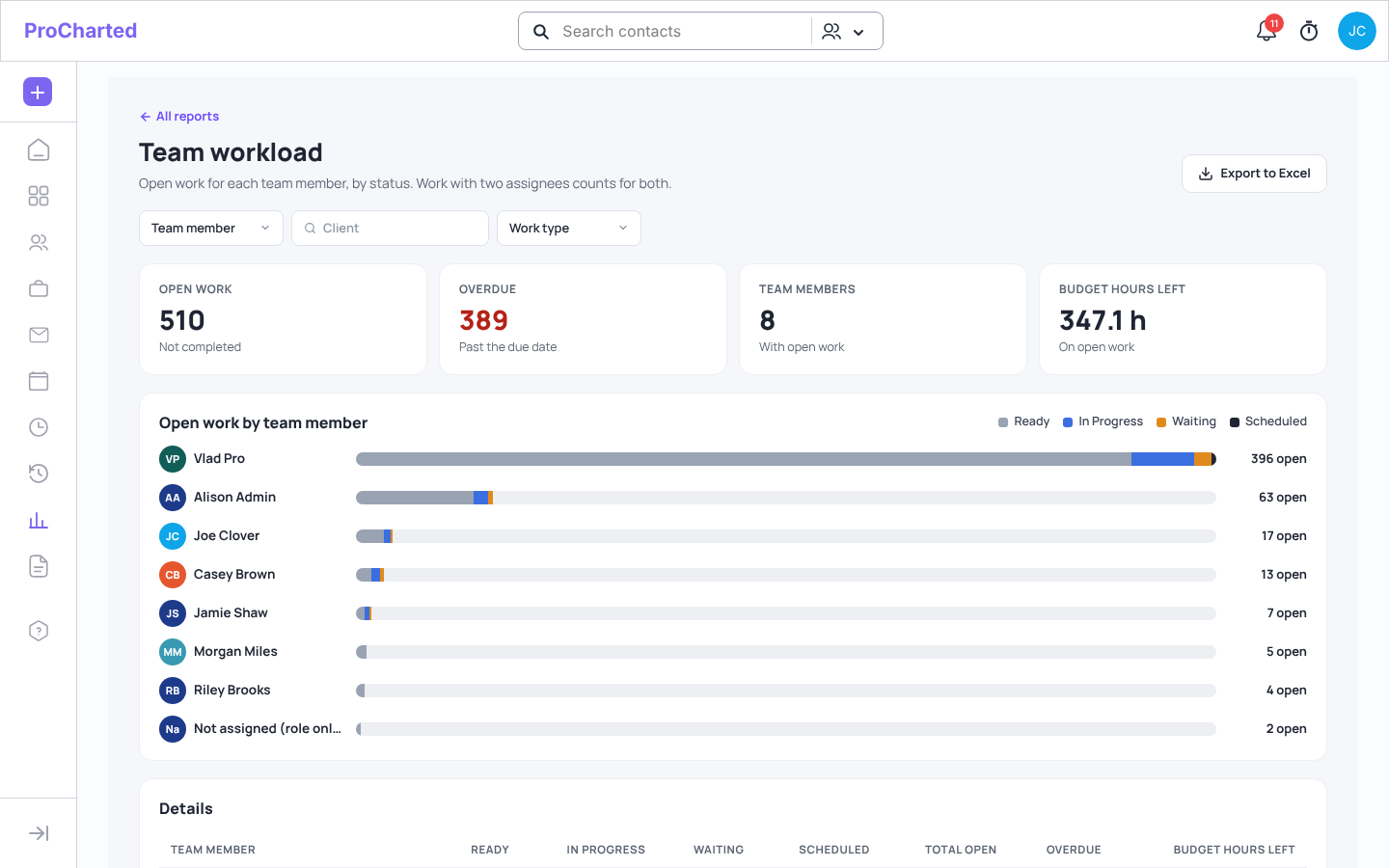
- Team workload – open work for each team member, by status, with what’s overdue.
- Deadlines – work that’s overdue, due this week, or due in the next 30 days.
- Completed work – how much work got done, how much was on time, and how long it took.
- Time in status – how long work has been sitting in its current status, to spot bottlenecks.
- Waiting on client – work that can’t move until the client replies or sends something.
- Budget vs actual hours – hours budgeted compared with hours tracked, and what’s over budget.
Time – “Where the team’s hours go”
- Time report – hours by team member, client and work type, billed and not billed yet.
Billing – “What’s billed, owed and earned”
- Unbilled time (WIP) – billable time that hasn’t been put on an invoice yet, by client.
- Unpaid invoices by age – what clients owe, split into 0–30, 31–60, 61–90 and 90+ days.
- Revenue – what you invoiced and what has been paid, month by month, by client, service or team member.

Open and filter a report
- Click Reports in the left menu (the chart icon).
- Click a report card (Open →).
- Use the filters under the title:
- Most reports have Team member (only if you can see the whole firm), Client and Work type. You can pick more than one in each. Clear all removes them. (Revenue has Assignee and Client.)
- Some reports also have a date box with This month, Last month, This quarter, This year, Last year, Last 12 months and All time.
- Some reports have their own switches, for example the boxes at the top of Deadlines (click one to switch the list), or the Team member / Work type grouping in Completed work.
- Click ← All reports to go back to the list.
Export a report to Excel
- Open the report and set the filters you want.
- Click Export to Excel at the top right.
ProCharted downloads an Excel file named after the report (for example
Waiting on client.xlsx). It holds the rows you see on screen, with your filters applied. The button only appears when the report has rows.
Ask about a report
When AI features are on for your firm, every report has an Ask about this report button.
- Open a report and set the filters you want.
- Click Ask about this report and type your question, for example Who has the most overdue work?
- The answer uses only what the report shows with your current filters, and lists the rows it means.
- Click Show only these rows in the report to narrow the table to those rows. Show all brings everything back.
Create a report with AI
- On the Reports page, describe the report you need in Create a report with AI, for example Hours by client this quarter, compared with last year.
- ProCharted builds it: totals, a chart, the table and a short What stands out note.
- Use the filters (dates, team member, client, work type) as in any report, or ask it to change the report with Change with AI.
- Click Save. The report is kept under My reports on the Reports page, and its numbers are up to date each time you open it.
You can Export it to Excel, Share with team or stop sharing, and delete it. Reports shared by others can be copied with Save a copy.
Save a report with your filters
Every ready-made report has ☆ Save as my report.
- Open a report and set the filters, dates and view you want.
- Click ☆ Save as my report, give it a name and choose whether to share it with your team.
- Open it later from My reports on the Reports page. It opens with the same filters.
If you change something in a saved report, it shows Unsaved changes with Undo. The ⋯ menu has Rename, Share, Save a copy, Open the original report and Delete.
Create an invoice from unbilled time
- Open Unbilled time (WIP).
- Find the client and click Create invoice on their row.
- A new invoice opens for that client. Add the time with + Add Billable time and save the invoice as usual.
Tips
- Unbilled time (WIP) counts only billable time. Time marked non-billable never shows there.
- Money amounts use each team member’s current Hourly rate.
- Waiting on client also shows whether an email sequence is reminding the client.
- Completed work needs a completion date, so very old work without one is left out (the report says so).
Related articles
- Track time with the timer
- Invoices and payments
- See due dates on the Calendar
- Email sequences
- Team members and permissions