
Contacts
Add or edit a client (individual or organization)
Create an individual or organization, update their details, emails, phones, addresses and custom fields, and merge duplicates.
Organizations (corporations, sole proprietors, trusts and more). You add a client in a short window, then fill in the rest of their details with Edit on their profile.
Add a new client
- Go to Contacts and click + Add contact (or click Create at the top of the left menu > New Contact).
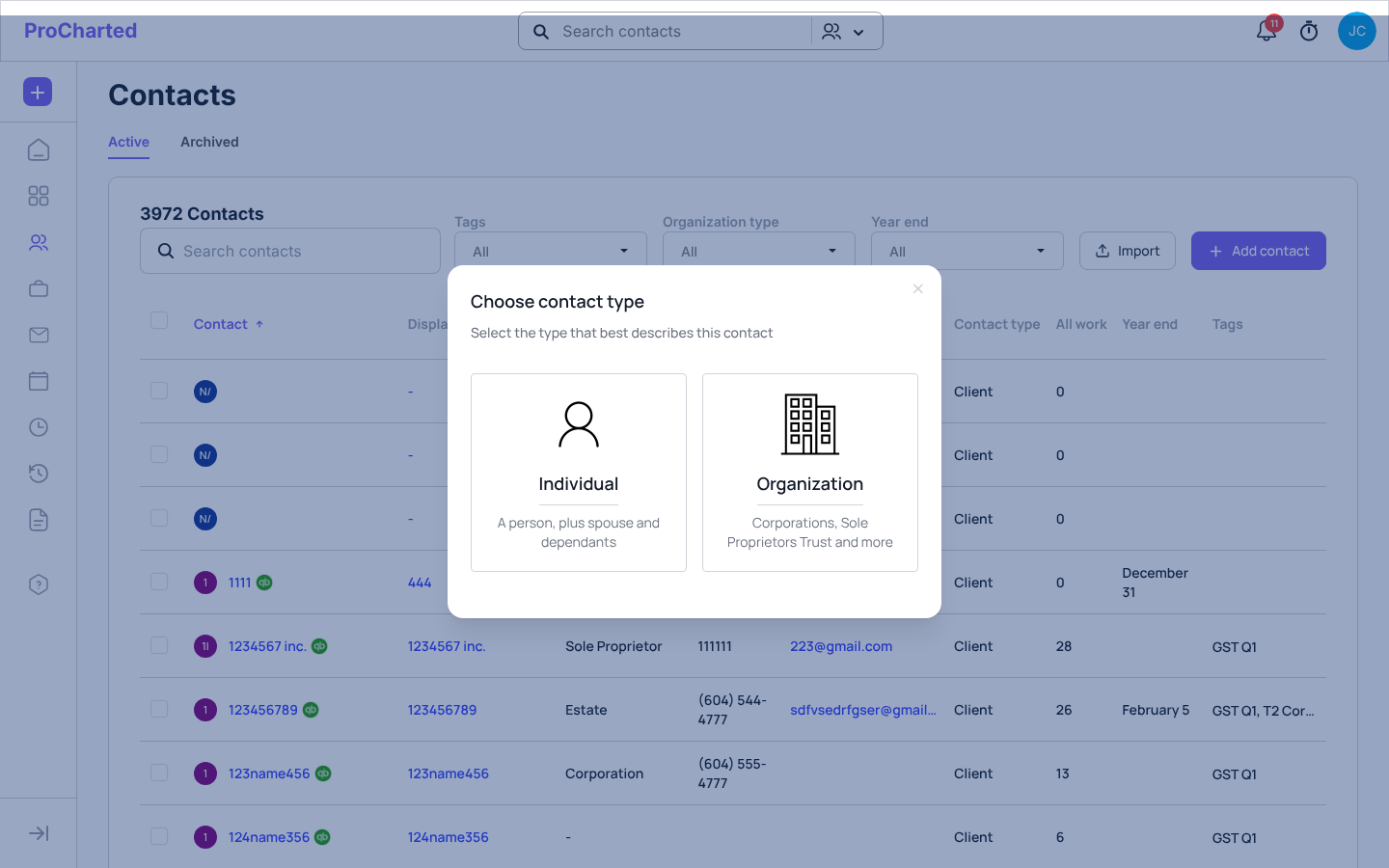
- In Choose contact type, click Individual or Organization. The form opens straight away.
- Fill in the form:
- Individual: First Name and Last Name are required. As you type the names, Display Name fills in by itself (for example Mary J Smith); you can change it. You can also add Middle Name, Contact Type (Client, Prospect or Other), SIN Number (format 000-000-000), Email Address, Phone Number, a Linked Profile (pick the contact and the relationship, for example spouse) and Tags.
- Organization: Company Name is required. You can add the Business Number, Contact Type, the Primary Contact (Contact Person Name, Phone and Email, saved as the organization’s contact person), a Linked Profile (Contact = an existing client; Relationship is optional) and Tags.
- Click Create.
If another client in your firm already uses the email address, ProCharted asks first (Email already used – “This email is already used by
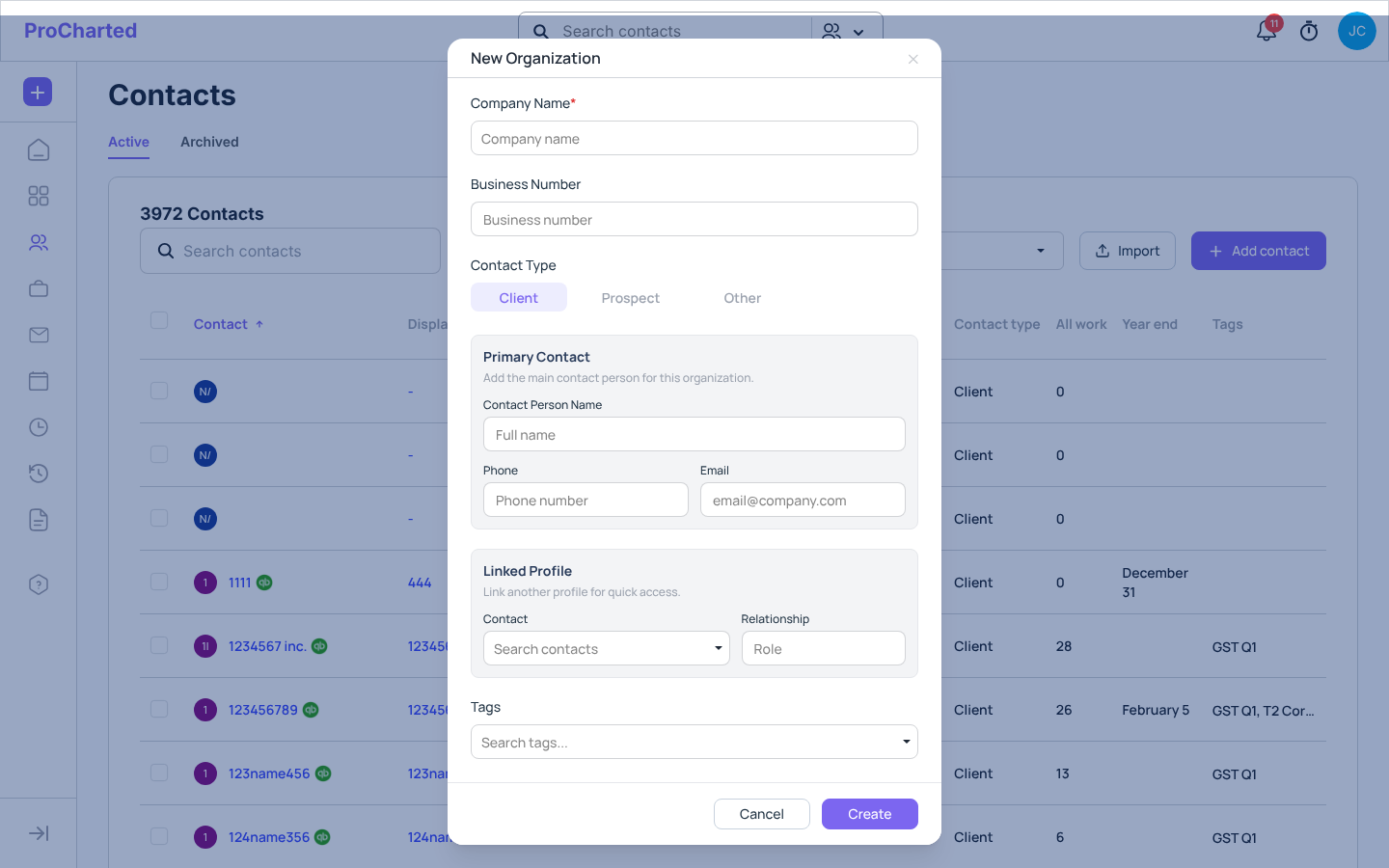
The display name, the organization type (for example Sole Proprietor) and the year end aren’t in this window. Set them afterwards with Edit (see below).
Edit a client
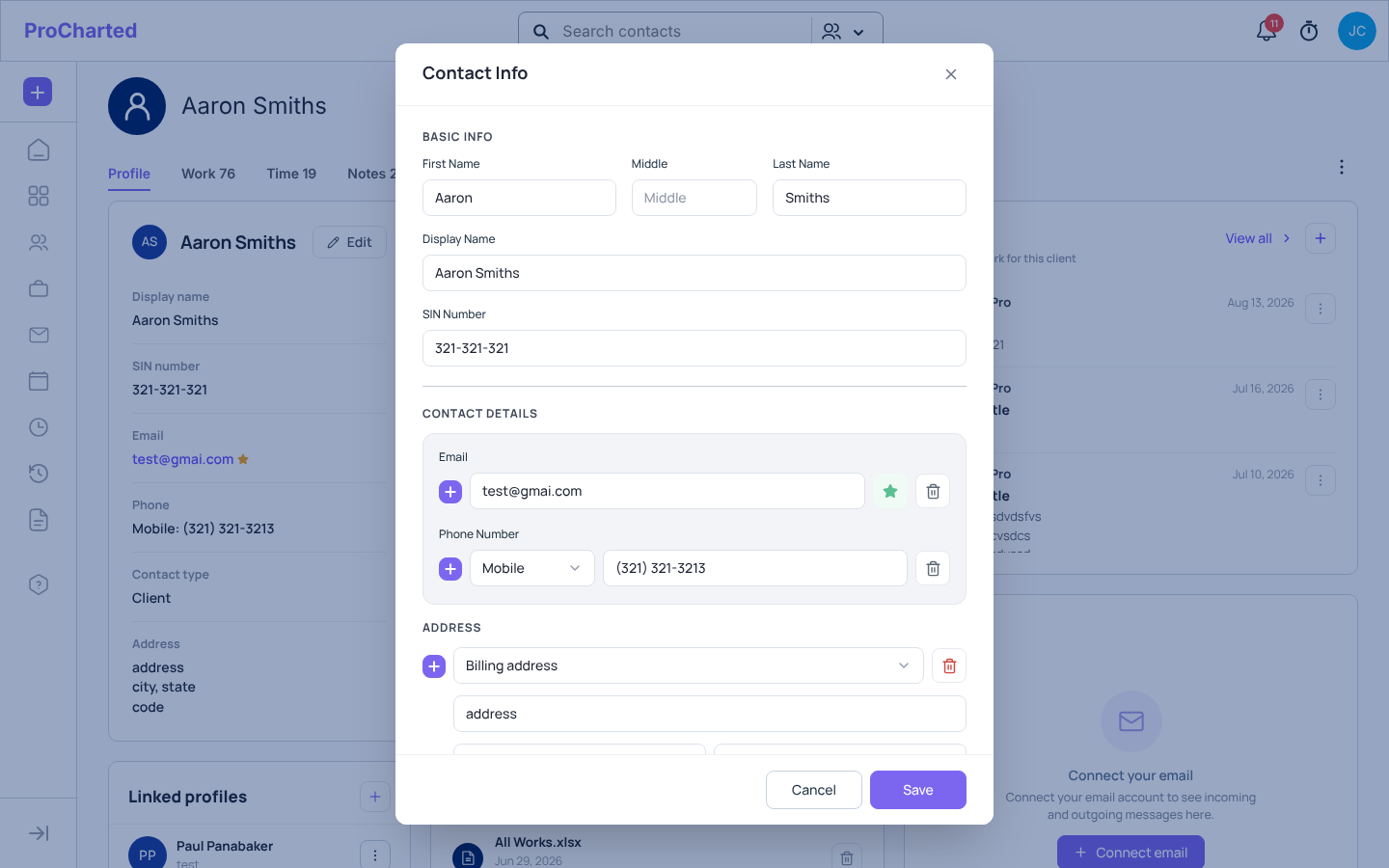
- Open the client and click Edit on their info card. The Contact Info window opens; the top and bottom stay in place and the middle scrolls.
- Change what you need:
- Individuals: Basic Info, Contact Details, Address, Custom Fields, Contact Type, Additional Info.
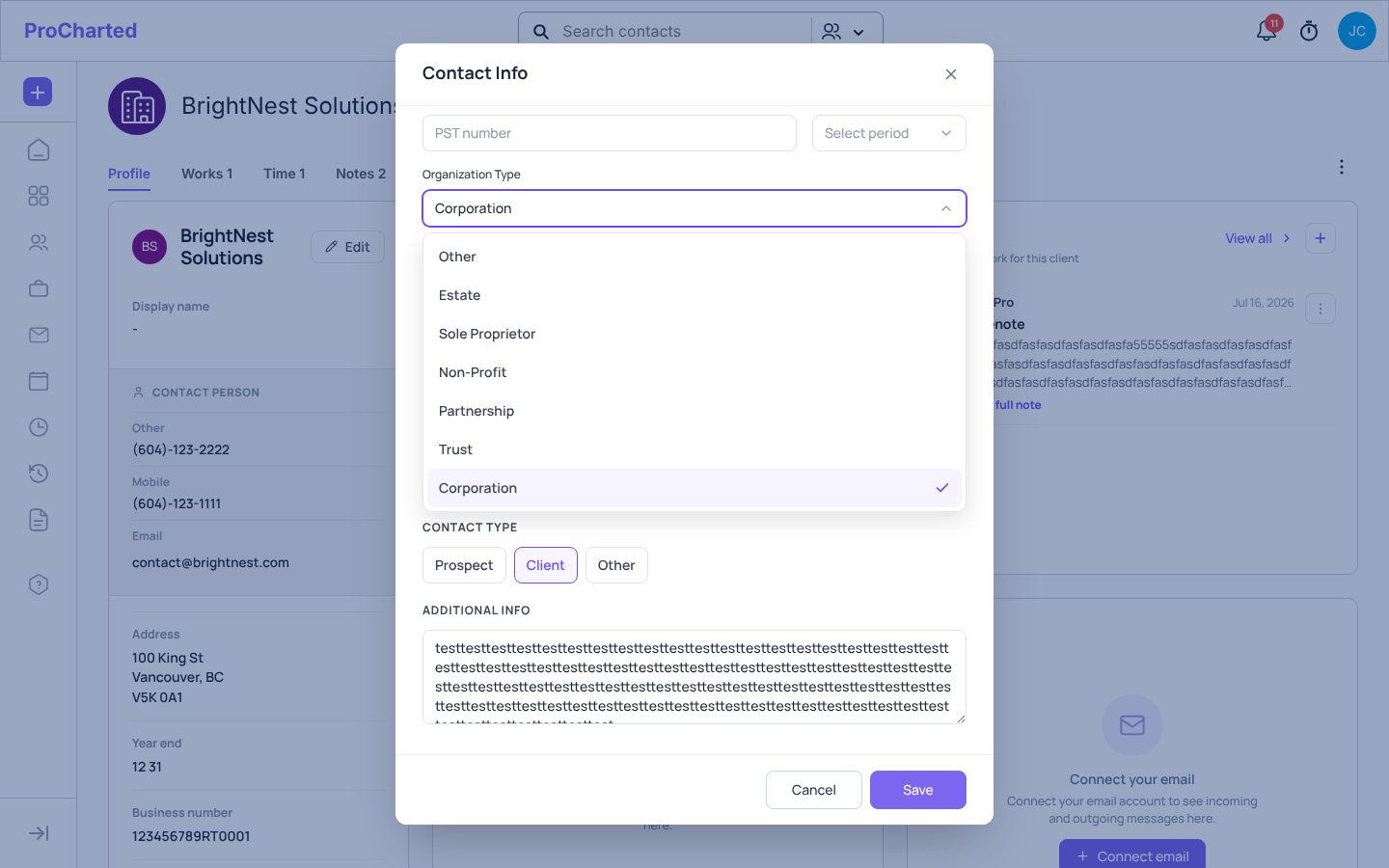
- Organizations: Company Details (Company Name and Display Name; an empty Display Name fills in from the company name as you type, and you can change it), Contact Person (first and last name, email, phone), Address, Registration & Tax (incorporation date, year end, business number, GST/HST and PST numbers with their reporting periods, Organization Type), Custom Fields, Contact Type, Additional Info.
- Click Save.
The same Email already used question appears when you add an email that another client already uses.
For organizations, the phone number and email belong to the Contact Person – that’s the only place to enter them, and it’s what is shared with QuickBooks Online.
Link two profiles
You can link related clients, for example spouses, or a company and its owner.
- On the client’s profile, find the Linked profiles card and click + (Add linked profile).
- Pick the contact in Name and, if you like, type a Role.
- Click Add, then Continue. The link is added to both profiles (“Linking a new profile will also add the current contact to the other profile”).
Click a linked name to open that profile. Use a row’s ⋮ > Edit to change the link.
Emails, phone numbers and addresses
- Click + next to Email, Phone Number or Address to add another one.
- Each phone number has a type: Mobile (the default), Phone, Fax or Other.
- A phone number needs at least 7 digits (“Phone number must have at least 7 digits.”). An empty phone box is fine.
- Each address is a Billing address or a Shipping address.
- Click the trash icon to remove one. This works even if it’s the only one, because these fields are optional.
Choose the primary email
A client with more than one email always has exactly one primary email.
- In the Contact Info window, find the email you want under Contact Details (or Contact Person for an organization).
- Click the star next to it (Make primary email). The star turns green.
- Click Save.
- On the client’s profile, a star next to an email shows it is the primary one.
- The first email you add to a new client becomes the primary email.
- If you delete the primary email, the next email in the list becomes primary.
- Email sequences rely on it: when you add a sequence while creating work for several clients at once, each client’s emails go to their primary email. On a single work item you pick the address in the sequence window, where the primary email is marked.
Merge two clients
If the same client was added twice, merge the two profiles into one.
- Open the profile you want to keep.
- Click the ⋮ at the top right of the profile and choose Merge. The Merge contacts window opens, with this client as the Primary contact:.
- Under Secondary contact (To be deleted), pick the duplicate.
- Read what will happen:
- the secondary contact’s work items, notes, documents, invoices and payments move to the primary contact,
- the primary contact’s own details (address, phone number and so on) are kept,
- the secondary contact is permanently deleted.
- Click Continue, then confirm. This can’t be undone, so check you picked the right two clients. Click Cancel if you’re not sure.
Tips and common mistakes
- “Invalid SIN format” – use 000-000-000. “SIN number already exist” – another client in your firm already has this SIN.
- “This business number already exist” – another organization already uses it.
- The Organization Type (for example Sole Proprietor) is chosen in the Edit window, in Registration & Tax. It shows in the client list’s Organization type column, and you can filter the list by it.
- Custom fields appear in the Edit window once an admin has created them in Settings > Custom Fields.
Related articles
- The client list – search, filter, bulk actions and importing
- The client profile
- Custom fields
- Email sequences
- Client portal