
Work items
The Work page: find and manage your firm's work
How the Work page is organised (Active Work, My Work, Queued, Completed, Archived), what the cards mean, and how to filter and update several work items at once.
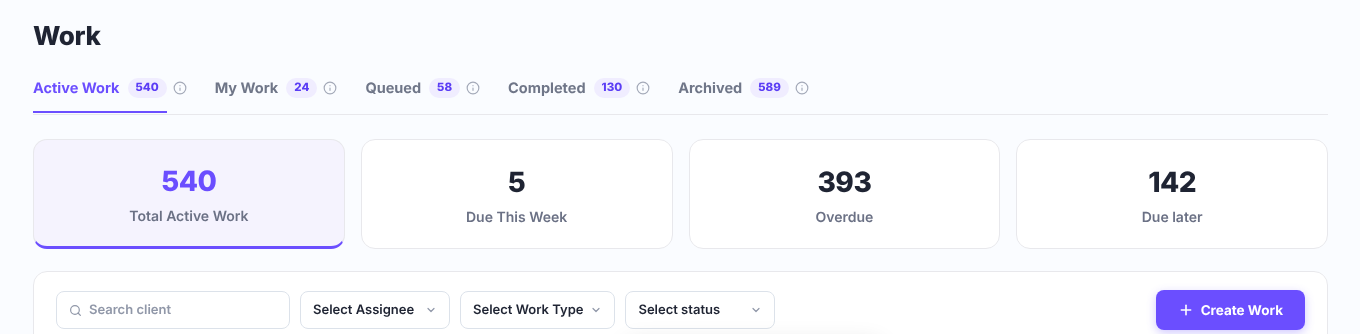
The tabs
| Tab | What it shows |
|---|---|
| Active Work | All open work across the whole firm – every status except completed. |
| My Work | Work assigned to you, including work you picked up for one of your roles. |
| Queued | Work assigned to a role that nobody has taken yet. Once someone in that role picks it up, it leaves the queue. See Roles and the Queued list. |
| Completed | Work with a completed (green) status. |
| Archived | Archived or deleted work. You can reactivate it at any time. |
Each tab shows a count, and the small (i) next to it explains the tab.
The cards (Active Work and My Work)
- Total Active Work – every open work item in the tab.
- Due This Week – due between today and Sunday (a week ends on Sunday).
- Overdue – the due date has passed.
- Due later – due after this week.
Click a card to show only those work items. Click it again (or Clear all) to show everything.
Filter and search
- Type in Search client to find work for one client.
- Use Select Assignee, Select Work Type and Select status to narrow the list. (There is no assignee filter on My Work and Queued.)
- In Select status, tick one or more statuses. Each status shows how many work items have it. Your own statuses are listed under their main status (Ready, In Progress, Waiting, Completed).
- Click Clear all to remove all filters.
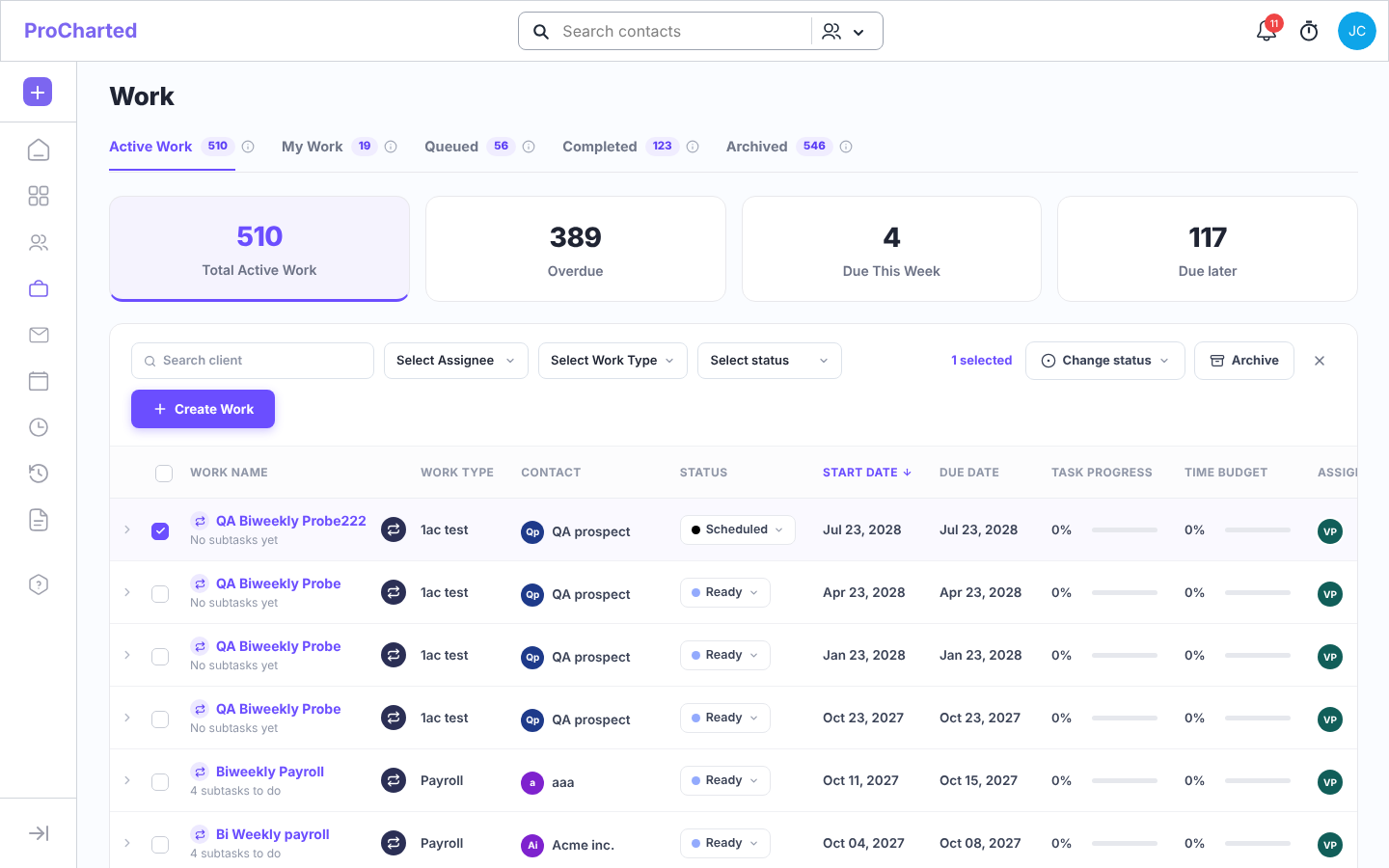
Each row shows the work name (with how many subtasks are left to do, and a ⟳ icon if the work repeats), work type, contact, status, start and due dates, task progress, time budget and assignee. You can change a status straight from the status pill. Click the arrow (›) on a row to see its subtasks without opening it. Click the work name to open the work item.
Pages and going back
- The list shows 20 work items per page. At the bottom, a line such as “Showing 1–20 of 540” tells you where you are; click a page number or the arrows to move between pages.
- When you open a work item and then use your browser’s Back button, the tab comes back as you left it: same filters, picked card and page.
Update several work items at once
- Tick the boxes on the left of the rows you want. A bar shows N selected.
- Choose an action:
- Change status – pick the new status for all selected items. You can choose one of the four main statuses (in a new firm: Ready, In Progress, Waiting and Completed). Your own statuses (such as Waiting for documents) aren’t offered here, because each work type has its own list – set those on each work item.
- Archive – moves them to the Archived tab (you’ll be asked to confirm).
- On the Archived tab: Reactivate (back to active) or Delete (permanent).
- Click the X to clear your selection.
Create work
Click + Create Work (top right), or use the purple + button at the top of the left menu >
New Work. See Create new work. (There is no Create Work button on the Queued tab.)
Tips
- “Active” means not completed. Work with a future start date shows the black status Scheduled until its start date arrives; then it turns Ready within a day.
- On the Home page, clicking a status in the Job status pipeline opens this page already filtered by that status.
- Deleting from the Archived tab is permanent. If you only want it out of the way, archive it.
- Looking for the old Show completed switch? Active Work, My Work and Queued never show completed work; finished work is in the Completed tab. The Show completed switch is now only on a client’s Work tab.
Related articles
- Your Home page: what to work on today
- Create new work
- Inside a work item
- Roles and the Queued list: share work with a team
- Create a status and add it to a work type