
Contacts
Find a client or a work item with search
Use the search box at the top of every page or the Contacts list to find a client or a work item by name, email or phone number.
Search from the top bar
The search box at the top of the screen is always there, whatever page you’re on. It says
Search clients and work (or Search or ask a question… if your firm uses AI features).
- Click the search box and start typing. Results appear under the box as you type.
- Clients are listed under Clients, work items under Work items. Each work item shows the client’s name under the work name.
- Click a result to open the client’s profile or the work item.
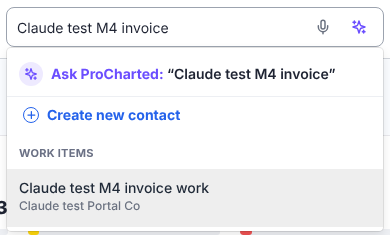
In the results, each client has a round badge with their initials. Blue badges are individuals and purple badges are organizations. Clients whose name matches what you typed come first (an exact name, then names starting with it), followed by clients found through their email or phone number. If nothing matches, you’ll see No results.
Near the top of the list is Create new contact. Click it if the client isn’t in ProCharted yet: what you typed is filled into the name boxes. After you save the new client, ProCharted opens their profile.
The microphone in the box lets you speak your search instead of typing (in browsers that support it). With AI features on, the first row may be Ask ProCharted, which answers a question about your firm’s data instead of searching.
Search the Contacts list
- Click Contacts in the left menu.
- Type in Search contacts above the list. The list narrows as you type.
- Click a client’s name to open their profile. Click the x next to the box to clear it.
You can combine the search with the Tags, Organization type and Year end filters. The Archived tab has its own search box for archived clients. For everything else on this page, see The client list – search, filter, bulk actions and importing.
What you can search by
Both search boxes find clients by:
- Name – the client’s name, or part of it. For an individual, the first or last name; for an organization, the company name.
- Email address – all or part of it, for example @gmail or smith.
- Phone number – type it any way you like. (705) 554-4477, 705-554-4477, 705 554 4477 and 7055544477 all find the same client, and so does just the end of the number, such as 554-4477.
On the Contacts list you can also search by:
- Business number – with or without spaces.
- SIN – type it with the dashes, for example 123-456-789. Typing only the digits doesn’t find it.
The search box at the top doesn’t search by SIN or business number. Use the Contacts list for those.
For organizations, the email and phone number are the ones of the contact person, so search for those.
Pick a client in other windows
Windows where you choose a client have their own search box and find clients the same way as the
Contacts list:
- New work – the Contact box, tab Contacts (Search contacts…). You can tick several clients at once.
- New invoice – the client picker (Search clients…).
Tips
- The top bar search only finds active clients. To find an archived client, use the Archived tab on the Contacts page.
- Results appear only after you type something. If the list doesn’t change, wait a moment: the search starts when you pause typing.
- Work items are found by their work name, not the client’s name. To see all work for one client, open the client and go to the Work tab.
Related articles
- The client list – search, filter, bulk actions and importing
- Add and edit a client
- The client profile page
- Create new work