
Settings
Your profile and notifications
Change your name and avatar colour, see your roles, and use the notifications bell, the Notifications page and notification emails.
Your profile
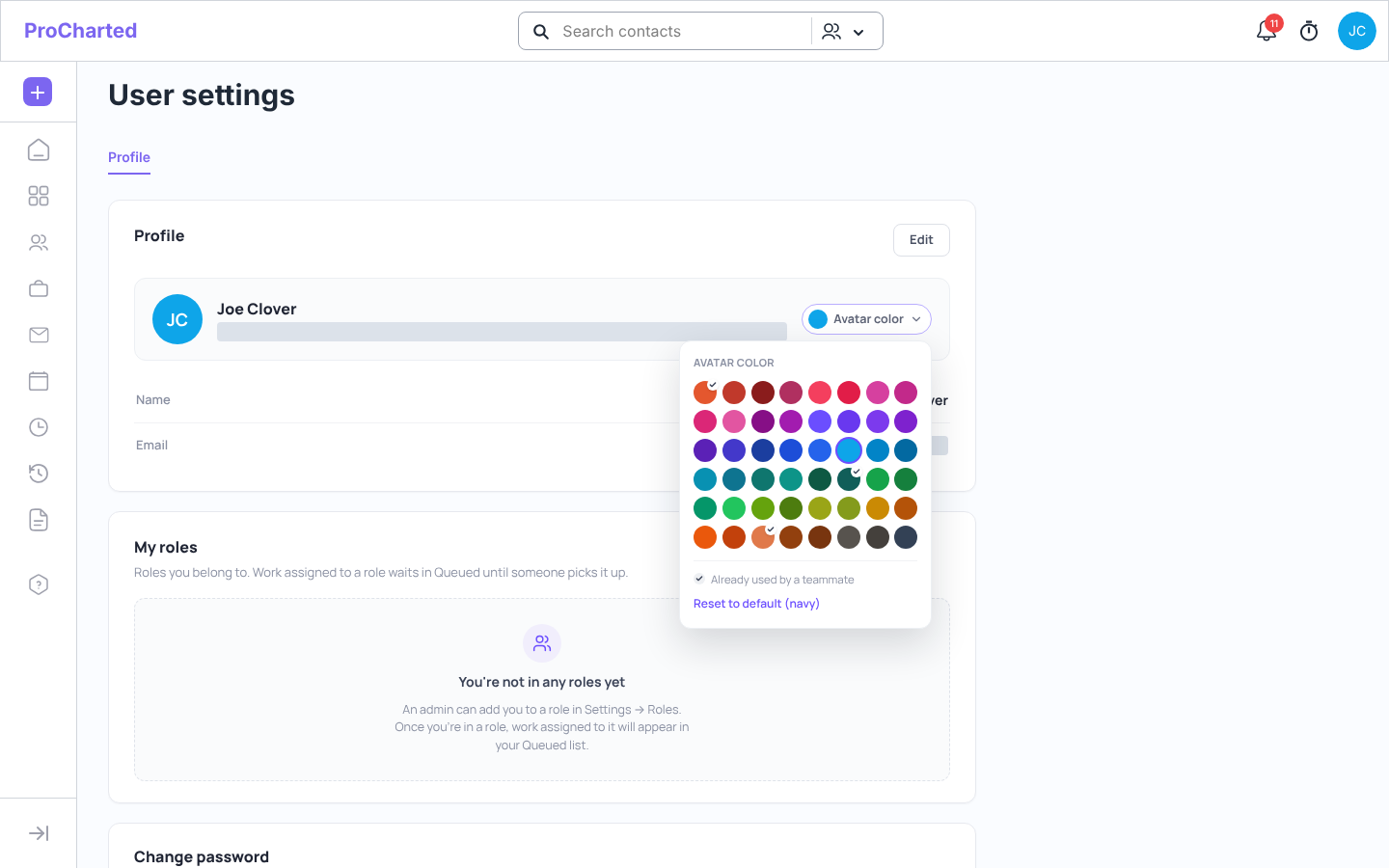
- Click your avatar (top right) > Profile. The User settings page opens.
- Here you can:
- pick your Avatar color. A tick means a teammate already uses that colour, but you can still choose it. Reset to default (navy) goes back to the original colour.
- click Edit to change your First name and Last name, then click Update.
- see My roles – the roles you belong to. Work assigned to these roles waits in Work > Queued until someone picks it up. Only an admin can add you to a role.
Change your password
- Sign out (avatar > Sign out).
- On the sign-in page, use the Forgot my password link to set a new password.
What you get notified about
- Mentions – someone @mentions you in a note.
- Comments – new notes on work and clients you follow.
- Assigned to me – you’re assigned work or a subtask.
- Completed subtasks – a subtask on your work is completed.
- Reminders – reminders set on work items.
- Automations – automations and email sequence replies.
- Client uploads – a client sends files through the client portal. The people working on that client’s open work are told (or the team members the client is assigned to, otherwise the admins). Uploads sent within 30 minutes are grouped into one notification and one email.
The bell
The bell at the top right shows how many unread notifications you have. Click it to see your newest notifications in a drop-down:
- Click a notification to open what it’s about.
- Mark all as done clears them from your inbox.
- The gear opens your notification settings.
- View all notifications opens the Notifications page.
The Notifications card on your Home page shows the latest ones too.
The Notifications page
- On the left: Inbox and Done, and the categories above with their unread counts.
- At the top: Search by client, work item or person, and All / Unread.
- Notifications are grouped by day (Today, Yesterday, Earlier this week, Earlier).
- Point at a notification to open it, mark it read or unread, or click Done. Done moves it out of your inbox to Done; it isn’t deleted, and Undo brings it back.
- Tick several notifications to mark them read or unread, move them to Done, or delete them.
- Mark all as done asks first (for example “Move all 12 notifications in your inbox to Done?”) and offers Undo for a few seconds afterwards.
Opening a work item marks its notifications as read.
Choose your notifications and emails
- Click the gear (in the bell drop-down or on the Notifications page). The Notification settings window opens (“Choose what you hear about, and how. Only you are affected.”).
- Turn Email me about notifications on or off. When it’s on, check the address under Send them to.
- For each kind of notification (Notify me when…), tick In ProCharted and/or Email. Mentions and automations always show in ProCharted.
- Click Save.
Notification emails come from ProCharted, and each kind has its own subject with the news first, for example “Reminder: 2025 Personal Tax Return is due Oct 21”.
Staying signed in
For your security, ProCharted signs you out after 1 hour without any activity. A few minutes before that, a window says Your session is about to expire, with a countdown. Click
Stay signed in to keep working, or Sign out to sign out now. If you don’t click anything, you’re signed out when the countdown ends; just sign in again.
Good to know
- Your avatar colour is the same setting an admin can change in Settings > Team.
- The 1-hour limit can’t be changed. Stop and confirm a running timer before you leave ProCharted for a long time.
Related articles
- Welcome to ProCharted: a quick tour
- Team members, access levels and permissions
- Roles and queued work
- Work item notes
- Share files and get documents signed through the client portal
- The Home page