
Getting started
Welcome to ProCharted: a quick tour
Find your way around ProCharted – the left menu, the Create menu, the search box, the Help button and your avatar menu – and see how clients, work, time and invoices fit together.
The left menu
The left menu is always on the left of the screen. Click Minimize menu at the bottom to show icons only, and click the arrow again to show the names. With icons only, point at an icon to see its name.
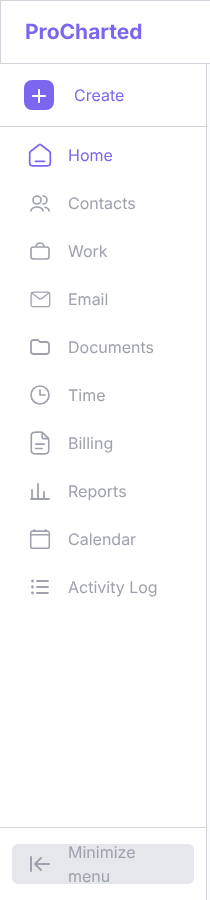
From top to bottom:
- Create – the purple + button. Use it to add something new from anywhere (see below).
- Home – your start page: overdue work, what’s due today, upcoming deadlines, work you can pick up, your latest notifications and client emails.
- Contacts – your clients (individuals and organizations). Open one to see their profile.
- Work – every work item in the firm, with tabs for Active Work, My Work, Queued, Completed and Archived.
- Email – connect your own email (Outlook / Microsoft 365) and read your mail.
- Documents – the files of all your clients in one place, and the recycle bin.
- Time – all time entries, and whether they are billed, unbilled or non-billable.
- Billing – invoices and payments.
- Reports – ready-made reports on work, time and billing, with Export to Excel.
- Calendar – work shown on its due date, by day, week or month.
- Activity Log – a history of who changed what across the firm.
Some items, such as Billing, Reports and Activity Log, only show if your admin has given you that permission.
The Create menu
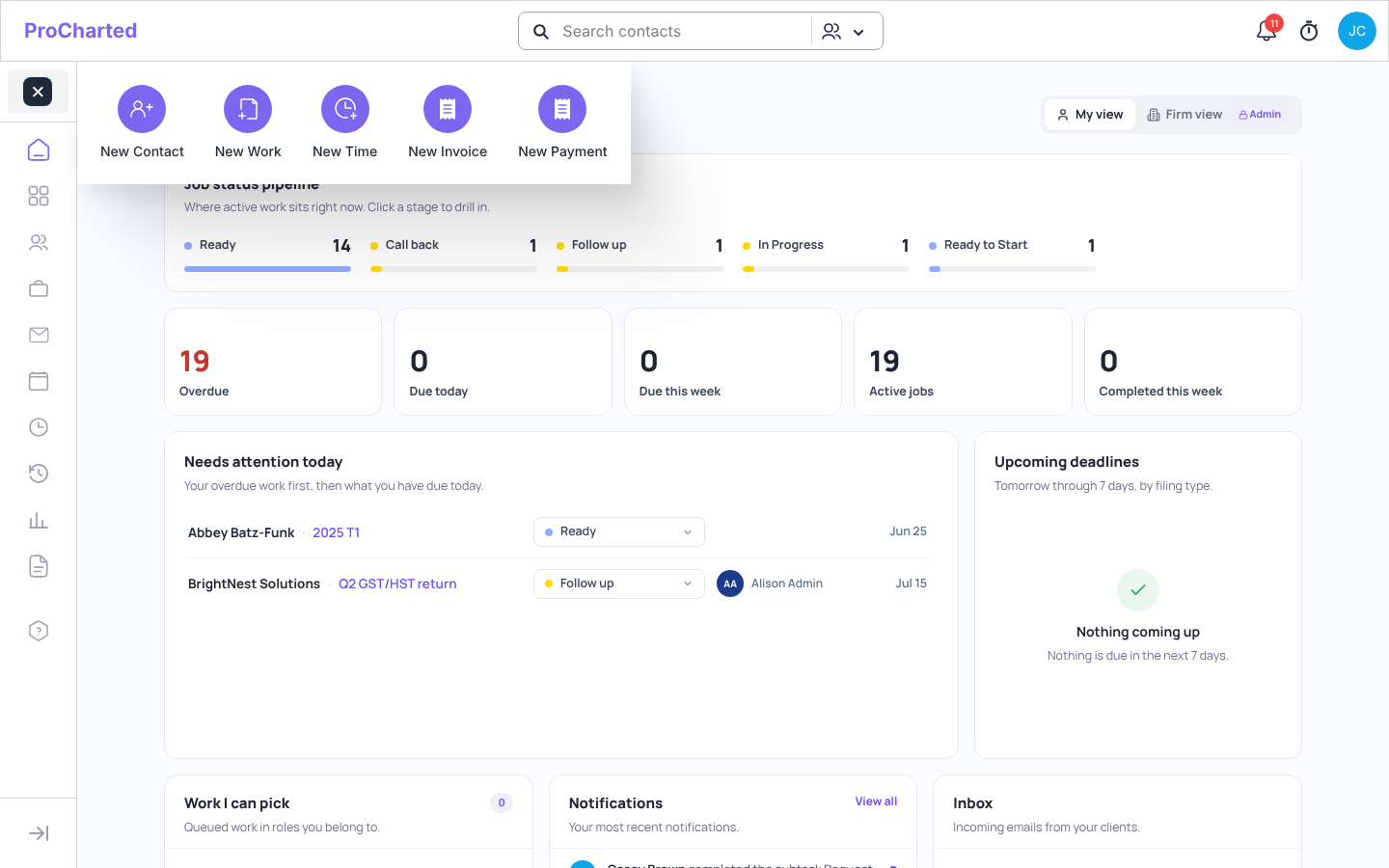
Click Create (the purple +) to open the Create menu: New Contact, New Work,
New Time, New Invoice and New Payment. New Time opens Add time for time you already worked (or click Start a timer instead).
The top bar
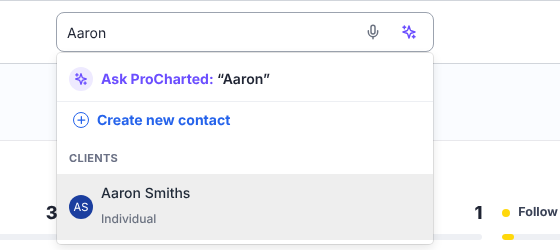
- Search box (“Search or ask a question…”) – type a name to find a client or a work item; results are listed under Clients and Work items. With AI switched on, the first row Ask ProCharted answers questions about your firm’s work (see AI features). The microphone lets you speak instead of typing, in browsers that support it.
- Bell – the red number shows your unread notifications. Click it to see the newest ones.
- Stopwatch – start a timer for a client and a work item. While it runs, the time shows in the top bar; point at it to see which work it is for.
- Your avatar (your initials) – opens your personal menu.
Get help
The round ? button at the bottom right of every page opens ProCharted help. Ask how to do something in your own words, or pick a suggested question such as How do I add a client?. To tell the ProCharted team about a problem, click Report a problem.
Your avatar menu
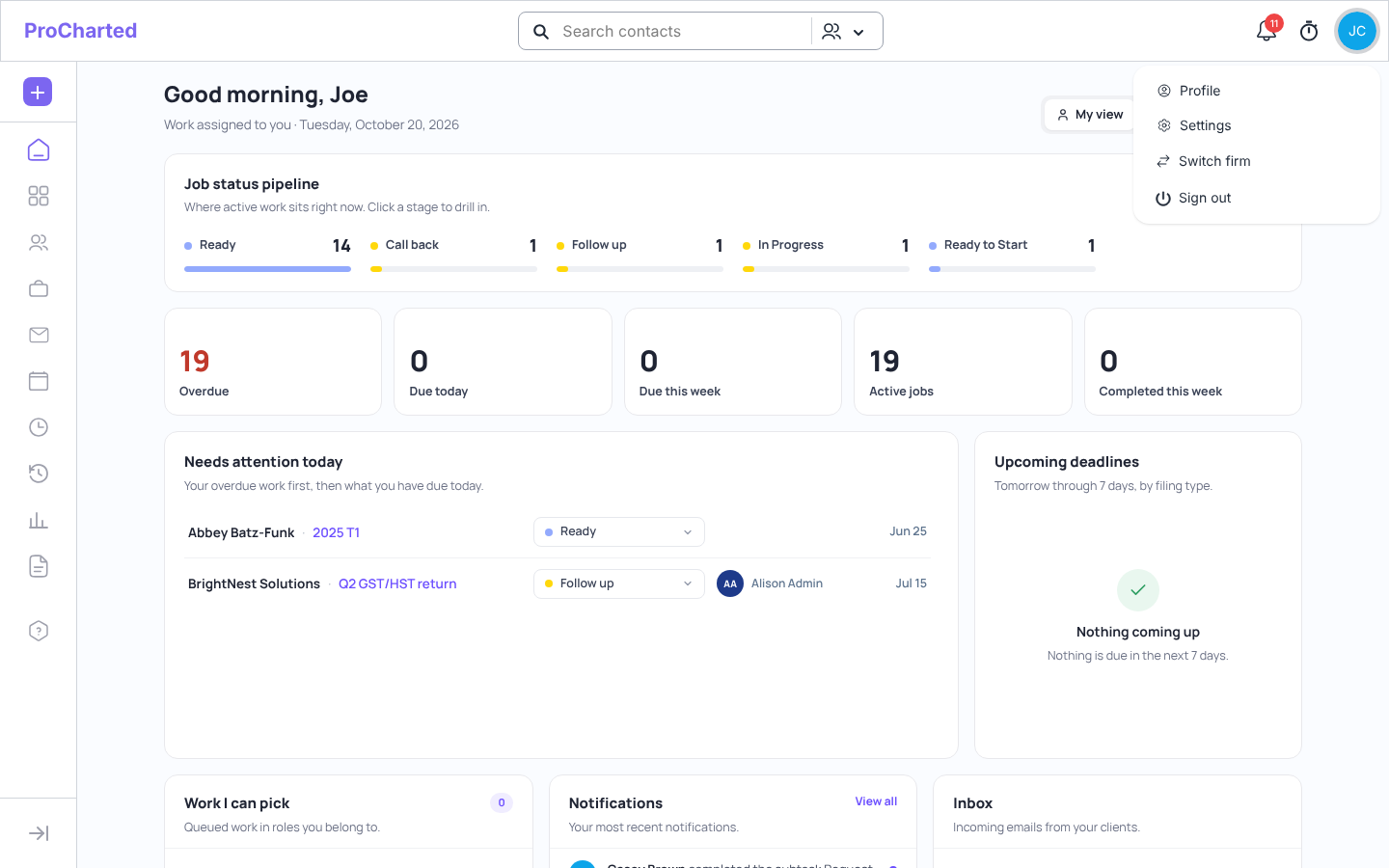
Click your avatar at the top right:
- Profile – your name, avatar colour and the roles you belong to.
- Settings – your firm’s settings: company details, templates, statuses, work types, team and more. You only see it if you are an admin or have the View Settings permission.
- Switch firm – if you work for more than one firm, change firm here.
- Sign out.
How it all fits together
- Clients – everything starts with a client in Contacts.
- Work items – for each job (a personal tax return, monthly bookkeeping…) you create a work item for the client. Its work type decides which statuses and defaults it gets.
- Subtasks – the steps of the job. A subtask template fills them in for you.
- Statuses – show where each work item is: Ready, In Progress, Waiting or Completed, or one of your own statuses inside those stages.
- Time – track time on the work item with the timer.
- Invoices – bill the client, adding their billable time to the invoice.
Good to know
- For your security, ProCharted signs you out automatically after 1 hour without any activity. Just sign in again.
- Your admin decides what you can see. If a menu item or page you need is missing, ask them.
- Looking for the old Dashboard? Use Home for today’s work and Reports for overviews.
Related articles
- Set up your firm: a checklist
- The Home page
- The Work page
- Create new work
- Time tracking
- Your profile and notifications
- AI features
- Find files across all clients: the Documents page