
Work items
Inside a work item
A tour of a work item: the Summary page with details, time budget, subtasks and notes, what each tab is for, and how to set a reminder.
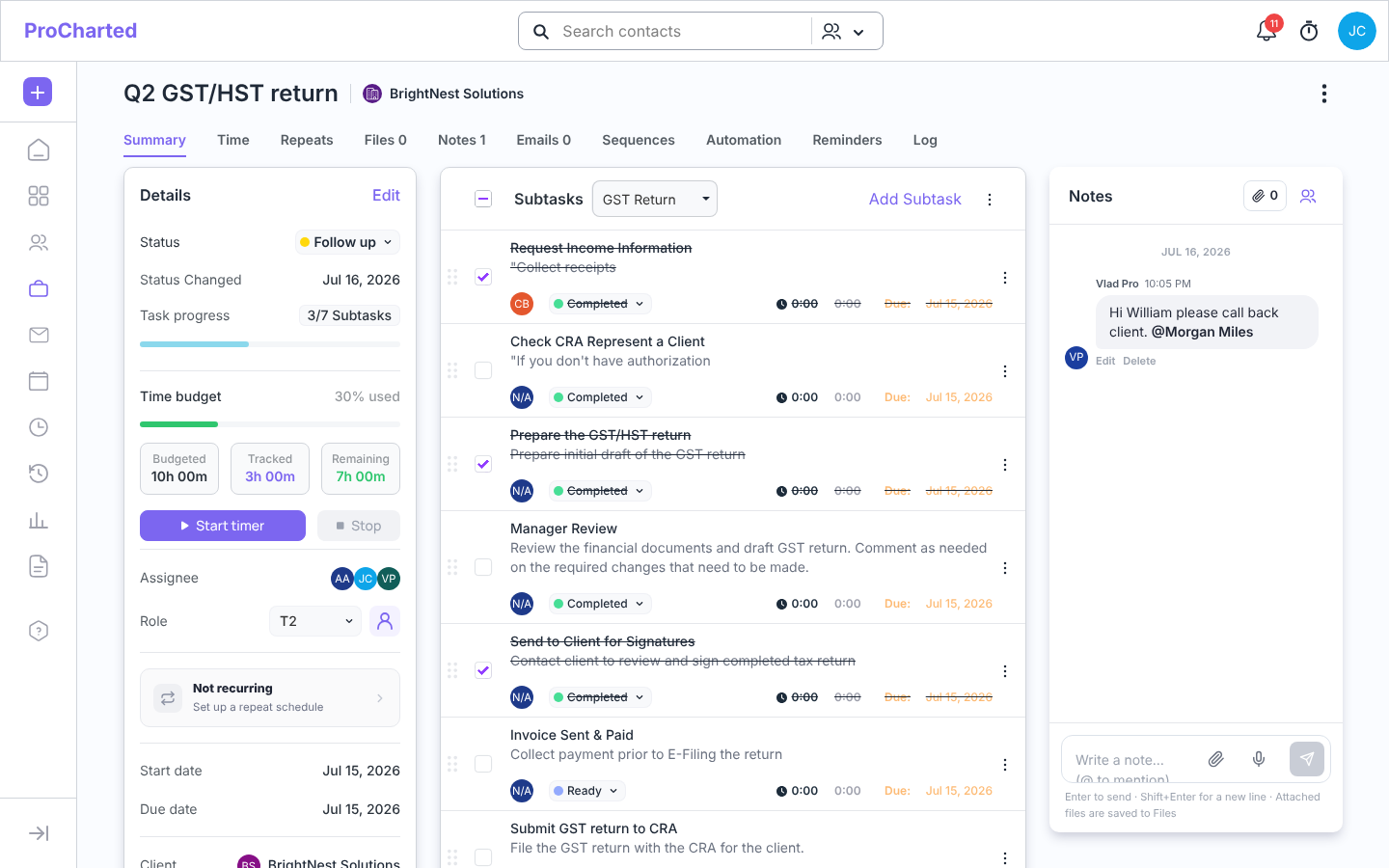
The header
- The work name, then the client chip. Click the client to open the client’s profile.
- A Recurring pill if the work is on a repeat schedule.
- The ⋮ menu (top right): Reassign and Archive.
Summary: the Details card
- Status – click the pill to change it. The list shows the statuses of this work’s work type. Status Changed shows when it last changed.
- Task progress – how many subtasks are ticked, for example “3/7 Subtasks”.
- Time budget – the hours planned for this work and how much is used:
- Budgeted, Tracked and Remaining boxes, plus “N% used”.
- The bar is green up to 60% used, yellow up to 80%, and red above that.
- Click Budgeted to open Edit Budget. There you change the Work Budget and set a budget in hours for each subtask, then click Save.
- Start timer starts tracking your time on this work; Stop ends it.
- Assignee and Role – who does the work. If the work waits for a role you belong to, click the person button next to Role (“Assign this role to me”) to take it. To reassign, click the assignee’s avatar(s): Reassign work to: lists your team. Tick up to 5 people (“N / 5 selected”) and click Save. The ⋮ menu > Reassign does the same.
- Not recurring – Set up a repeat schedule (or the schedule, if it repeats) – click it to go to the Repeats tab.
- Start date, Due date, Client and Work type.
Click Edit at the top of the card to change the client, work type or assignee.
Summary: subtasks
The middle of the page lists the Subtasks: the steps of the job. Each has an assignee, a status, its own timer and a due date.
- Tick a subtask’s checkbox when it’s done. Its status changes to Completed.
- When all subtasks are ticked, the work item’s status changes to Completed too, as long as the work type has a Completed status.
- You can still change any status by hand afterwards.
See Subtasks and subtask templates.
Summary: the Notes panel
On the right, Notes works like a chat. Type in “Write a note… (@ to mention)” and press
Enter. Type @ to mention a teammate, or click Reply under a note to answer it. The paperclip attaches a file (it’s saved to Files) and the microphone lets you dictate. See
Notes on work items and clients.
The tabs
| Tab | What it’s for |
|---|---|
| Time | All time tracked on this work, with billable and unbilled totals and Start timer. |
| Repeats | Set up, edit or stop a repeat schedule, and see every work item in the series. |
| Files | Files for this work (they are also in the client’s Files tab). Click Upload to add files or New folder to make a folder. See Keep a client’s files in folders. |
| Notes | All notes as cards, with search and Add note. |
| Emails | Emails linked to this work; Compose email writes a new one. |
| Sequences | Automatic email series to the client, which stop when the client replies. |
| Automation | Rules that act on their own, for example when the due date is reached, notify someone. |
| Reminders | Notify someone a number of days before or after the start or due date. |
| Log | The history of this work item: who changed what, and when. |
Numbers on the tabs (for example Files 2) show how many items each holds.
Set a reminder
- Open the Reminders tab and click Add reminder.
- Under When, type the number of days, then choose before or after, and the due date or start date. For example: 5 Day(s) before the due date.
- Check the line under it, for example “Goes off on Wed, Oct 28, 2026 at 9:00 AM.”
- Under Notify, choose the team member.
- Click Create.
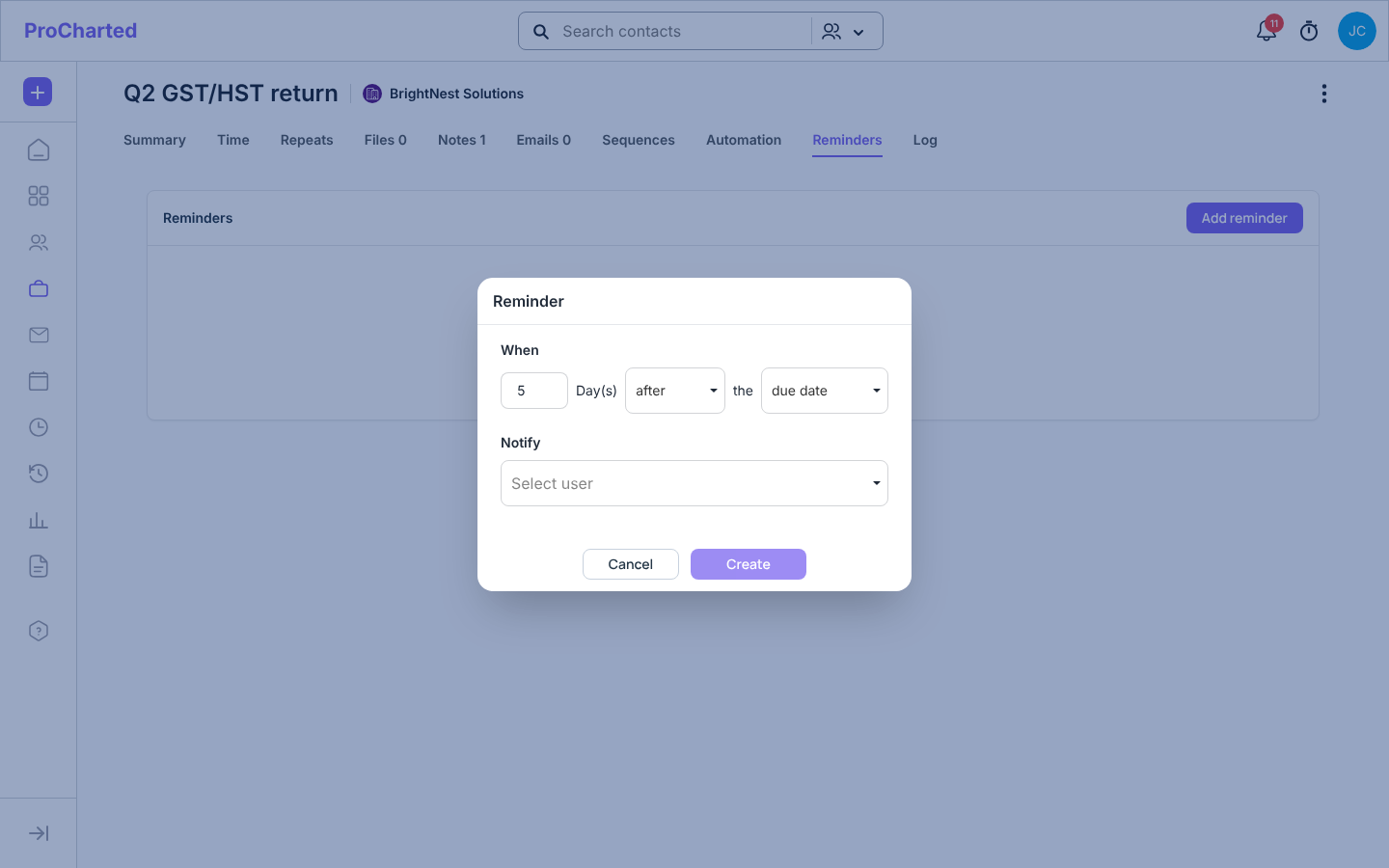
On that day the person gets a notification (the bell, top right) and, if they have email notifications turned on, an email. Each reminder in the list can be edited or deleted.
Related articles
- Create new work
- Subtasks and subtask templates
- Automations: let ProCharted do the routine steps
- Track time with the timer
- Recurring work: make work repeat automatically
- Email sequences: automatic reminder emails to clients
- The Activity Log – see who changed what